


Taking online orders
Wix Restaurants: Creating Discounts for Your Customers
Important:
This article is about the original Restaurants Orders app.
We've released a new online ordering app. Learn how to add and set up the new Wix Restaurants Orders (New) app.
Create different types of discounts to encourage your customers to order from your restaurant.
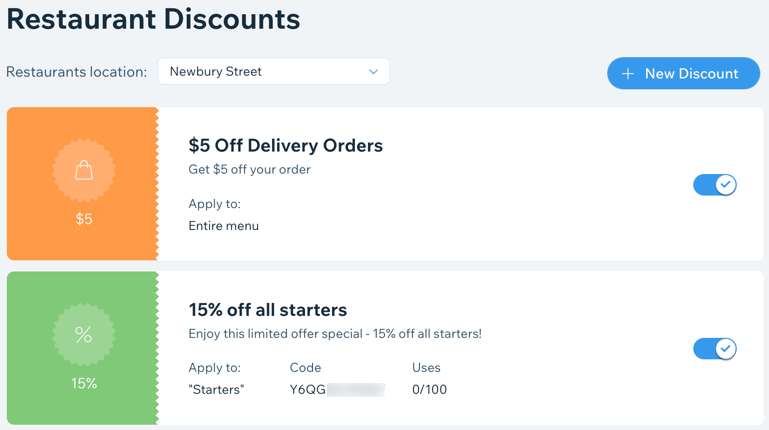
Offer your customers percentage or price reduction discounts on a dish, menu section, or your entire menu. You decide exactly what the discounts can be applied to and when customers can use them in an order.
In this article, learn more about:
Creating a restaurant discount
Create a restaurant discount from Marketing & SEO in your site's dashboard.
Note:
When more than one discount applies, customers get multiple discounts. For example, if you have an enabled daily lunch discount and a Sunday discount, both will apply on Sunday at lunchtime. To avoid this, make discounts times mutually exclusive (e.g. set the lunch discount for Monday to Saturday). You can also change the time for a discount you offer.
To create a discount:
Go to Marketing & SEO in your site's dashboard.
Click the Restaurant Discounts tab on the left.
Click + New Discount.
Select a discount type:Percentage off item: Offer a percentage discount (per item).
Amount off item: Offer a fixed price discount (per item).
Amount off order: Offer a discount on the total price of the order.
Create your discount:Name: Enter a name for the discount.
Discount: Enter the percent or amount you're offering to customers.
Description: Explain to customers what the discount applies to.
Note: Customers see this description during checkout.
Set the conditions for your discount:(Optional) Minimum order price: Offer a discount to orders that are over a certain amount.
Delivery type: Choose the delivery types where the discount applies:Delivery: Discount applies for delivery orders.
Pickup and Contactless Dine-in: Discount applies for customer pickup and contactless dine-in orders.
Platform: Choose the platforms where the discount applies:Site: When customers order from your restaurant site.
Mobile (Web & App): When customers order on their mobile phones.
Phone order: When you're taking order from customers on the phone.
Apply to: Select what restaurant items the discount applies to and click Apply:Entire menu: All items on your menus are discounted.
Sections: Select the checkbox next to menu sections to which the discount applies.
Dishes: Select the checkbox next to menu items to which the discount applies.
Available: Apply the discount to your opening hours, or specific days and times and click Apply.
(Optional) Click the Discount Coupon toggle if you want customers to enter a coupon code during checkout to receive the discount. Then, select the usage limit for your coupon code:Unlimited: Coupon can be used an unlimited number of times.
Limited: Enter the number of times the coupon can be used (e.g. select 100 to create a coupon good only for the first 100 customers that use it in an order).
Click Save.
Want to learn more?
Check out the course in Wix Learn about turning one-time customers into regulars.
FAQs
Click a question below to learn more about discounts.
What's the difference between a percentage and price discount?
Below are some examples of the different types of discounts you can offer:
Percentage off item: Your desserts are priced at $10. You create a 30% discount and apply it to all desserts. When a customer orders 3 desserts, they automatically get a $9 discount - $3 off each dessert. If you prefer to allow customers to get only one discount (e.g. $3), then create an Amount off order discount and apply it to the dessert section of your menu.
Amount off order: You create a $10 discount and apply it to the entire menu. This means that customers get a $10 discount on any order. If the customer's total is less than $10, their order is free. To fix this, you can set a minimum order total, so that customers get $10 off on all orders above the amount you set.
How do I know if a customer used a discount?
If a customer uses a discount, the discount name and description will appear in your customer's order:

Can I share a discount with an email marketing campaign?
Yes, after you create your discount, click Promote this discount to let your customers know about it.

Can I deactivate a discount?
Once you've created discounts for your restaurant customers, you can choose to activate or deactivate them at any time.
To deactivate a discount:
Go to Marketing & SEO in your site's dashboard.
Click the Restaurant Discounts tab on the left.
Click the toggle on the relevant discount to change the status:Enabled: Discount is activated and your customers can use it.
Disabled: Discount is deactivated and your customers cannot use it.
