


Setting up Photo Albums
Wix Photo Albums: Organizing Your Album
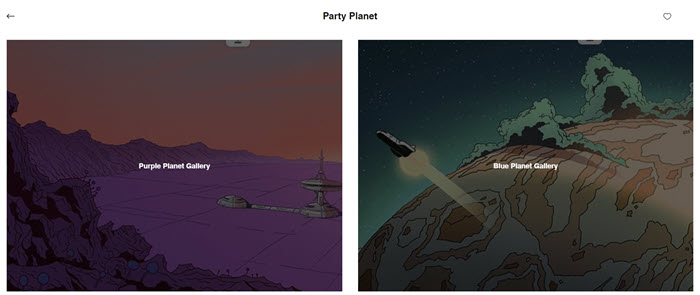
Each photo album that you create is made up of a cover page and album galleries. Album galleries display your album's photos. You can add more galleries to separate between different themes and reorganize them at any time.
In this article, learn more about organizing:
Organizing your album galleries
Structure your album galleries however you'd like. Add new galleries, reorder them, rename, and duplicate them.
To organize your album galleries:
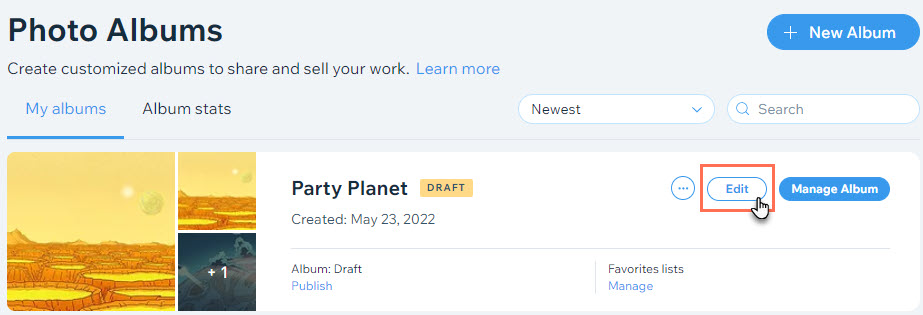
Go to Photo Albums in your site's dashboard.
Click the Edit next to the relevant album.
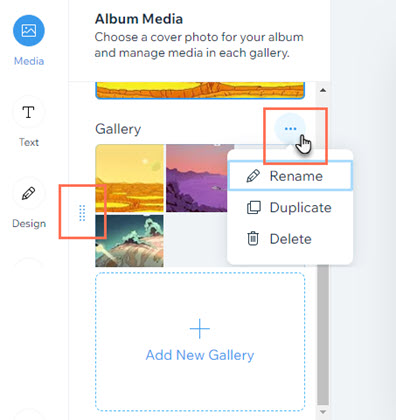
Organize your album using the following options:Add a new gallery: Click Add New Gallery on the left.
Reorder your galleries: Click the Reorder icon to the left of the relevant gallery and drag it up or down the list.
Rename a gallery:Click the More Actions icon above your gallery and click Rename.
Enter the new gallery name and click Save.
Duplicate a gallery: Click the More Actions icon above your gallery and click Duplicate.
Delete a gallery:Click the More Actions icon above your gallery and click Delete.
Click Delete to confirm.
Organizing photos within an album gallery
Arrange the photos inside individual album galleries to suit your needs. Move photos between galleries, arrange photos in alphabetic or reverse alphabetic order, and choose where newly added photos go.
To organize photos within an album gallery:
Go to Photo Albums in your site's dashboard.
Click the Edit next to the relevant album.
Hover over the album gallery you want to organize and click Manage Media.
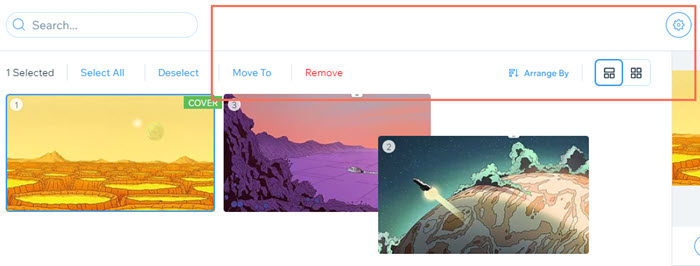
Organize your photos using the following options:Reorder photos: Click and drag a photo into your preferred position.
Move photos to another gallery:Select the photos you want to move.
Click Move To on the top bar.
Select the gallery you want to move the files to.
Arrange photos: Arrange your photos in alphabetic or reverse alphabetic order per image title or file name:Click Arrange By.
Select your preferred arrangement option.
Choose where new photos go: Decide whether to show newly added images at the beginning or the end of the gallery:Click the Settings icon on the top right.
Select your preferred option.
Choose what title new photos have: Decide whether photos have no title or the same title as their file name:Click the Settings icon on the top right.
Select your preferred option.
Delete a photo: Hover over the photo and click the Delete icon .
.
Tip:
Your albums are displayed in the order they were created. You can reorder them manually to highlight a specific album, or set them to display the newest or oldest album first.