


Working with Wix Payments
Wix Payments: Understanding the Status of Your Account
Wix Payments is not yet available for all users.
After connecting Wix Payments as a payment method, your account can have one of the below statuses, depending on a number of factors (e.g. whether you've filled in all the relevant information, or if you account requires verification).
To check your account status:
Go to Accept Payments in your site's dashboard.
Check the status next to the relevant payment method.
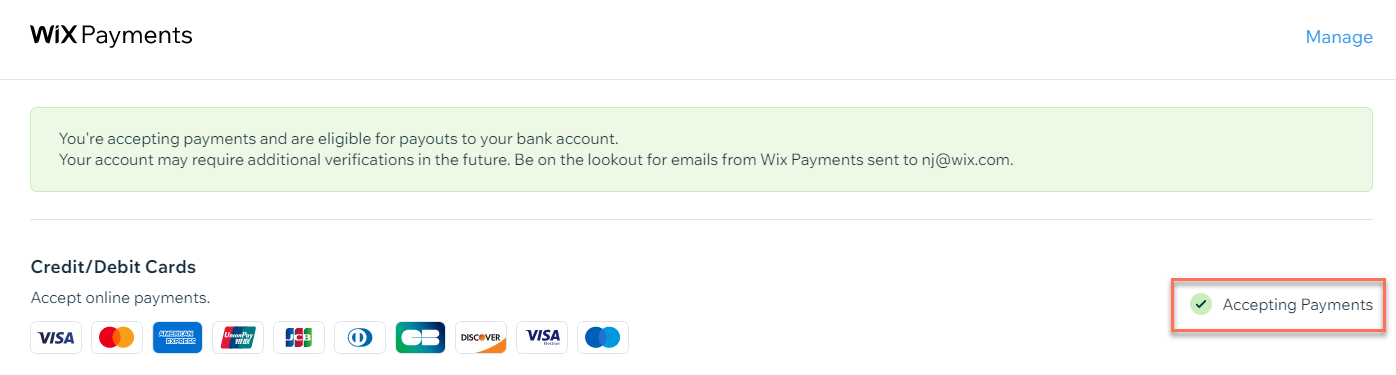
Select a status below to learn more:
Pending
You have connected your Wix Payments account to your site, but you cannot yet accept payments.
To start accepting payments, you need to:
Upgrade it to a Wix Premium or Studio site plan that allows you to accept payments.
Accepting Payments
You have connected your Wix Payments account to your site, but you have not completed the account setup or verification process.
You can accept payments (customers can complete their purchases), but you cannot yet receive payouts to your bank account.
To complete your account set-up:
Go to Accept Payments in your site's dashboard.
Click Complete Setup under Accept Credit/Debit Cards with Wix.
Click Complete Account Setup.
Fill in the relevant information and click Submit.
Learn more about account set-up.
Important:
Wix is required to review and verify the personal and business information you provide as well as your site content. In some cases, we may need your cooperation in order to complete the verification process.
From the time of the first transaction on your site, you have 30 days to complete your account setup or verification process. If you do not complete these processes within 30 days, your Wix Payments account will be suspended and you will not be able to accept payments through your site.
Active
You have connected your Wix Payments account and your site is accepting payments. You are all set to receive weekly payouts to your bank account when applicable.
Note: After your account is active, you may still be required to go through the verification process.
Suspended
You have not completed account setup or verification process within 30 days as required. You can reactivate your account by completing the account setup / verification process.
While your account is suspended, you cannot receive any payments, or process refunds, through Wix Payments.
To complete your account set-up:
Go to Accept Payments in your site's dashboard.
Click Complete Set-up under Accept Credit/Debit Cards with Wix.
Click Complete Account Set-up.
Fill in the relevant information and click Submit.
Closed
We found that your site doesn't comply with our Terms of Use, or that you offer prohibited products/services.
Learn more about closed accounts.
Blocked
We have investigated and confirmed fraudulent activity on your account. You cannot accept payments.