


Using the Wix app for Wix Events
Wix Events: Managing Guests and Events Using the Wix App
After creating your event, you can manage your guests directly from your mobile device. Update guest arrival statuses, invite more people and edit your event's details on the spot.
In this article, learn more about:
Managing the guest list
From the Wix app, you can manually add guests who purchase tickets offline or are registered via an external site (as well as in person). You can then sort and filter the guest list in different ways (e.g. by attendance or ticket type).
To manage the guest list:
Go to your site in the Wix app.
Tap Manage
 at the bottom.
Tap Events.
Tap Published Events.
Select the relevant event.
Tap the Manage tab.
Select Guest list.
(Optional) Tap the Filter icon
 to filter your guest list.
Update a guest's arrival status:RSVP: Tap the Check-in icon
 to change the status to "Arrived".
Ticketed: Tap the Scan icon at the top to scan tickets or tap the Check-in icon to change the status to "Arrived".
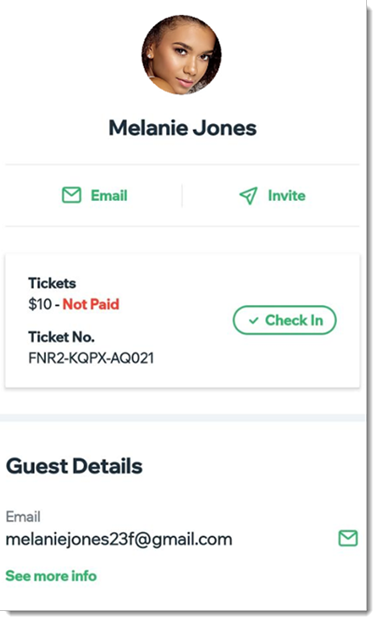
(Optional) Tap a guest to view their details, updated ticket payment status, and more.
Inviting guests to an event
You can invite guests at any time after creating an event. You have several options when contacting your guest, including via email campaign, SMS, social media, and more. This is a great way to spread the word about an event you're showcasing and to attract a larger audience.
To invite guests to your event:
Go to your site in the Wix app.
Tap Manage
at the bottom.Tap Events.
Tap Published Events.
Tap the More Actions icon
 next to the relevant event.

Tap Invite guests.
Select an option:Email Wix Contacts: Send an email directly to the contacts saved in your Wix account (site members, customers, contacts).
Send an SMS: Send the link and invitation code to people by SMS (text message)
Copy Link: Copy the link and paste it into a new message in any application. When tapped, guests see this invitation:
 Share via Social & More: Send the link and invitation code to people by social media, email, and more.
Tip:
As a member, you can invite friends and family to join an event with you by tapping the Events tab and then the Share icon  on the relevant event.
Editing your event
With the Wix app, you can edit any of your events, from anywhere. This includes changing the name and description of the event and editing the start and end date. You can also create and sell tickets directly from your mobile device.
To edit an event you have created:
Go to your site in the Wix app.
Tap Manage
at the bottom.Tap Events.
Tap the More Actions
icon by the specific event.Tap Edit event or Edit draft.
Edit the fields you want to change and tap Save.
Note: Tap Manage Tickets to add new ticket types or edit existing ones.
Need to cancel or close registration?
Tap the More Actions icon
 next to the relevant event and tap Cancel event (your guests will be notified of the cancellation).
Learn how to open or close your registration settings.