


Wix Donations
Wix Donations: Managing Donations
Keep track of the donations you receive for your campaigns. You can view your donations in a number of ways. In addition, you can make changes, such as canceling a recurring donation or adding a grace period for failed payments.
In this article, learn how to:
Add a grace period (for recurring donations)
Viewing donations you received
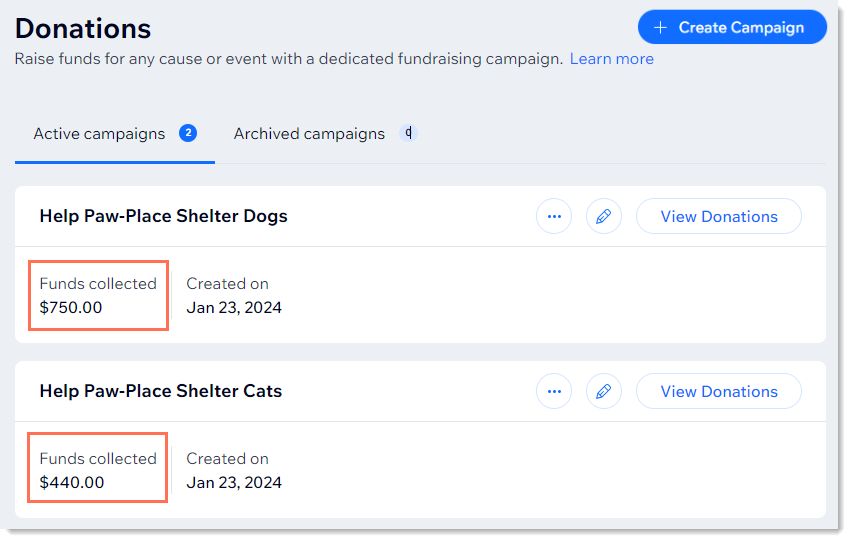
There are three places where you can view information about campaign donations. If you just want to check how much money was donated to each campaign, you can see that info in the Donations tab.
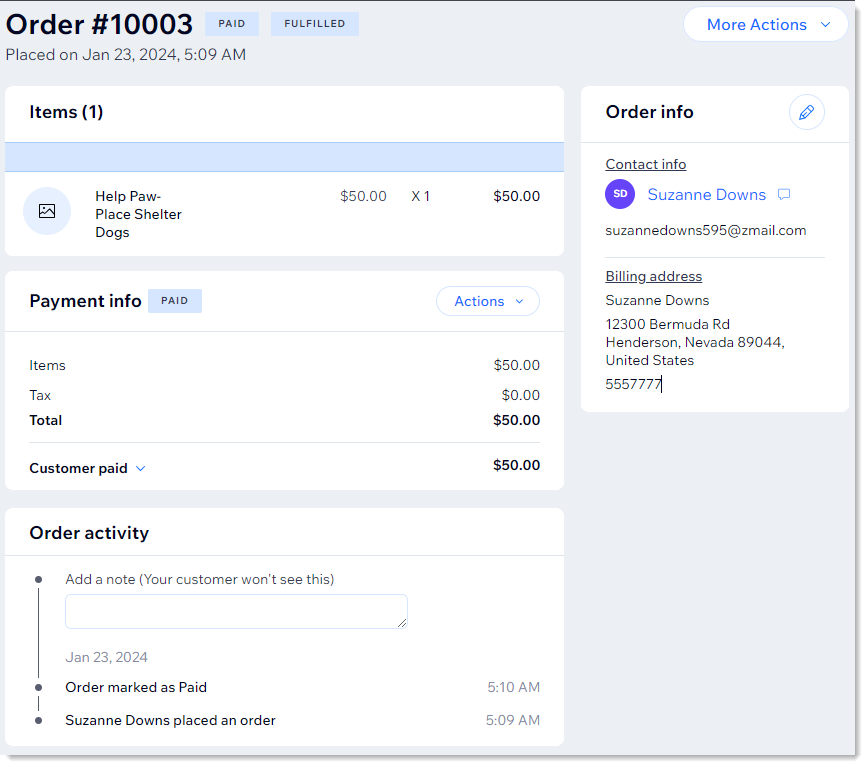
To view details about an individual donation, go to the Orders tab and click to select a payment. In the case of recurring donations (e.g. a monthly donation), a new order is created every payment cycle when payment is collected (e.g. every month).
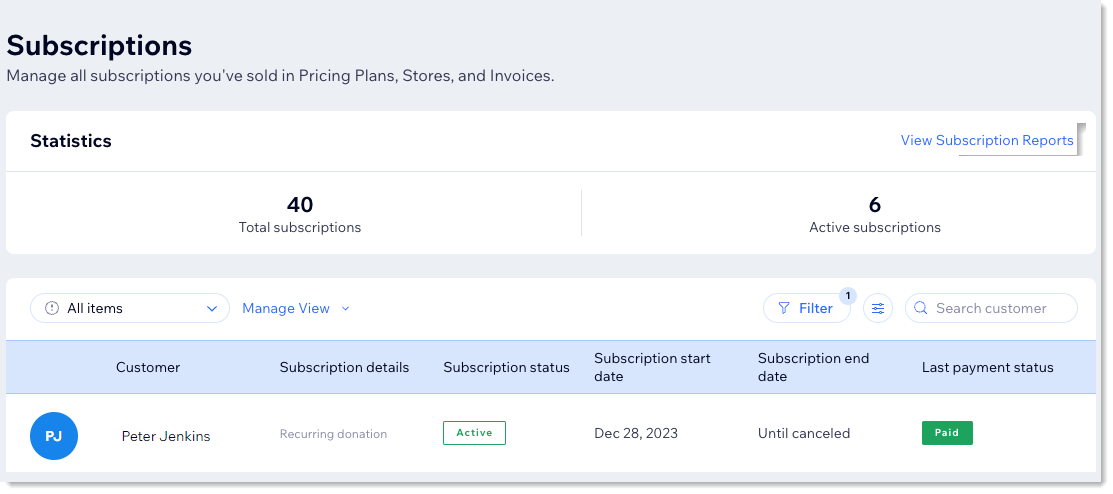
If you allow donors to make recurring payments, you'll be able to view and manage the recurring donation subscription in the Subscriptions tab.
Tips:
To find information about a donor's recurring donation (e.g. a monthly donation of $50 to your shelter dog campaign), go to the Subscriptions tab. To check a specific donation (e.g. that donor's June donation), you can do so in the Order tab.
To view donation analytics, go to your site's sales reports. If you have other kinds of sales, such as through Wix Stores or Wix Events, they will appear here, as well.
Showing customers how to update their payment method
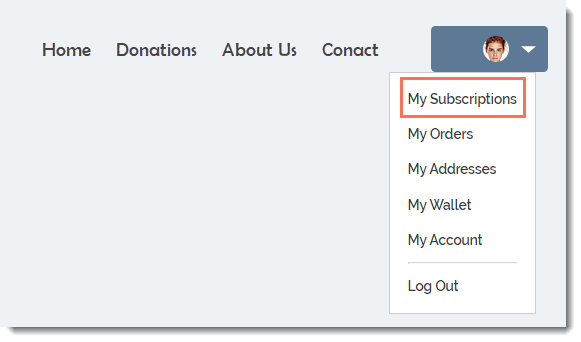
Customers can go to their personal Members Area in your site to make changes to their credit card or other payment details. After signing up and logging in to your site, they can select My Subscriptions in the Members Area.
They can then go to the relevant subscription and click the Update Payment Method link.
Learn how to add a Members Area to your site, if you don't already have one.
Canceling recurring donations
You can cancel a customer's recurring donation at any time. Your donor will receive an email letting them know about the change.
To cancel a recurring donation:
Go to the Subscriptions tab in your site's dashboard.
Select the subscription (recurring donation) you want to update.
Click Manage Subscription.
Click Cancel subscription.
Select Cancel now.
Click Yes, Cancel.
Changing the date customers are charged
By default, the charge date of recurring donations is determined by the date of the original donation.
You can change the date so that, for instance, the customer is charged on the 1st of every month instead of the 15th. Learn how to change the payment date for your customers' subscriptions.
Adding a grace period for failed recurring donations
If you collect recurring subscriptions (e.g. a monthly donation), you can set a grace period to allow donors more time if the recurring payment fails. This gives them extra time to resubmit payment before their donation is canceled automatically.
Learn how to set up a grace period.
Archiving a campaign
When a campaign is over, you can archive it. This removes the donation form from your live site and moves it to the Archived campaigns tab in the dashboard.
Important:
If your campaign is collecting recurring donations, cancel them before archiving your campaign.