top of page

Wix Contacts FAQ

Wix Contacts: Importing Contacts from a Gmail Account

Create an instant mailing list by importing your Gmail account contacts. You can choose whether to import all your Gmail contacts or selected contacts. You can have up to 200,000 contacts per site.

Note:

In order to be imported, each contact must include at least one of the following fields:

  • Phone

  • Email

  • Address

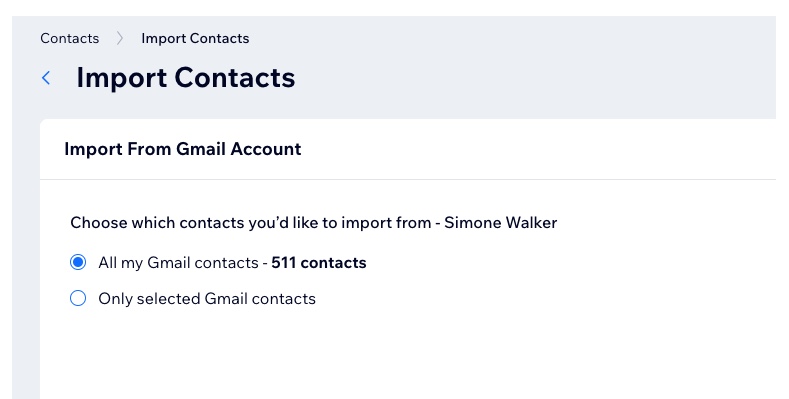
A screenshot of importing Gmail contacts

To import contacts from a Gmail account:

  1. Go to Contacts in your site's dashboard.

  2. Select Import contacts from the Import/Export drop-down at the top.

  3. Click Connect under Gmail account.

  4. Sign in to your Gmail account and click Continue.

  5. Select the checkbox to give Wix access to see and download your contacts. Then click Continue.

  6. Choose which contacts to import:All my Gmail contacts: All contacts are automatically imported.
    Only selected Gmail contacts: Use the drop-down to select the group of contacts (i.e. Gmail label) to import.
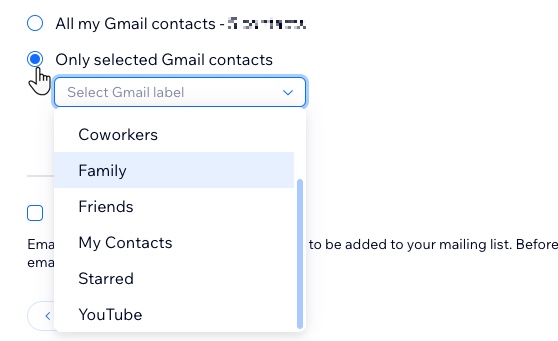
A screenshot of the selected gmail contacts dropdown

  1. (Optional) Select the Mark as email Subscribers checkbox.
    Note: If selected, all contacts uploaded in this batch will be marked as subscribers (people who have agreed to be added to your mailing list).

  2. Click Next.

  3. (Optional) Add a label by selecting an existing label or start typing to create a new label. Labeling helps keep your contact list organized.

  4. Click Import.

  5. Click Done.

Need A Professional Website?
Contact Us 
Today!

Wix Invoices: Creating an Invoice

Wix Invoices: About Wix Invoices

Wix Price Quotes: Converting Price Quotes into Invoices

Wix Price Quotes: Managing Your Price Quotes

Wix Price Quotes: Creating a Price Quote

Desktop POS Solutions: Selling to Clients Using POS Checkout

Desktop POS Solutions: Collecting Payment with the Dashboard Card Reader Solution

Desktop POS Solutions: An Overview

Desktop POS Solutions: An Overview

Wix Retail POS: Managing Your Store's Staff

Wix Retail POS: Managing Shift Management for Team Members

Wix Retail POS: Managing Your Customer List

Wix Retail POS: Viewing Your Sales Report

Wix Retail POS: Managing Your Sales History

Wix Retail POS: Creating Invoices

Wix Retail POS: Accepting Exchanges from Customers

Wix Retail POS: Issuing Refunds

Wix Retail POS: Managing Business Locations

Wix Retail POS: Services Displayed on the Retail POS Tablet

Wix Retail POS: Accepting Payment for a Booked Session

Wix Retail POS: Booking Services and Accepting Payment

Wix Retail POS: About Purchase Orders

Wix Retail POS: Offering Shipping or Delivery

Wix Retail POS: Managing Out-of-Stock Inventory

Wix Retail POS: Setting Product Visibility for POS and Desktop

Wix Retail POS: Managing Your Store Catalog

Wix Retail POS: Creating Product Categories

Wix Retail POS: Adding New Products to the Catalog

Wix Retail POS: Selling Store Products at Your POS

Wix Retail POS: Customizing Printed Receipts

wix experts
Graphic2Traffic web design
©
bottom of page