Managing your calendar & bookings
Wix Bookings: Changing the Assigned Staff Member of Scheduled Sessions
Offer the same service at different times with different staff members teaching each session. For example, you can schedule a crossfit class every Monday and Tuesday, but with two different instructors.
Important:
We are in the process of releasing a new version of the Booking Calendar. You may see a slightly different version in your calendar.
In this article, learn more about:
Changing staff members for all future sessions of classes or courses
Changing staff members for the full schedule of a class or course
Changing staff members for specific upcoming sessions
Offering appointment, class and course sessions but with different staff members gives you more flexibility when running your business. It also keeps things interesting for your staff and clients.
Note:
Choose whether to color code your sessions by service type or by staff member using the More Actions 
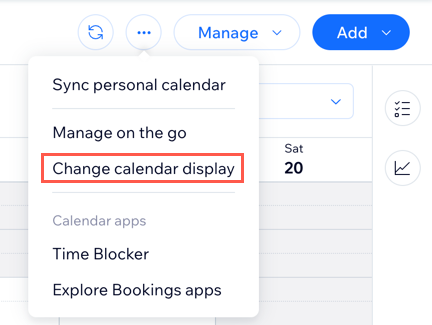
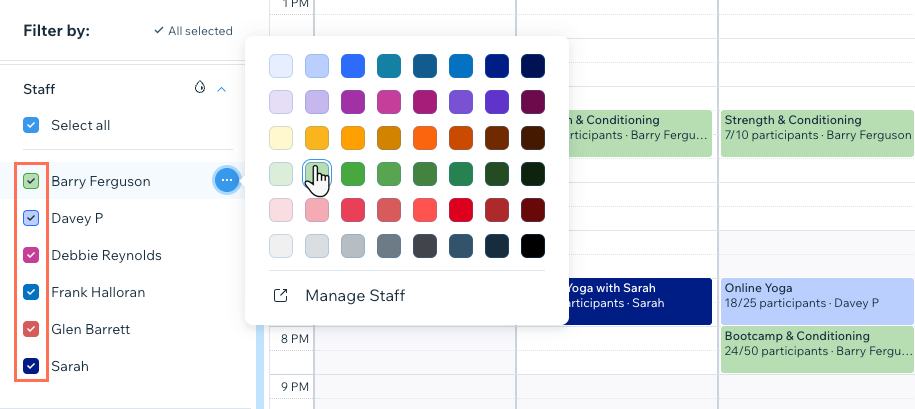
Customize your color coding by clicking the More Actions icon  next to the relevant staff member or service in the filter section of the Booking Calendar. Sessions with no participants booked or bookings which are not yet approved are not shaded in with color.
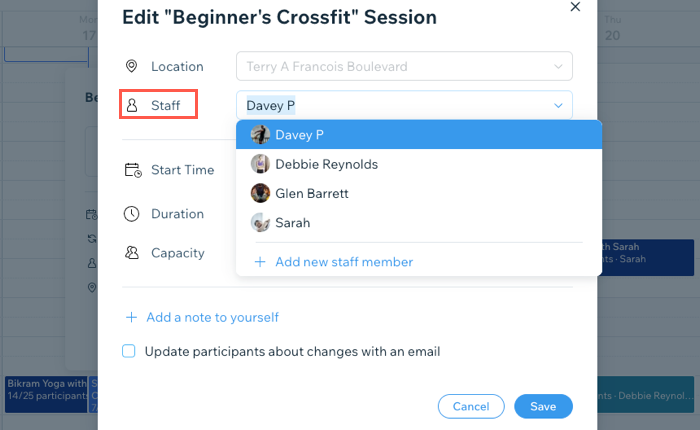
To change staff members for specific upcoming sessions:
Go to the Booking Calendar tab in your site's dashboard.
Click the relevant session in the calendar.
Click Edit.
(For classes and courses) Click This Session.
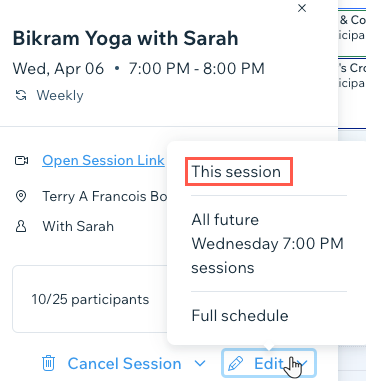
Select the required staff member from the Staff drop-down.
Click Save.
Changing staff members for all future sessions of classes or courses
You can assign all future class or course sessions at a specific time to different staff members. This is a great way to arrange shift swaps between staff members.
For example, one of your coaches usually takes the crossfit class on Friday evenings but is no longer available. You can assign another staff member to cover all future Friday evening sessions using the booking calendar.
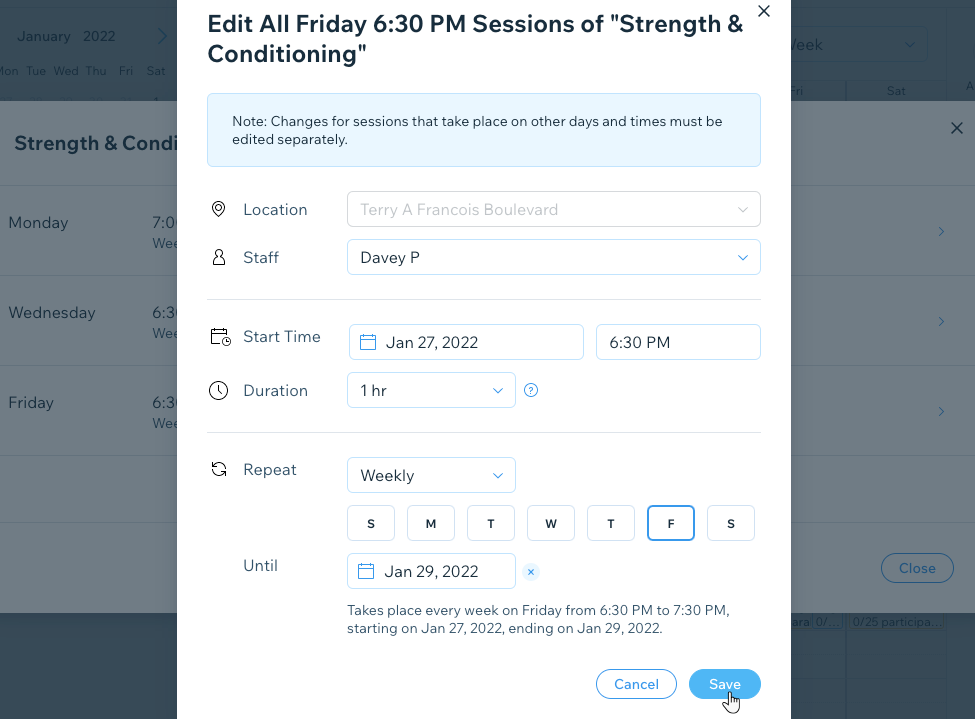
To change staff members for all future sessions of a class or course:
Go to the Booking Calendar tab in your site's dashboard.
Click the relevant session in the calendar.
Click Edit.
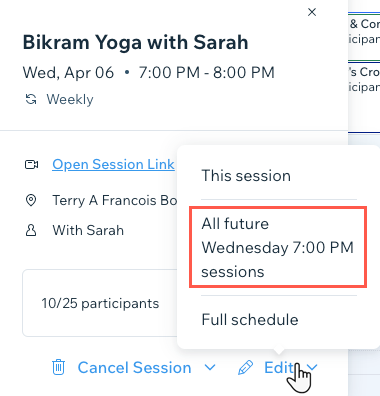
Select All future [day] sessions (e.g. All future Friday 9:30 PM sessions).
Select the new staff member you wish to assign from the Staff drop-down.
Click Save.
Changing staff members for the full schedule of a class or course
You can assign all future class or course sessions to a different staff member. This is a great way to expand your offerings as your business grows.
For example, when you start your gym, one crossfit class may be enough. As more members join, you may need to offer intermediate and advanced classes, with different instructors for each.
To change staff members for the full schedule of a class or course:
Go to the Booking Calendar tab in your site's dashboard.
Click the relevant session in the calendar.
Click Edit.
Click Full schedule.
Hover over the relevant recurring session and click Edit.
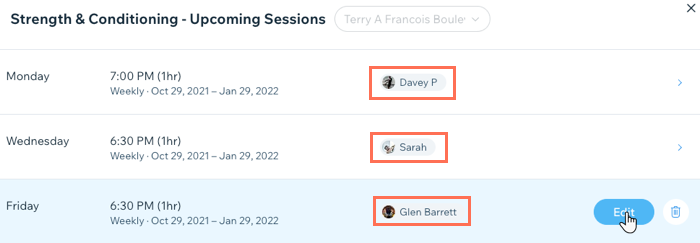
Click the Staff drop-down and select the new staff member(s).
Note: You can assign different staff members to cover all recurring sessions on a specific day of the week or to take over the course in its entirety.Click Save.