Managing your staff
Wix Bookings: Syncing Staff Members' Personal Calendars with the Bookings Calendar
Invite your staff members to sync their Bookings and personal calendars. This helps them keep track of their schedule and avoid double bookings.
In this article, learn more about:
Giving booking permissions to your staff member
Before you can invite a staff member to sync calendars, you need to give booking permissions. Once your staff member accepts the invite, they can sync their personal Booking calendar and manage their own clients and session.
To give booking permissions to your staff member:
Go to Staff in your site's dashboard.
Click the relevant staff member.
Click Give Permissions.

Add the email of your staff member.
Click Send invite.
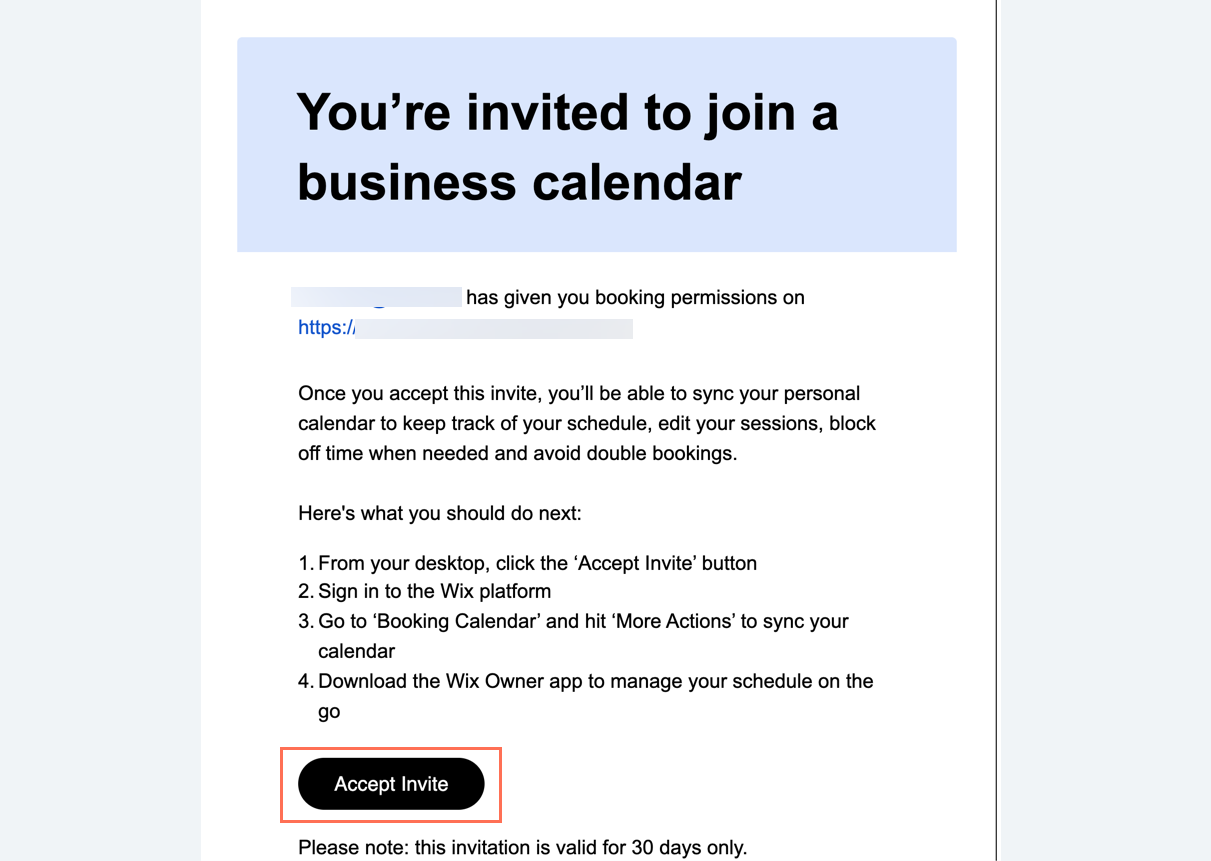
Ask the staff member to click Accept Invite in the email they receive.
Inviting your staff members to sync their personal calendars with Wix Bookings
Invite your staff members to sync their Bookings and personal calendars to make it easier for them to manage their schedules.
Note:
Each staff member needs their own individual email address to sync their personal calendar. It is not possible for multiple staff members to use the same email address.
To invite your staff members to sync their personal calendars:
Go to Staff in your site's dashboard.
Click the relevant staff member.
Click Invite to Sync Calendar.
(Optional) Edit the email to invite your staff member.
Click Email invite.
Ask the staff member to click Accept Invite in the email they receive.
What's next?
After syncing a staff member’s personal calendar, their private appointments appear as "Busy" in the Wix Bookings calendar and customers are unable to book appointments at these times.
Learn how to sync your own calendar
Accepting your invite to sync a calendar
When you send the invite to your staff member, you can run them through the process below to complete the sync of their calendars.
Important:
Your staff can only accept their invitations to sync from a desktop. Currently, it's not possible to complete the sync process from mobile.
To accept your invite to sync their calendar:
Click the Accept Invite link.
Set up a Wix account and log in to your site.
Click Sync Calendars.
Click Sync next to the relevant calendars (Google Calendar, Apple Calendar or Outlook or Office 365).
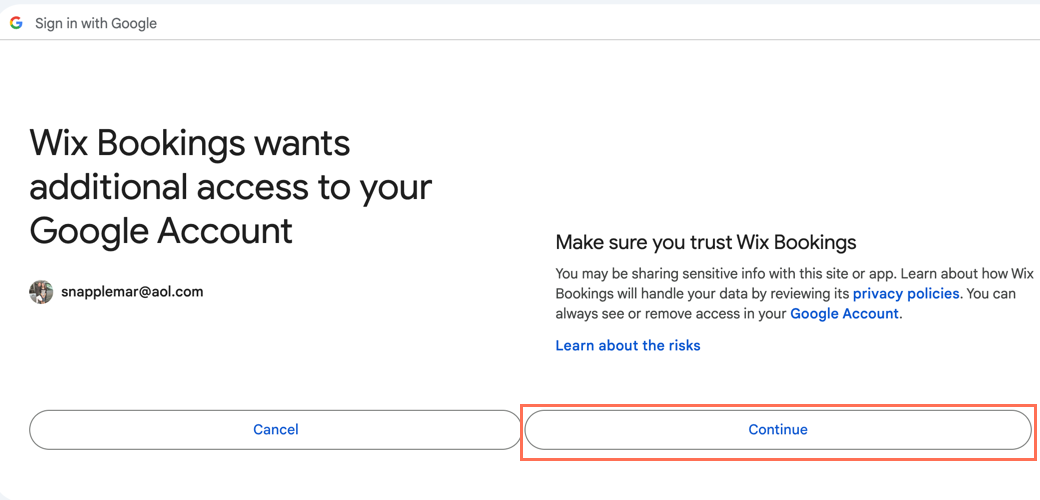
Click Continue to grant the necessary permissions.
Unsyncing a staff member's personal calendar
Staff members can disconnect or change their personal calendar to another supported email provider at any time. They do so through the Booking Calendar on your site, as they did when they synced their calendar. You can share the steps below with them to explain how to unsync their personal calendars.
Note:
Only staff members can unsync their personal calendars from Wix Bookings. You can delete staff members from your site if needed.
To unsync a staff member's personal calendar:
Go to Staff in your site's dashboard.
Click the relevant staff member.
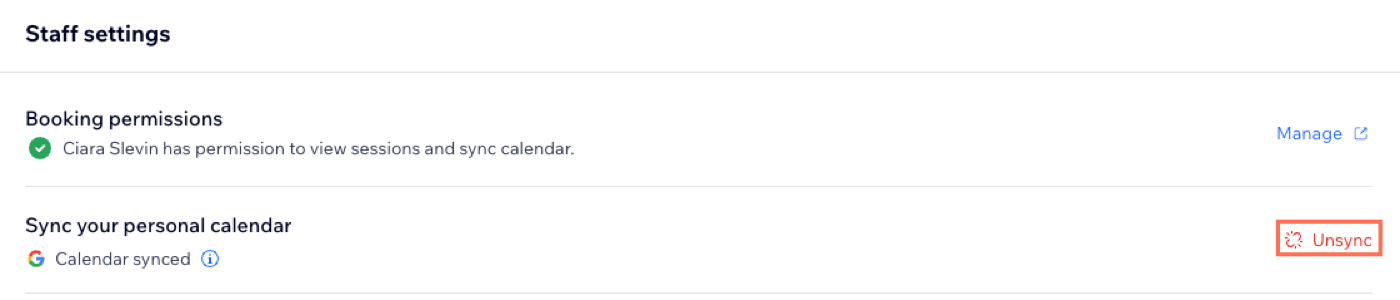
Click Unsync under Staff settings.
Click Unsync again to confirm.