


Memberships, packages & payments
Wix Bookings: Getting Paid Offline or in Person
With Wix Bookings, you aren't confined to only receiving payments online. You can accept payment from your clients in person, as they arrive, or through other offline methods like bank transfer or cheques. Choose the method that works best for your business.
In this article, learn more about:
Tip:
Wix Bookings allows you to charge for your services in a variety of ways, including: charging deposits, collecting payment on a sliding scale, offering free services, and more.
Accepting payment in person
You can decide whether clients pay the full amount in person, a deposit online and the rest in person or the full amount in person. In-person payments aren't tracked automatically in your Wix dashboard but you can manually mark sessions as paid.
To set up payment in person:
Go to Booking Services in your site's dashboard.
Select an option:Click to edit an existing service.
Click + Add a New Service to add a new one.
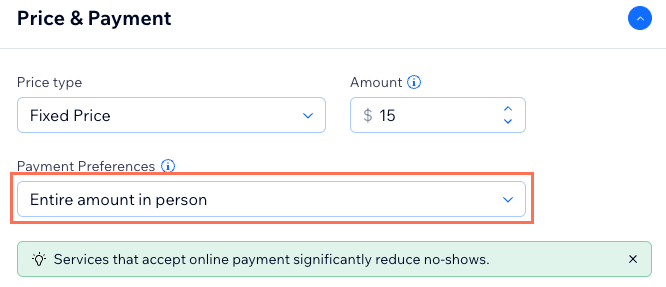
Scroll down to the Price & Payment section.
Click the Payment Preferences drop-down and select the option that meets your needs:Entire amount in person
Entire amount either online or in person.
Online deposit and the rest in person.Enter the amount in the Deposit field.
Get started:
Learn how to set up a service, including setting up whether clients pay in person or not:
Accepting offline (manual) payments
Choose manual payments if you want to display payment instructions (for example, bank transfer details). This method is usually used to collect payment before clients arrive for a service.
The payment doesn't appear automatically in your Wix dashboard but you can manually mark sessions as paid.
To set up the manual payment method:
Go to Accept Payments in your dashboard.
Scroll down to Manual Payments.
Click Connect next to Manual Payments.
Select the relevant payment type:Manual payment
Cash payment
Offline payment
Enter the instructions in the text box (e.g. Please transfer payment to Bank ABC, Account # 123456).
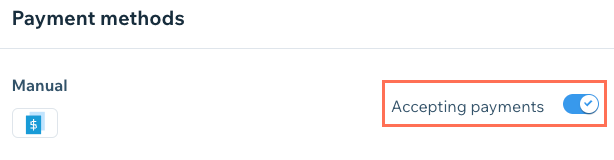
Enable the Accepting payments toggle.
Making credit card payments on behalf of clients
You can make full or partial payments for bookings on behalf of a client by entering their credit card details for them. You can also charge for custom services, or allow clients to pay for add-ons by creating a custom order.