


Managing your calendar & bookings
Wix Bookings: Filtering Your Booking Calendar
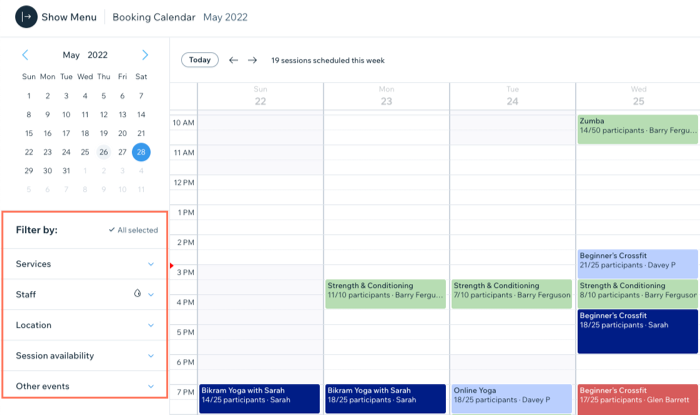
The Booking calendar is the place to monitor and control what's happening in your business. If you have many services and staff members, calendar filters can help you stay on top of things.
Important:
We are in the process of releasing a new version of the Booking Calendar. You may see a slightly different version in your calendar.
In this article, learn more about:
Filtering your calendar by services
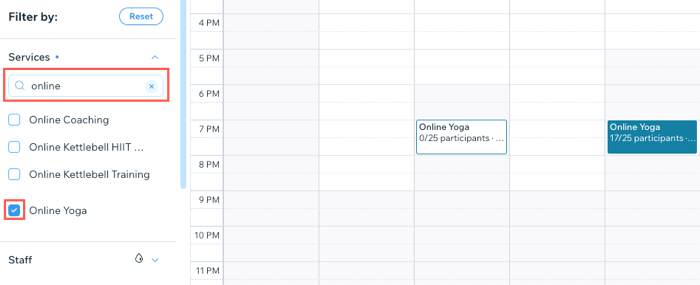
Use the Services filter to show only the services you want to view in your calendar.
To filter your calendar by service:
Go to the Booking Calendar tab in your site's dashboard.
Click Services in the Filter by section.
Deselect the Select all checkbox.
Select the services you want to view in your calendar.
Tip: Click the Search field and enter the name of a service to quickly find it.
Filtering your calendar by staff
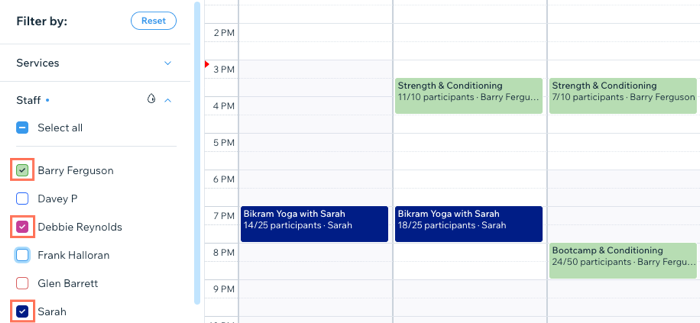
Deselect any staff members whose bookings and services you don't currently want to view.
To filter your calendar by staff:
Go to the Booking Calendar tab in your site's dashboard.
Click Staff in the Filter by section.
Deselect the Select all checkbox.
Select the staff members you want to view in your calendar.
Filtering your calendar by location
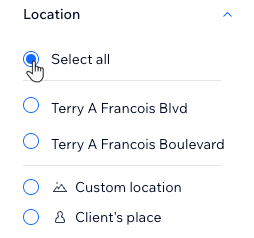
If your business has multiple locations, you can filter the calendar to view one location at a time. You can also view services that take place at a custom location or at a client's place.
To filter your calendar by location:
Go to the Booking Calendar tab in your site's dashboard.
Click Location in the Filter by section.
Choose from the following options:Select all: View sessions that take place at any location.
Your business locations: View sessions that take place at your locations.
Tip: Go to your site's business information section to add locations.
Custom location: View sessions that take place in your custom locations.
Tip: Go to the relevant service in your Booking Services tab to set a custom location.
Client's place: View sessions that take place at your client's location.
Learn more about adding locations for services.
Filtering your calendar by session availability
To check which classes and courses are fully booked, partially booked, or not booked at all, use the Session availability filters.
If you have set appointments to require your approval before being booked, you can filter to view those bookings.
To filter your calendar by session availability:
Go to the Booking Calendar tab in your site's dashboard.
Click Session Availability in the Filter by section.
Deselect the Select all checkbox.
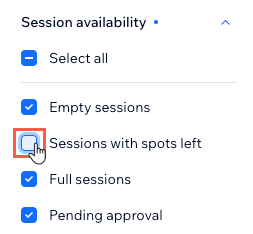
Select any of the following options:Empty sessions: View all sessions with no bookings yet.
Sessions with spots left: View all upcoming sessions with slots still available.
Full sessions: View all fully-booked upcoming sessions.
Pending approval: View all upcoming bookings which require your manual approval.
Filtering your calendar by blocked time or synced calendars
You can show or hide time slots that you manually blocked off on your calendar.
To filter your calendar by blocked time or synced calendars:
Go to the Booking Calendar tab in your site's dashboard.
Click Other events in the Filter by section.
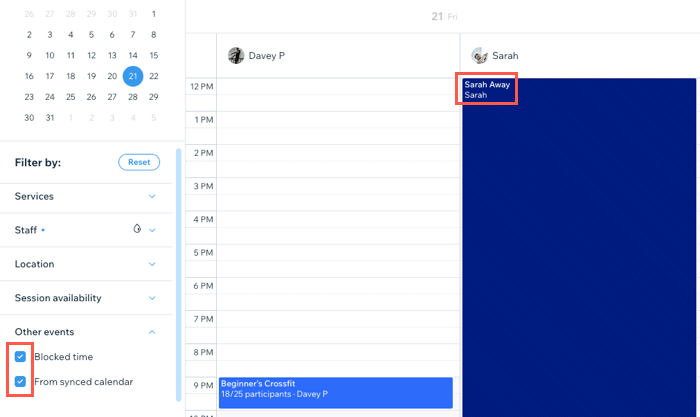
Select any of the following options:Blocked time: View all slots you manually blocked off to prevent bookings.
From synced calendar: View "busy" slots that appear when you or staff members sync personal calendars with Wix Bookings.
FAQs
How do I color code by staff member or service?
Choose whether to color code your sessions by service type or by staff member using the More Actions drop-down in the Booking Calendar. This makes it easier to check availability or manage any last-minute schedule changes.

Customize your color coding by clicking  next to the relevant staff member or service in the filter section of the Booking Calendar. Sessions with no participants booked or bookings which are not yet approved are not shaded in with color.
How do I switch between daily and weekly views in the booking calendar?
Click the drop-down next to the Time Zone icon  to view your calendar by day or week.

To change or update your time zone, go to Booking Settings in your site's dashboard and click Site calendar time zone.
