Emails, SMS, and promotions
Wix Bookings: Creating Discount Coupons
Offer your clients discount coupons to promote loyalty and increase bookings. Choose from either a monetary discount coupon (e.g. $10 off) or a percentage discount coupon (e.g. 20% off). Clients can apply the coupon codes at checkout to take advantage of your offers.
You can also apply coupons to services purchased with the Manual payment method. Make sure to mark the service as paid to update the number of coupons remaining.
Notes:
Clients cannot apply Booking coupons to services that have no fee, or to services that are set to Custom Price (Free/Prices Vary).
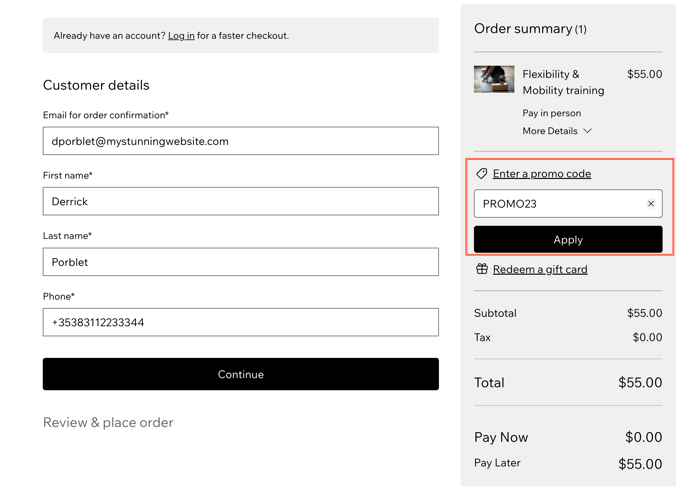
Clients with a coupon code select the checkbox "I have a promo code" on the booking form, before going to checkout where they enter their discount code (for services which are not paid online).
You can create up to 1,000 coupons, each with unique codes, using the free Bulk Coupon Creator app. Learn how to set up the Bulk Coupon Creator app to work with Wix Stores, Bookings or Events.
In this article, learn how to create:
Creating a monetary ($) discount coupon
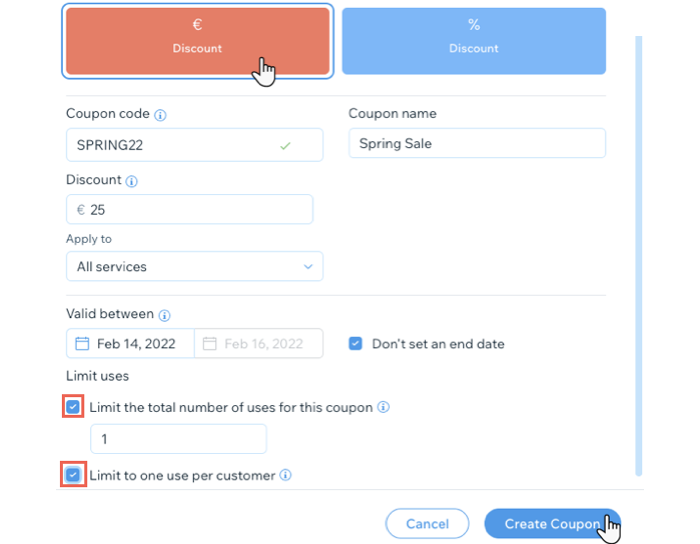
Use this coupon type to offer your clients a fixed monetary discount on your services (e.g. a $5 discount). This is great for promoting new services to clients or for launching a new location. You can also set how long the coupon is valid for and limit it to one per customer.
To create a monetary discount coupon for services:
Go to Coupons in your site's dashboard.
Click + New Coupon.
Fill out the following fields:Coupon Code: Create a unique code for your coupon.
Coupon name: Give the coupon an appropriate title. This is useful for limited-time offers like seasonal sales.
Set the monetary discount offered by the coupon.
Choose which services or products the coupon applies to from the Apply to drop-down menu.
Select one of the following (doesn't apply if you selected Minimum order subtotal):Apply once per order (to the lowest priced item): Customer who buys 2 or more relevant items gets a discount only on the lowest priced item.
Apply to each eligible item in an order: Customer who buys 2 or more items gets a discount on each item.
(Optional) Set an end date using the Valid between field for limited-time offers.
(Optional) Select the Limit the total number of uses for this coupon checkbox and enter the number of times the coupon can be used.
(Optional) Select the Limit to one use per customer checkbox.
Click Create Coupon.
Creating a percentage (%) discount coupon
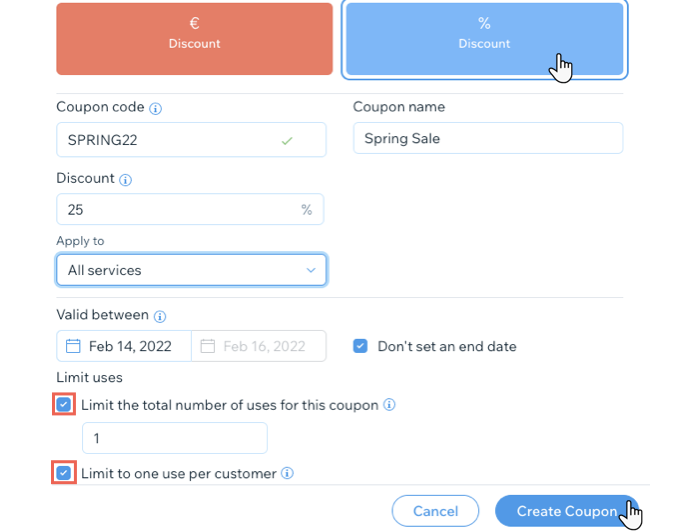
Use this coupon type to offer your clients a percentage discount on your services (e.g. 20% off). This is a great way to reward regular clients. You can also set limits on the number of uses for the coupon as well as limiting it to one per customer.
To create a percentage discount coupon:
Go to Coupons in your site's dashboard.
Click + New Coupon.
Fill out the following fields:Coupon Code: Create a unique code for your coupon.
Coupon name: Give the coupon an appropriate title. This is useful for limited-time offers like seasonal sales.
Set the percentage discount offered by the coupon.
Choose which services or products the coupon applies to from the Apply to drop-down menu.
Select one of the following (doesn't apply if you selected Minimum order subtotal):Apply once per order (to the lowest priced item): Customer who buys 2 or more relevant items gets a discount only on the lowest priced item.
Apply to each eligible item in an order: Customer who buys 2 or more items gets a discount on each item.
(Optional) Set an end date using the Valid between field for limited-time offers.
(Optional) Select the Limit the total number of uses for this coupon checkbox and enter the number of times the coupon can be used.
(Optional) Select the Limit to one use per customer checkbox if you want customers to be able to use the coupon only once.
Click Create Coupon.
What's next?
Let your clients know about your new coupons by:
Sending an email newsletter with your coupon code.
Send coupons to clients directly from your Wix Inbox.
Enabling the promo code link for coupons
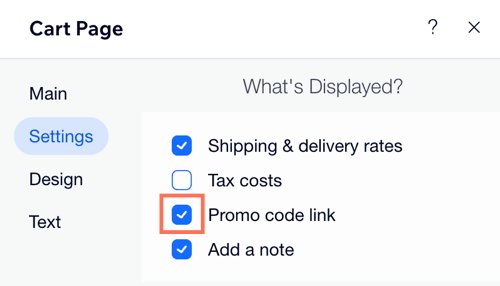
Make sure to enable the promo code link in the cart settings in the Editor, so your clients can enter their coupon codes before checkout.
Note:
If your service is set up to be paid with Pricing Plan only, the promo code link isn't available.
To enable the promo code link:
Wix Editor
Studio Editor
Go to your Cart page:Click Pages & Menu
 on the left side of the editor.
Click Cart & Thank You.
Note: If your site has only one business solution app, click the relevant business solution page (e.g. Store Pages, Bookings Pages, Restaurant Pages).
Click the Cart page.
Click the Cart page element on your page.
Click Settings.
Click to select the checkbox next to Promo code link.