top of page

Adding and managing apps

Upgrading an App from the Wix App Market

Many of the apps in the Wix App Market are completely free for you to use. Some apps offer a free version along with an upgrade option to a premium version to access the full range of features.

You can upgrade your apps in your site's editor or in your dashboard.

In this article, learn how to upgrade an app:

Upgrading an app in your site's Editor

  1. Click the app in your editor.

  2. Click Settings.

  3. Click Upgrade.

A screenshot showing the option to upgrade.

  1. Select your payment plan.

  2. Select your subscription period.

  3. Click Next.

  4. Enter your payment information.

  5. Click Submit Purchase.

Upgrading an app in your dashboard

  1. Go to Manage Apps in your site's dashboard.

  2. Click Upgrade next to the app you want to upgrade.
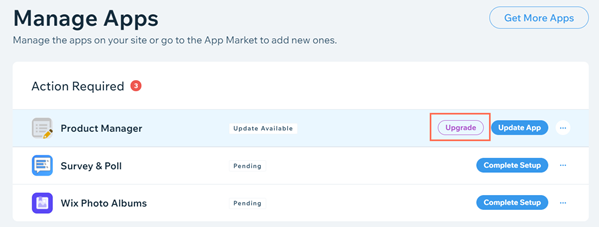
A screenshot showing the option to upgrade.

  1. Select your payment plan.

  2. Select your subscription period.

  3. Click Next.

  4. Enter your payment information.

  5. Click Submit Purchase.

Important:

After submitting your purchase, your bank may require you to verify your identity. If you're experiencing any issues with the authentication process, contact your bank directly.

FAQs

Click a question below to learn more about upgrading a third-party app.

How am I charged for an app upgrade?

Upgrading a third-party app is a subscription service that is renewed automatically, on a monthly basis.

You are charged for the app subscription each month, until you decide to cancel the service.

Are these upgrades included in my Premium plan?

No. Many of the apps in the Wix App Market have been developed by third-party developers. As such, the upgraded versions of these apps are not included in the Wix Premium plan offerings.

Need A Professional Website?
Contact Us 
Today!

Wix Retail POS: Using the Stripe Reader M2 Card Reader

Wix Retail POS: Using the BBPOS WisePad 3 Card Reader

Wix Retail POS: Selecting a Card Reader

Wix Retail POS: About Your HP Tablet

Wix Retail POS: Connecting Your POS Hardware

Wix Retail POS: About Wix POS for Your Brick and Mortar Business

Wix Mobile POS: Setting Up a Point of Sale with SumUp

Wix Mobile POS: Setting Up a Point of Sale with Square

Wix Restaurants POS: Selling Restaurant Items at a Mobile Point of Sale

Wix Pricing Plans POS: Selling Plans at a Mobile Point of Sale

Wix Events POS: Selling Event Tickets at a Mobile Point of Sale

Wix Bookings POS: Booking Services and Accepting Payments with the Wix App

Wix Bookings POS: Accepting Payment for Booked Services at a Mobile Point of Sale

Wix Stores POS: Managing Inventory for Mobile POS Sales

Wix Stores POS: Setting up Tax Rules for a Mobile Point of Sale

Wix Stores POS: Selling Products at a Mobile Point of Sale

Wix Mobile POS: Customizing Receipts

Wix Mobile POS: Selling Physical Gift Cards at a Mobile POS

Wix Mobile POS: Redeeming Virtual Gift Cards at a Mobile POS

Wix Mobile POS: Setting Up Receipt Printing

Wix Mobile POS: Collecting Tips

Wix Mobile POS: Understanding Invoices for Mobile POS Transactions

Wix Mobile POS: Setting Up Tap to Pay

Wix Mobile POS: Letting Staff Members Accept Payments

Wix Mobile POS: Charging Clients at a Point of Sale

Wix Mobile POS: Setting Up a Point of Sale

Wix Mobile POS: An Overview

Collecting the Colorado Retail Delivery Fee

Accessing the Avalara Dashboard

Including Tax in the Product Price

wix experts
Graphic2Traffic web design
©
bottom of page