


Managing purchased plans
Pricing Plans: Canceling Client Plans
Important:
The article below discusses the Wix subscriptions app Pricing Plans. If you're looking for information about upgrading your site, visit our articles for choosing a Wix Premium or Wix Studio site plan.
With Pricing Plans, you can cancel a client's plan or allow them to cancel on their own. Additionally, if you do not receive payment from your client's payment provider, their plan can become canceled. You can check the status of your clients' plans from the Subscriptions tab of your dashboard.
In this article, learn more about:
Before you begin:
Canceling a plan does not refund it. You must contact your payment provider to issue a refund.
Failed payments automatically cancel a customer's plan. However, you can enable a grace period for your recurring subscriptions to give customers more time to resubmit payment before their subscription cancels.
Canceling a client's plan yourself
To cancel a client's plan yourself, you need to change the plan's status in your site's dashboard. You can choose when the cancellation happens – immediately, or at the end of the current payment cycle.
When canceling free and one-time payment plans, it takes effect immediately. For example, if you cancel a monthly plan after 2 weeks use, the client does not have access to services/content for the last 2 weeks of the month.
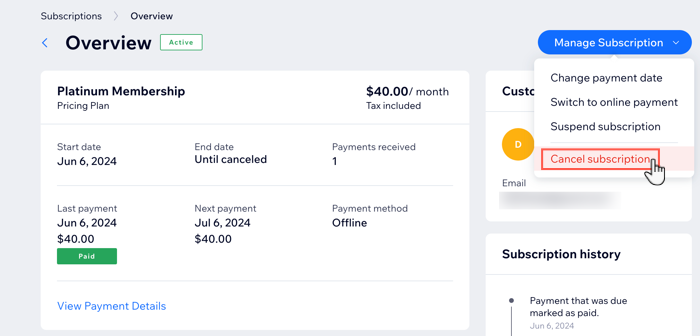
To cancel a client's plan:
Go to Subscriptions in your site's dashboard.
Click the relevant plan.
Click Manage Subscription.
Select Cancel Subscription.
Select when the cancellation takes effect:Cancel at end of this billing period: Plan continues until end of current payment cycle (for example, until the end of the month for a monthly plan). The plan does not renew.
Cancel immediately: Client's access to services stops immediately.
Click Yes, Cancel.
Important:
Canceling a plan does not refund it. You must contact your payment provider to issue a refund.
Tip:
You can undo cancelations for plans with the "Pending cancelation" status. If you undo the cancelation, the status of the plan returns to "Active".
Allowing clients to cancel plans
You can allow clients to cancel a plan themselves through their private Members Area on your site.

Before you begin:
Make sure to add a Members Area to your site.
Add a My Subscriptions page to your Member's Area.
To allow clients to cancel a plan themselves:
Go to Pricing Plans in your site's dashboard.
Create a new plan or click to edit an existing one.
Scroll down to Settings.
Enable the Allow Plan Cancellation toggle.
Click Save to save the plan.
Repeat steps 3 - 5 for any other plans for which you want to enable cancellation.
Plans canceled through payment providers
Failed payments automatically cancel a customer's plan. This can happen when a credit card is canceled or has insufficient funds.
Additionally, clients may cancel payment directly through their payment providers:
PayPal: Clients may cancel recurring payments in their PayPal dashboard.
Credit Card: Clients may cancel their plan directly with their credit card company.
Viewing a plan's status
If you or your client cancels a plan, their plan's status updates to show that it's canceled or pending cancelation in the Subscriptions tab in your dashboard.
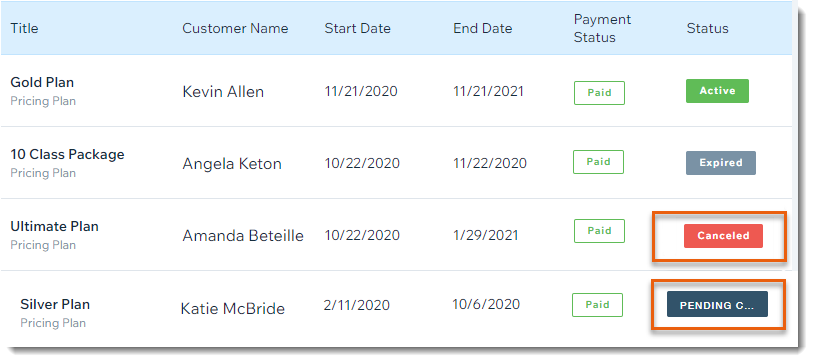
Plans can display any of the following statuses:
Active: The plan can be used by the client.
Expired: The plan has ended.
Canceled: The plan was canceled and cannot be used by the client.
Pending Cancelation: The plan can be used by the client until the end of the billing period they paid for and then will change to "Canceled" status.
Note: You can undo cancellations for plans with the "Pending cancelation" status. If you undo the cancelation, the status of the plan returns to "Active".Free Trial: The recurring plan has a free trial and is in its free trial period.
Pending: The plan has a future start date and is not yet active.
Suspended: The plan has been temporarily suspended.
FAQs
Here are some frequently asked questions about canceling clients' plans:
What happens if I delete a site member?
Deleting a site member cancels their pricing plan automatically.
What happens if I delete, transfer or duplicate my site?
Deleting your site cancels all subscriptions.
Transferring or duplicating your site doesn't cancel existing subscriptions on the original site. You must cancel original plans and create new ones for your clients to purchase on any duplicated and transferred sites.
What happens after a client's plan is canceled?
This depends on the type of plan that was canceled:
Free / one-time payment: Access to services and content stops immediately. For example, if you cancel a monthly plan after 2 weeks, the client would not have access to services/content for the last 2 weeks of the month.
Recurring: After a client cancels a recurring plan, the plan's status is changed to “pending cancellation” until the end of the billing period the client paid for.
When you cancel a recurring payment, the purchased plan and payment does not continue for the next cycle. For example, if you cancel a monthly plan in the middle of January, the plan continues until the end of January, but does not recur in the following months. During January, in this example, the Plan Status will be "Pending Cancellation".
Can I offer refunds for canceled plans?
Note: Refunding a plan does not cancel it, you can cancel a plan in Subscriptions in your site dashboard.
Contact your payment provider to offer refunds for canceled plans (e.g. PayPal, Stripe, etc.).
Can I allow clients to cancel only specific plans?
You can allow clients to cancel plans themselves in the settings section of each plan. This means you can allow clients to cancel some plans themselves, but not others, depending on your needs.
Can I undo plan cancelations?
After a client cancels a recurring plan, the plan's status is changed to “pending cancelation” until the end of the billing period the client paid for.
You can undo cancelations for plans with the "Pending cancelation" status in Subscriptions in your site dashboard. If you undo the cancelation, the status of the plan returns to "Active".