top of page

Setting up Online Programs

Online Programs: About Automations for Your Program

Boost your site's success with minimal effort by creating automations to manage your program. Automations streamline repetitive tasks and help you hit your marketing targets. Think of them as a combination of triggers and actions—like sending a welcome email when someone joins your program. You can use built-in triggers and actions, or customize your own.

Ready to create automations for your program?

Go to Automations in your site's dashboard.
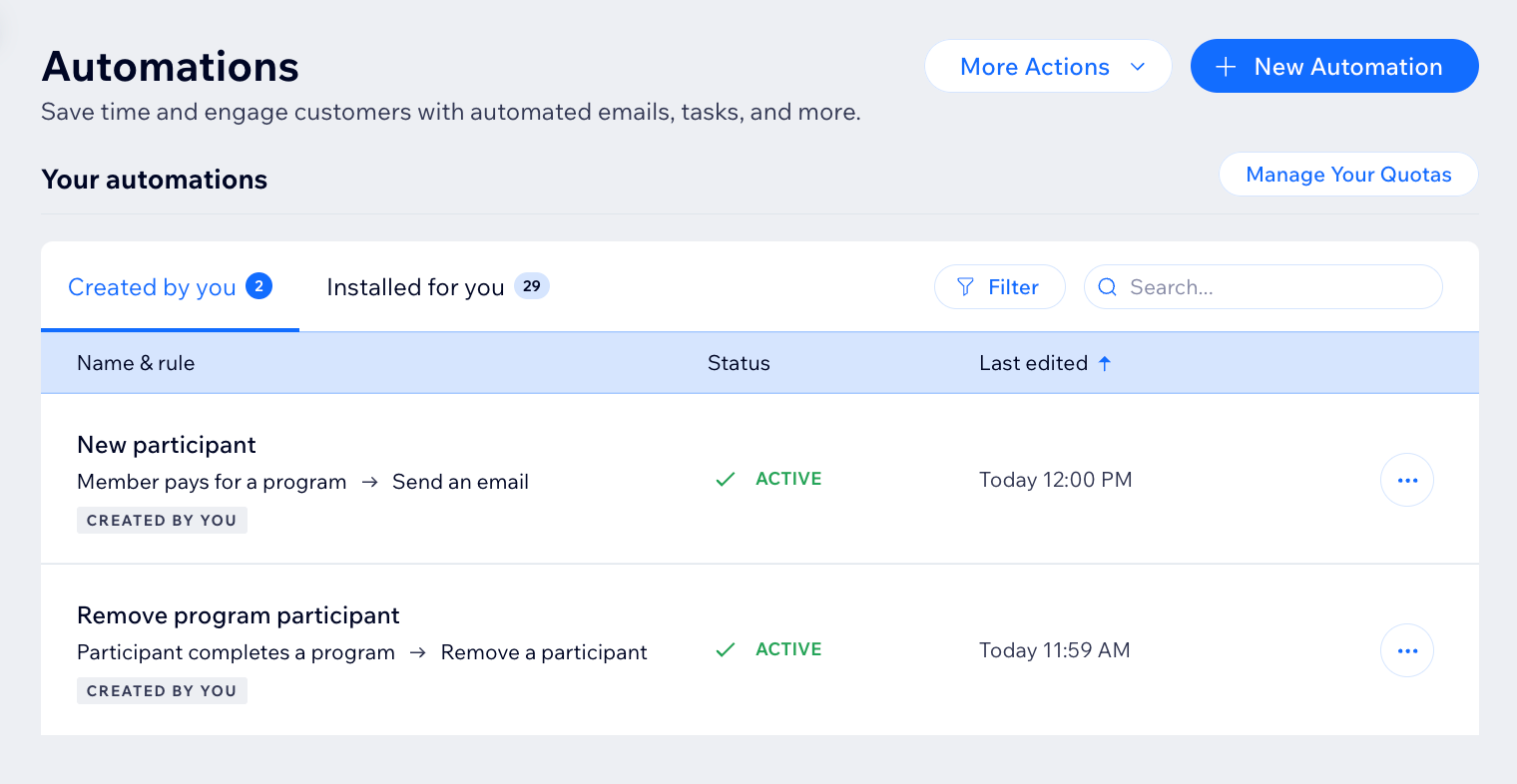
A screenshot of the Online Programs app in the automation flow

Choose a trigger

Select the Online Programs app in the automation flow to see its triggers. A trigger is an event that a member or participant does involving your program. This event initiates an automatic response. You can choose from a list of available triggers and select specific programs.

For example, you can remove a participant when they complete a self-paced program. To do so, use the trigger "Participant completes the program". Add a delay of 3 days, and the action "Remove participant", for a specific program.

The built-in triggers for Online Programs are:

  • Member pays for a program

  • Member joins a program

  • Participant completes a step

  • Participant leaves a program

  • Participant completes a program

  • Program end date has passed

A screenshot of the Online Programs app in the automation flow

Choose an action

Select actions that respond to your trigger. You can choose general actions like sending an email or updating Google Sheets. You can also use the specific Online Programs action: Remove a participant. For example: Combine "Program end date has passed" with the action "Remove participant". This will remove participants from a program when it ends.

A screenshot of the Online Programs app in the automation flow

Participants that are removed by an automation are labeled as Auto-Removed.
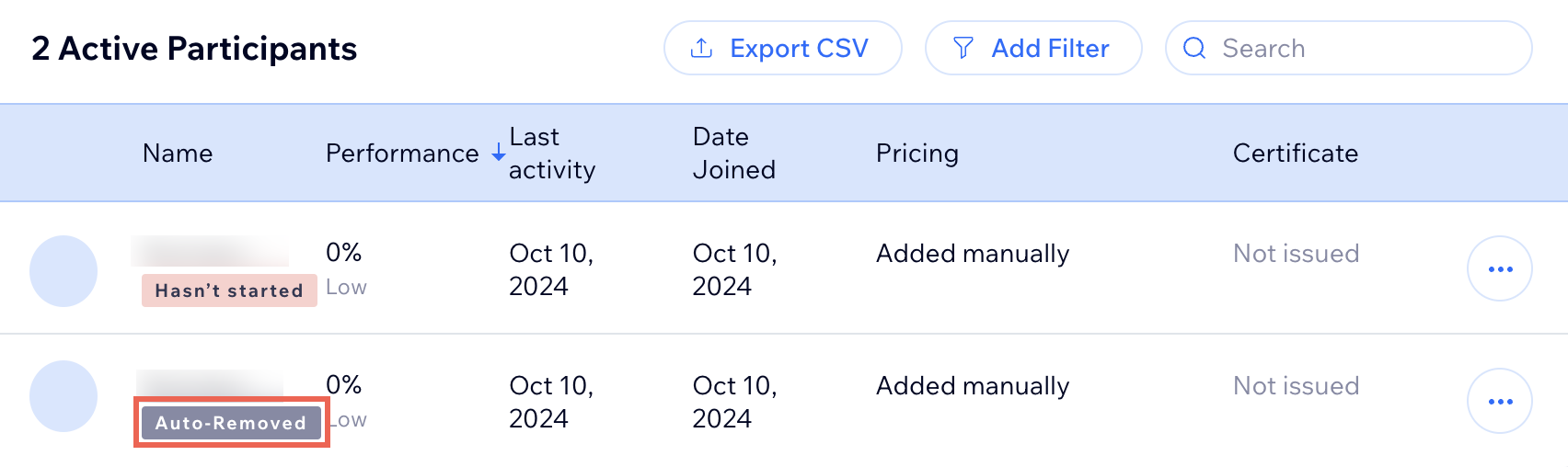
A screenshot of the Online Programs app participants list

Need A Professional Website?
Contact Us 
Today!

Wix Retail POS: Using the Stripe Reader M2 Card Reader

Wix Retail POS: Using the BBPOS WisePad 3 Card Reader

Wix Retail POS: Selecting a Card Reader

Wix Retail POS: About Your HP Tablet

Wix Retail POS: Connecting Your POS Hardware

Wix Retail POS: About Wix POS for Your Brick and Mortar Business

Wix Mobile POS: Setting Up a Point of Sale with SumUp

Wix Mobile POS: Setting Up a Point of Sale with Square

Wix Restaurants POS: Selling Restaurant Items at a Mobile Point of Sale

Wix Pricing Plans POS: Selling Plans at a Mobile Point of Sale

Wix Events POS: Selling Event Tickets at a Mobile Point of Sale

Wix Bookings POS: Booking Services and Accepting Payments with the Wix App

Wix Bookings POS: Accepting Payment for Booked Services at a Mobile Point of Sale

Wix Stores POS: Managing Inventory for Mobile POS Sales

Wix Stores POS: Setting up Tax Rules for a Mobile Point of Sale

Wix Stores POS: Selling Products at a Mobile Point of Sale

Wix Mobile POS: Customizing Receipts

Wix Mobile POS: Selling Physical Gift Cards at a Mobile POS

Wix Mobile POS: Redeeming Virtual Gift Cards at a Mobile POS

Wix Mobile POS: Setting Up Receipt Printing

Wix Mobile POS: Collecting Tips

Wix Mobile POS: Understanding Invoices for Mobile POS Transactions

Wix Mobile POS: Setting Up Tap to Pay

Wix Mobile POS: Letting Staff Members Accept Payments

Wix Mobile POS: Charging Clients at a Point of Sale

Wix Mobile POS: Setting Up a Point of Sale

Wix Mobile POS: An Overview

Collecting the Colorado Retail Delivery Fee

Accessing the Avalara Dashboard

Including Tax in the Product Price

wix experts
Graphic2Traffic web design
©
bottom of page