top of page

Setting up Online Programs

Online Programs: About Automations for Your Program

Boost your site's success with minimal effort by creating automations to manage your program. Automations streamline repetitive tasks and help you hit your marketing targets. Think of them as a combination of triggers and actions—like sending a welcome email when someone joins your program. You can use built-in triggers and actions, or customize your own.

Ready to create automations for your program?

Go to Automations in your site's dashboard.
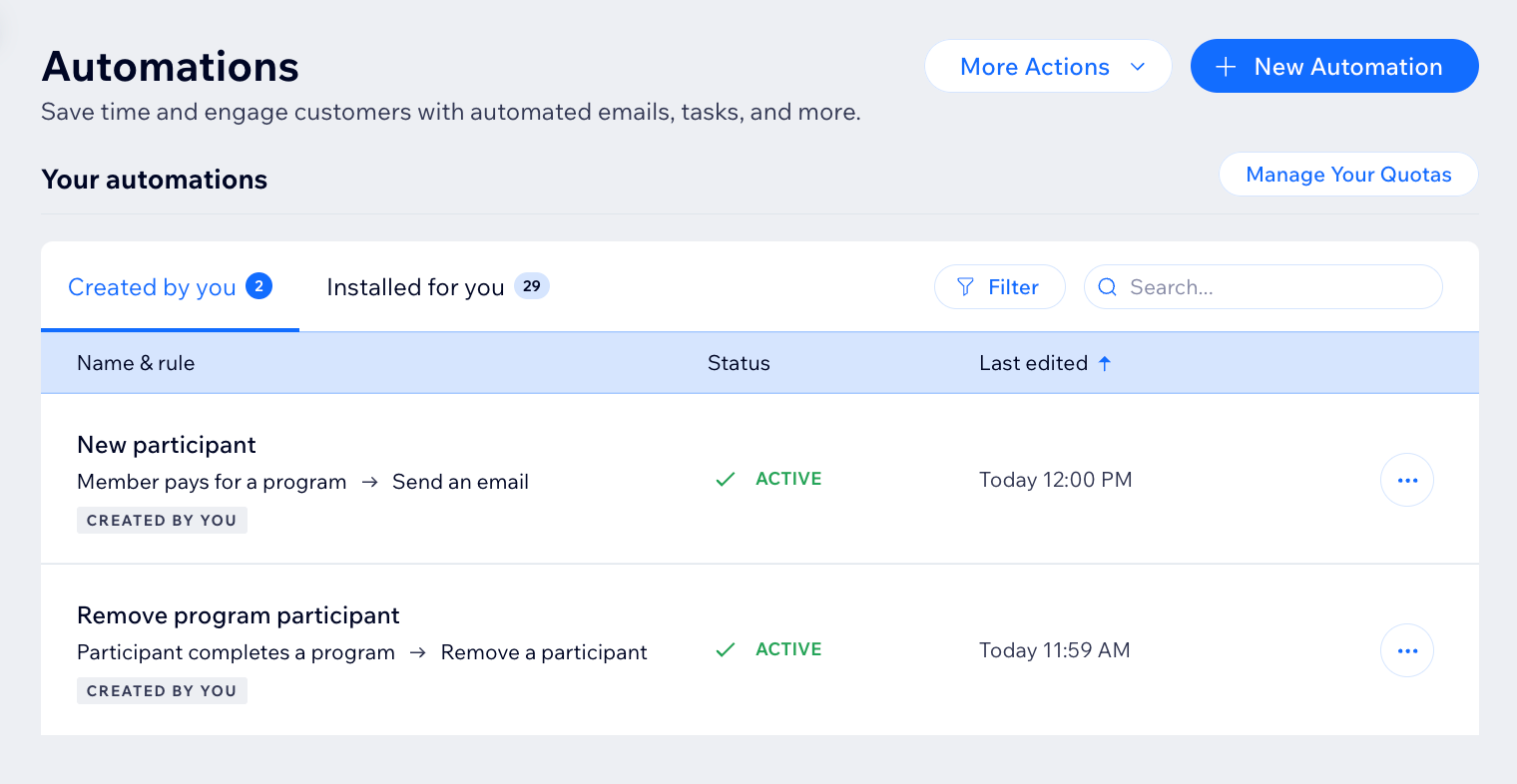
A screenshot of the Online Programs app in the automation flow

Choose a trigger

Select the Online Programs app in the automation flow to see its triggers. A trigger is an event that a member or participant does involving your program. This event initiates an automatic response. You can choose from a list of available triggers and select specific programs.

For example, you can remove a participant when they complete a self-paced program. To do so, use the trigger "Participant completes the program". Add a delay of 3 days, and the action "Remove participant", for a specific program.

The built-in triggers for Online Programs are:

  • Member pays for a program

  • Member joins a program

  • Participant completes a step

  • Participant leaves a program

  • Participant completes a program

  • Program end date has passed

A screenshot of the Online Programs app in the automation flow

Choose an action

Select actions that respond to your trigger. You can choose general actions like sending an email or updating Google Sheets. You can also use the specific Online Programs action: Remove a participant. For example: Combine "Program end date has passed" with the action "Remove participant". This will remove participants from a program when it ends.

A screenshot of the Online Programs app in the automation flow

Participants that are removed by an automation are labeled as Auto-Removed.
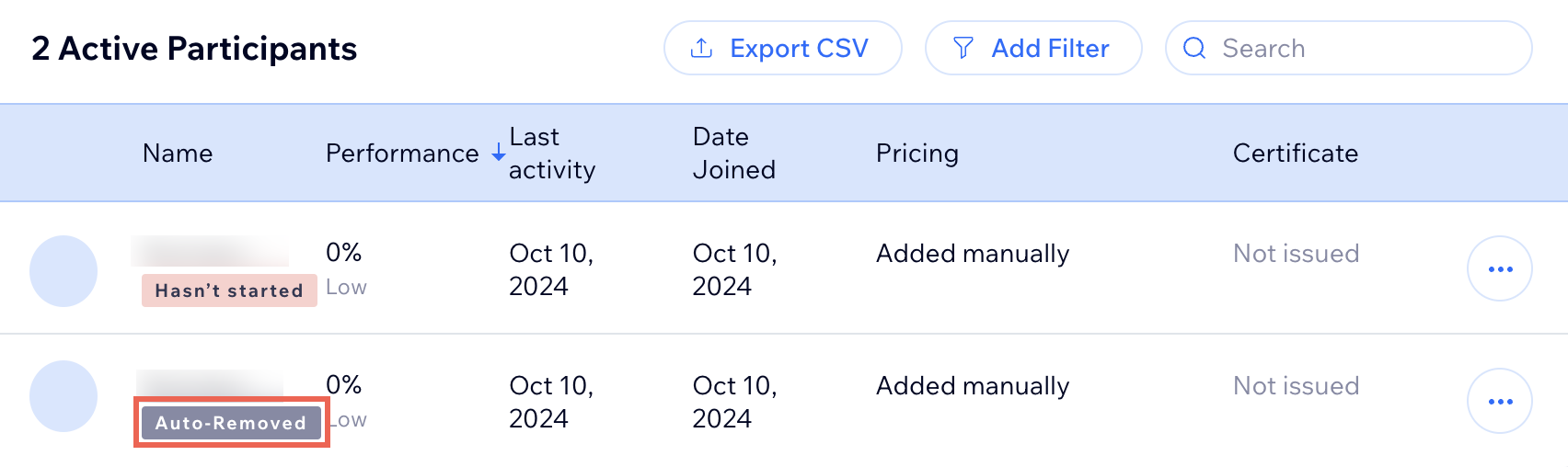
A screenshot of the Online Programs app participants list

Need A Professional Website?
Contact Us 
Today!

Wix Stores: Creating Print on Demand (POD) Products

Wix Stores: Setting Up Modalyst Dropshipping via the Wix Dashboard

Wix Stores: Dropshipping with Spocket

Wix Stores: Fulfilling Printify Products

Wix Stores: Setting Up Dropshipping with Printify

Wix Stores: Connecting Printify to Your Store

Wix Stores: Fulfilling Printful Products

Wix Stores: Setting Up Dropshipping with Printful

Wix Stores: Fulfilling Modalyst Orders

Wix Stores: Setting Up Dropshipping with Modalyst

Wix Stores: Connecting Modalyst Dropshipping to Your Store

​

Wix Stores: Understanding Dropshipping

Wix Stores: Adding the "Popify Sales Popups" Social Proof App

Wix Stores: Adding the "ProveSource" Social Proof App

Wix Stores: Adding the Kudobuzz Reviews App

Wix Stores: Adding and Setting Up Wix Reviews

Wix Stores: Managing Your Coupons

Wix Stores Troubleshooting: Customer are Unable to Apply Coupon

Wix Stores: Limiting Coupon Usage

Wix Stores: Creating a Coupon With a Minimum Order Amount

Wix Stores: Creating a 'Buy X, Get Y Free' Coupon

Wix Stores: Creating a Promotional Video for a Product in Your Store

Wix Stores: Creating a Free Shipping Coupon

Wix Stores: Creating a Percentage Discount Coupon

Wix Stores: Creating a Price Discount Coupon

Wix Stores: Letting Customers Know About Discounts

Wix Stores: Creating Automatic Discounts

Wix Stores: Creating Popular Store Discounts

Wix Stores: Offering Discounts and Coupons

wix experts
Graphic2Traffic web design
©
bottom of page