


Dropshipping with Wix Stores
Wix Stores: Connecting Modalyst Dropshipping to Your Store
Modalyst is a dropshipping platform that connects product suppliers with store owners.
After connecting to Modalyst, you choose the products you want to sell, add the new products to your store, and start selling. The supplier holds the inventory and takes care of the shipping for you.
Choose how you want to connect to Modalyst:
Wix now offers 2 ways to connect and add Modalyst products:
Wix dashboard: Start by adding products suggested for your store. Pricing, shipping, and more are already set up. You can manage Modalyst products in the Wix dashboard. Learn more
Add the Modalyst app: Add the Modalyst app and then go to the Modalyst site to choose which products to add. Customize products, pricing, shipping and more in the Modalyst dashboard. Read more below
In this article, learn more about:
Connecting in the Wix dashboard
Choose the products you want to offer customers, right in the Wix dashboard.
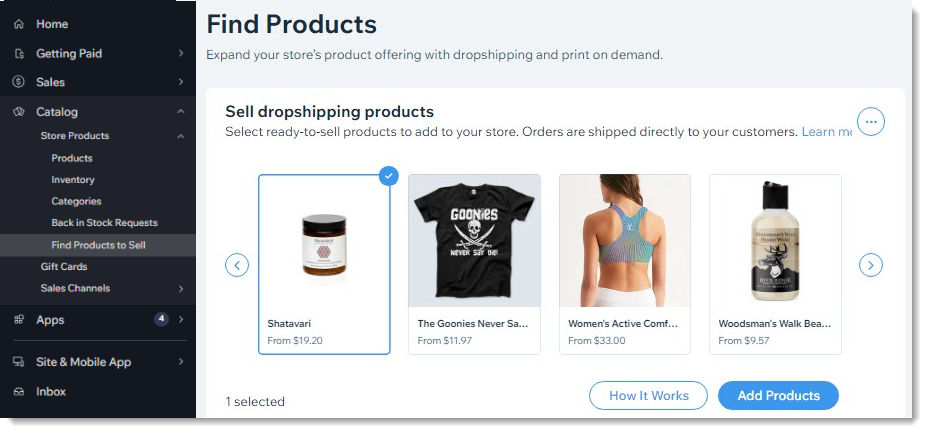
To add Modalyst products to your store:
Click Add Products.
Notes:
Products you add to your store this way are automatically hidden. When you're ready, you can unhide them.
Learn more about pricing and shipping for products managed in the Wix dashboard.
Connecting by adding the Modalyst app
To get started, link your Wix site to a Modalyst account.
To connect to Modalyst:
Click here to access the app.
Click Add to Site.
Review the permissions and click Add to Site.
Select an option:Create a new account: Follow the instructions to create a new Modalyst account.
Connect an existing account: Log in your Modalyst account. You can connect one Modalyst account to one website.
Go to Modalyst and start adding products to your store.
Already have a Modalyst account?
In Modalyst, each account can connect to one website. If your account is already connected, you can:Create a second Modalyst account and connect it.
When prompted during setup, uninstall your existing store and then go to Connect Your Store in the Modalyst dashboard to connect.
If your Modalyst account is not currently connected, go to Connect Your Store in the Modalyst dashboard to connect.
FAQs
Click below for answers to the most frequently asked questions about connecting Modalyst.
Can I sell my own products along with Modalyst products?
Yes. You can add your own products to your Wix store as well as Modalyst products.
How many products can I add?
Modalyst offers three plans to choose from, with different product allowances:
Hobby: Up to 25 products
Start-Up: Up to 250 products
Pro: Unlimited products
Learn how to upgrade you account.
How are shipping costs calculated?
A product's shipping cost is defined by the supplier. It is based on the customer's location and where the product ships from. Note that a supplier may have more than one warehouse, and that can also factor into the shipping cost.
To give you a general idea of shipping costs, you are asked to define a primary location of where your customers are located. Go to your Store Profile page in Modalyst to set a location. This provides you the shipping rate for products shipped to the location you selected.
When you receive an order, the shipping rate will be based on the actual location of your customer and the cost of shipping there.
For more detailed information, click here.
Tip: While searching for new products, you can click to see shipping details for popular locations.

Are shipping rates included in the Item Cost that I owe the supplier?
Shipping rates are not included in the Item Cost. They are a separate cost which you owe the supplier. The shipping rates are listed for each item in the marketplace, on the item detail page, and on each order.
You can include the shipping cost in the item price to help cover costs and offer free shipping to your customers, without impacting your margins. To add the price of shipping to the cost of the item, go to the Pricing Rules page and click Add next to Shipping Rate.
What is Modalyst's return or refund policy?
Modalyst suppliers provide a 14-day return policy for all products. This means that suppliers accept returns up to 14 days after the customer receives the product. In most cases, suppliers are happy to provide you with a refund.
Can I use Modalyst in another language?
Yes. Although the Modalyst dropshipping platform is only available in English, you can manually translate product names and info to display them in another language.
To use Modalyst products in a non-English store:
In the Modalyst dashboard, add products to your Import List.
Translate the product name.

Click the Description tab and translate the product description.

In the Variants tab, translate the variant names.

Can all Modalyst products be sold on a Wix site?
Modalyst offers thousands of products, almost all of which can be sold on a Wix site. Make sure the products you add conform to Wix's terms of use.