top of page

Dayful by Wix

Dayful by Wix: Customizing Your Booking Page

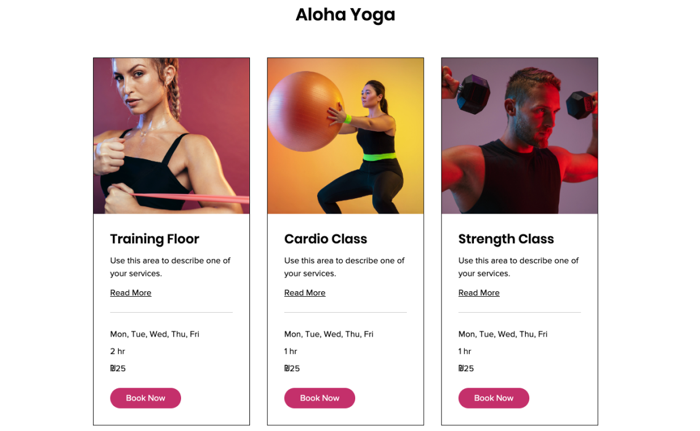
After setting up your services on Dayful by Wix, customize the page your clients use to book them. This is what they see when you share a link to the service or embed the widget on your website, so make sure it fits your brand.

Important:

To customize the design of your Booking Page, upgrade your Dayful plan.
Need help with Dayful?

Send a message to our Experts and they will get back to you as soon as possible.

To customize your Booking page:

  1. Go to the Channels tab in your Dayful dashboard.

  2. Click Booking Page.

  3. Click Edit Design.

  4. Choose what version of your Booking Page to edit, using the arrows next to Preview:Service List: What your clients see when you display your service page. This can include any of your services.
    Calendar: Show clients the full weekly timetable for specific appointments or classes.
    Memberships and packages: Show clients your pricing plans or membership packages.

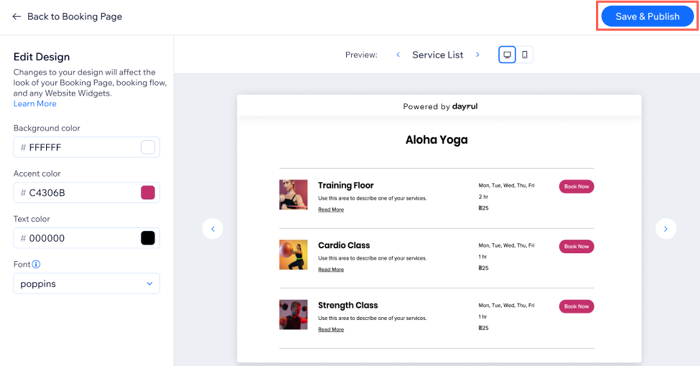
  5. Set the colors of your Booking Page on the left:Background color: Choose an appropriate background for your services.
    Accent color: Choose the color for your Booking Page buttons.
    Text color: Choose the color for your font, make sure it stands out from the background color and easy to read.
    Font: Choose the font for the text on your Booking Page.

  6. Click Save & Publish.

Note:

The design settings you choose for the Booking Page apply to all links you share and all website widgets you embed.
Tip:

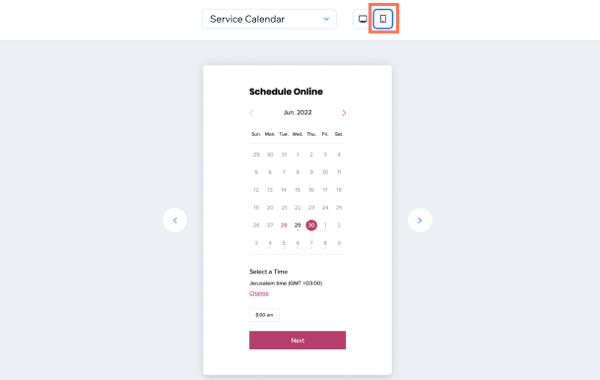
Click the Mobile Preview button to make sure your Booking Page design is optimized for mobile as well. 
Need A Professional Website?
Contact Us 
Today!

Wix Retail POS: Using the Stripe Reader M2 Card Reader

Wix Retail POS: Using the BBPOS WisePad 3 Card Reader

Wix Retail POS: Selecting a Card Reader

Wix Retail POS: About Your HP Tablet

Wix Retail POS: Connecting Your POS Hardware

Wix Retail POS: About Wix POS for Your Brick and Mortar Business

Wix Mobile POS: Setting Up a Point of Sale with SumUp

Wix Mobile POS: Setting Up a Point of Sale with Square

Wix Restaurants POS: Selling Restaurant Items at a Mobile Point of Sale

Wix Pricing Plans POS: Selling Plans at a Mobile Point of Sale

Wix Events POS: Selling Event Tickets at a Mobile Point of Sale

Wix Bookings POS: Booking Services and Accepting Payments with the Wix App

Wix Bookings POS: Accepting Payment for Booked Services at a Mobile Point of Sale

Wix Stores POS: Managing Inventory for Mobile POS Sales

Wix Stores POS: Setting up Tax Rules for a Mobile Point of Sale

Wix Stores POS: Selling Products at a Mobile Point of Sale

Wix Mobile POS: Customizing Receipts

Wix Mobile POS: Selling Physical Gift Cards at a Mobile POS

Wix Mobile POS: Redeeming Virtual Gift Cards at a Mobile POS

Wix Mobile POS: Setting Up Receipt Printing

Wix Mobile POS: Collecting Tips

Wix Mobile POS: Understanding Invoices for Mobile POS Transactions

Wix Mobile POS: Setting Up Tap to Pay

Wix Mobile POS: Letting Staff Members Accept Payments

Wix Mobile POS: Charging Clients at a Point of Sale

Wix Mobile POS: Setting Up a Point of Sale

Wix Mobile POS: An Overview

Collecting the Colorado Retail Delivery Fee

Accessing the Avalara Dashboard

Including Tax in the Product Price

wix experts
Graphic2Traffic web design
©
bottom of page