


Managing your Store in Retail POS
Wix Retail POS: Offering Shipping or Delivery
Important:
This article is about Wix Retail POS tablet for brick & mortar businesses.
For info on using POS on a mobile device, click here.
Offer your customers the convenience of shipping their store orders to them by mail or delivering them using a local delivery service.
Important:
Starting October 25, 2023, the ability to offer shipping or delivery at a point of sale will be available only to merchants with a Wix Retail Pro Plan. Learn more
Step 1 | Set up shipping or delivery rules
Before you begin:
Make sure you've set up shipping or delivery options up in the Wix dashboard.
Shipping must be added to the order before you complete payment.
Any shipping, local delivery, or pickup rules that you created for your online store appear as options in the POS tablet.
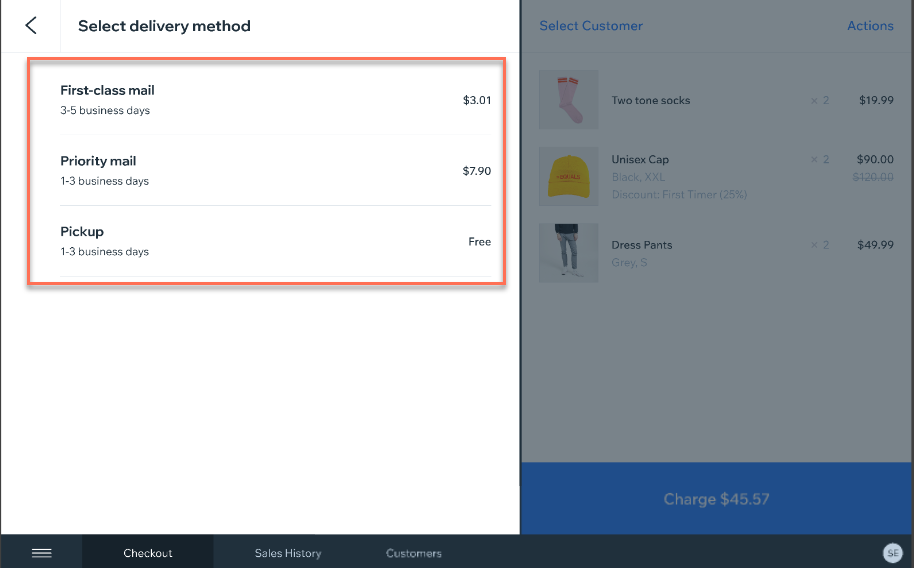
If you haven't yet done so, you can set up shipping now.
Step 2 | Add shipping during checkout
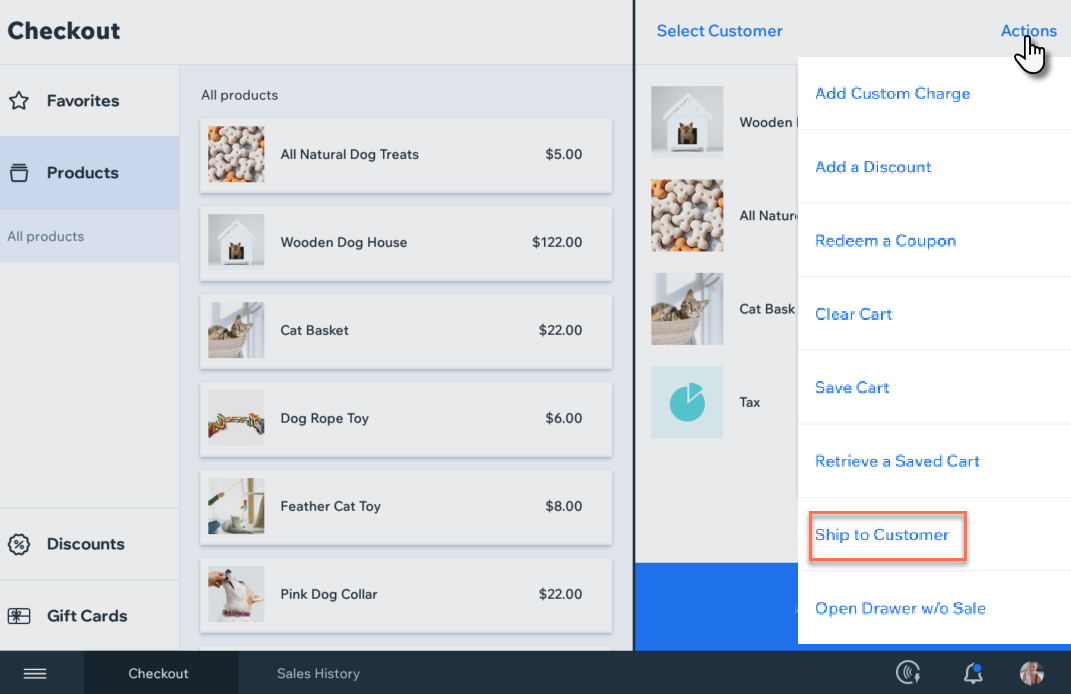
To add shipping, you can start processing the sale as you normally do, but before you collect payment, add shipping to the order.
To add shipping:
Add any products, charges, discounts, to the cart.
Tap Actions at the top right corner of the cart.
Select Ship to Customer.
If you haven't done so already, add a customer to the sale:Existing customer: Select a customer from the list and make sure you have a shipping address listed.
New customer:+New Customer.
Enter the customer's details and tap Next.
Tip: If the customer wants to ship to another address, you can enter that address here.
Select one of the shipping/delivery options you have set up.
Complete checkout.
FAQs
Click a question below to learn more about shopping or delivery.
Can I edit the shipping address?
Yes. You can edit the customer's saved address. This address will appear the next time the same customer purchases from your store. You can also change the address for a specific order. This can be useful if the customer wants to ship the order to someone else.
To changes a customer's address:
Open the POS tablet.
Tap Customers from the bottom bar.
Select the relevant customer.
Tap Actions.
Tap Edit.
Update the address and tap Save.
To change the shipping address for a specific order:
Open the POS tablet.
Tap Sales History from the bottom bar.
Select the relevant sale from the list on the left.
Tap Edit info next to the shipping address.
Can I add shipping to an order after checkout?
No, once a customer has paid for an order, it's not possible to add shipping.