


Wix Portfolio
Wix Portfolio: Managing Your Projects in the Wix App
Create, manage, and grow your portfolio on the go with the Wix app. From the app, you can upload and manage your media, change the cover image of your projects and edit your project names. You can also create brand new projects.
In this article, learn more about:
Editing project details
Update your project details all from within the Wix app. Edit your project titles and descriptions as well as your project basic info. This includes the project type, the date you carried out the project, the project location, the budget or anything else you think is important.
To edit your project details in the Wix app:
Go to your site in the Wix app.
Tap Manage
 at the bottom.
Tap Portfolio.
Tap the More Actions icon
 next to the relevant project.
Tap Edit.
Tap the Edit icon
 to update your project's cover image. Choose media from your Media Manager, My Boards, upload from your Device or use a Free by Wix image.
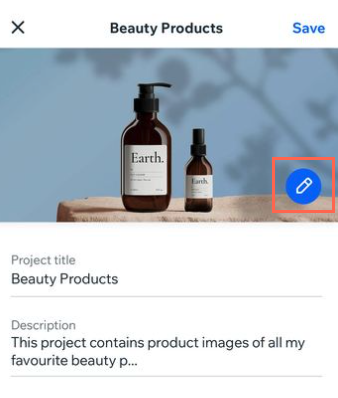
Edit your project's title.
Edit your project's description.
Edit your project's basic info such as project type and date.
Tap Add to Collection to sort your project into a collection.
Tap Save on the top right.
Adding media to a project
Add media to your projects on the go. Perhaps you want to upload a photo from your device you've just snapped. Or you can choose to upload your existing Media Manager content.
To add media to a project in the app:
Go to your site in the Wix app.
Tap Manage
at the bottom.Tap Portfolio.
Tap the More Actions icon
next to the relevant project.Tap Edit.
Tap any image under Project media.
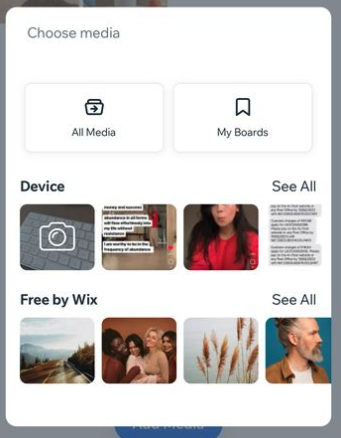
Tap Add Media.
Choose media from your Media Manager, My Boards, upload from your Device or use a Free by Wix image.
Tap Next.
Duplicating a project
Duplicate one of your existing projects on the go. Your duplicated project will then be available for you to edit or add media to.
To duplicate a project in the Wix app:
Go to your site in the Wix app.
Tap Manage
at the bottom.Tap Portfolio.
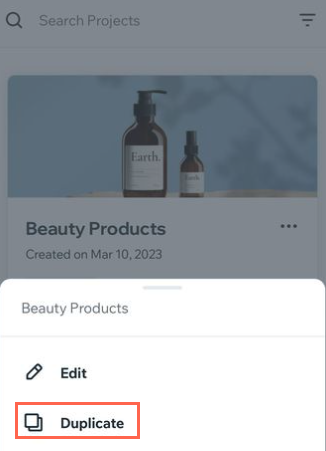
Tap the More Actions icon
next to the relevant project.Tap Duplicate to create a copy of the relevant project.
Tap Save on the top right.
Creating a project
Create a brand new project on the go with the Wix app. Once your new project is created, you can go ahead and edit the project details and upload media to it.
To create a project in the Wix app:
Go to your site in the Wix app.
Tap Manage
at the bottom.Tap Portfolio.
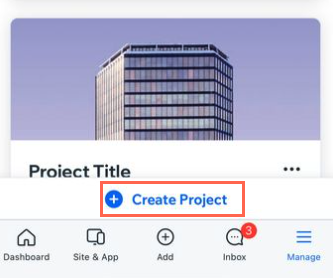
Tap + Create Project at the bottom of the screen.
Enter the project info and add media.
Tap Save on the top right.