


Setting up Photo Albums
Wix Photo Albums: Upgrading Your Photo Albums Storage
Wix Photography allows you to showcase your work to visitors of your site. You can upload your photos and display them in photo albums. Depending on how many photos you have to show off, you can upgrade and increase your photo albums' storage.
In this article, learn more about:
Upgrading your photo albums storage
If you're approaching your storage limit, you'll see a Get extra storage link at the top of your Photo Albums page.
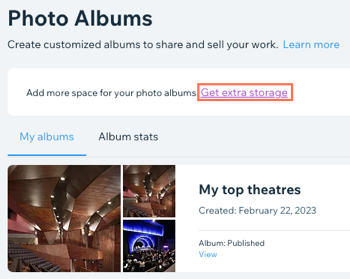
There are 3 different plan options to increase your storage in Photo Albums. Once you purchase a new storage plan, your storage is automatically added to your Photo Albums storage quota.
To upgrade your storage:
Go to Photo Albums in your site's dashboard.
Click Get extra storage at the top.
Note: You will only see this message if you are approaching your storage limit.Select the storage plan you wish to add to your site.
Tip:
Alternatively, you can upgrade your site. You can do this in addition to adding a storage plan to your site to make sure you have enough space for your media.
Frequently asked questions (FAQs)
Click a question to learn more about upgrading your storage.
Who can upgrade a Photo Albums storage plan?
Only site owners can upgrade the Photo Albums storage on a site.
What plans are available?
200GB: 200GB of storage. Allows up to 20,000 + images.
500GB: 500GB of storage. Allows up to 50,000+ images.
1TB: 1TB of storage. Allows up to 100,000+ images.
Can I purchase a Photo Albums storage plan if I haven't upgraded my site with a Premium or Studio plan?
Yes, you can still purchase a Photo Albums storage plan even if you haven't upgraded your site with a site plan.
Is the added storage applied to my entire Wix account?
No, the extra storage is only applied to the site it was purchased from and not the entire Wix account.
Can I transfer a Photo Albums storage plan to a different site in my Wix account?
Yes, you can transfer a Photo Albums' storage plan to a different site in your account, and unassign it from the previous site.
Go to Premium Subscriptions in your Wix account.
Click the More Actions icon
 next to the relevant storage plan you want to transfer.
Click Assign to a different site.
Select the site you want to transfer the storage to.
Click Next.
Click Assign.
What is the refund policy?
You are eligible to receive a refund within the first 14 days of your storage plan purchase. To get a refund, cancel your storage plan:
Go to Premium Subscriptions in your Wix account.
Click the More Actions icon
next to the relevant subscription and click Cancel plan.Select Cancel my subscription now.
Click Cancel Now.
After the first 14 days have elapsed, your storage plan subscription is non refundable. You can, however, cancel auto-renewal of the plan. This means that your plan expires at the end of your current period. To cancel auto-renewal:
Go to Premium Subscriptions in your Wix account.
Click the More Actions icon
next to the relevant subscription and click Cancel plan.Select Cancel auto-renewal of my subscription.
Click Cancel Now.
What if I already have existing storage from my current Premium or Studio site plan?
The existing storage you have from your site plan will be added to the extra storage that you purchased. For example: if you already have 2GB of storage and you purchase the 500GB add-on, you will have 502GB of storage.
What happens to my storage quota if I cancel my Premium or Studio plan subscription?
The extra storage you purchased with the storage add-on will still be applied to your site. For example, if you downgrade to a free plan, but you have purchased 500GB of upgraded storage, you still have 500GB available for use.
I've deleted a photo album. Why hasn't this freed up much storage space?
When you delete an album, its images remain within your Photo Albums Media Manager, in case you'd like to add them to alternative albums.
To free up storage space, delete any photos you don't need in your Photo Albums Media Manager. You can do this by clicking Edit and then Media on an existing album. Learn more about your Photo Albums Media Manager.