top of page

Wix Contacts FAQ

Wix Contacts: Adding and Managing Custom Contact Fields

Add custom fields to store additional information about your contacts. Custom fields can be either text, number, date or URL, and can have any name you choose.
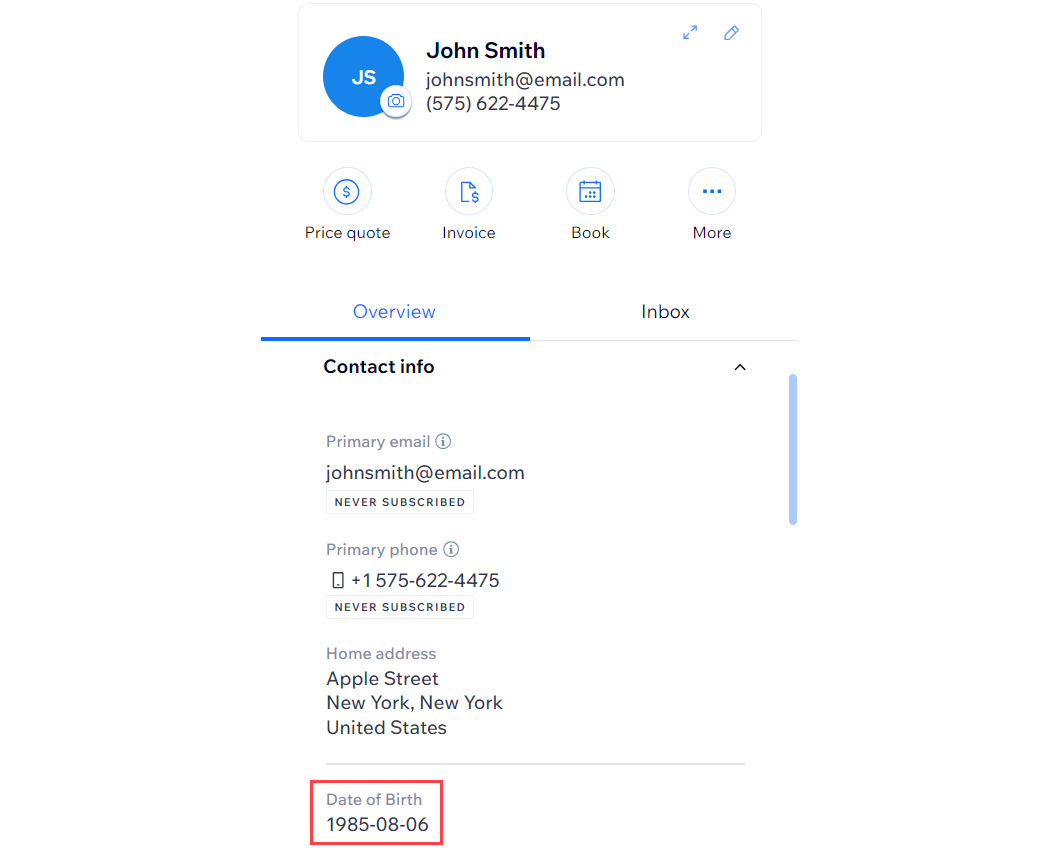
A screenshot of the contact panel with the date of birth custom field highlighted.

Adding custom fields to contacts

Any custom field that you add is automatically added to all contacts in your Contact List. This way, you do not have to fill in this field for every contact.

Tip:

Sync custom fields from your contacts to Wix Forms to collect this information from your visitors from a form on your site.

To add a custom field:

  1. Go to Contacts in your site's dashboard.

  2. Click the More Actions icon at the top and select Custom fields.

  3. Click + Add New Field.

  4. Click the Field Type drop-down and select the type of content: Text, Number, Date, or URL

  5. Enter the name of the new field (e.g. "Date of Birth") in the Field Name field.

  6. Click Add.

A screenshot of the custom field menu with the text field type selected, and Date of Birth entered as the custom field.

  1. Click Done.

Renaming custom contact fields

You can change the name of a custom field without affecting any of the information stored in the field.

To rename a custom contact field:

  1. Go to Contacts in your site's dashboard.

  2. Click the More Actions icon at the top and select Custom fields.

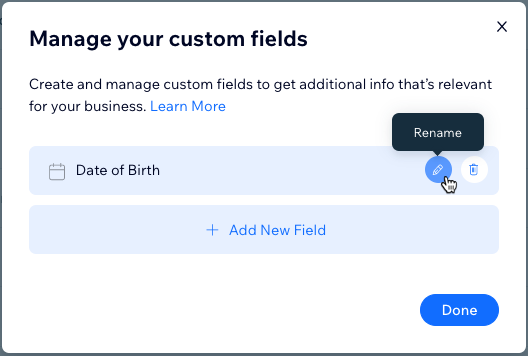
  3. Hover over the field you want to rename and click the Rename icon .

  4. Edit the name of the field and click the checkmark to save.

  5. Click Done.

A screenshot of the Manage your custom fields menu, with the mouse hovering over the Rename option on a custom field.

Deleting custom contact fields

Clean up your contacts by deleting custom fields that you no longer need. Deleting the custom field removes it, and the information it contains, from all your contacts.

To delete a custom field:

  1. Go to Contacts in your site's dashboard.

  2. Click the More Actions icon at the top and select Custom fields.

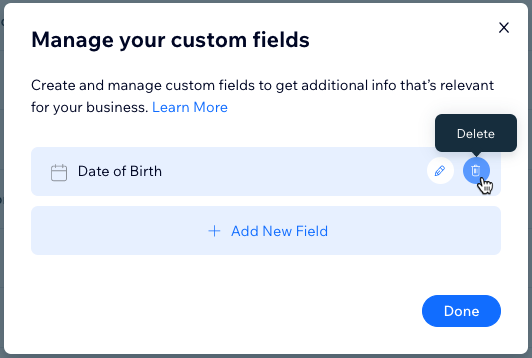
  3. Hover over the field you want to delete and click the Delete icon .

  4. Click Delete to confirm.

  5. Click Done.

A screenshot of the Manage your custom fields menu, with the mouse hovering over the Delete option on a custom field.

Need A Professional Website?
Contact Us 
Today!

Wix Apps: Adding the Wix FAQ App Across Multiple Pages

Wix FAQ App: Sharing Links to Your Questions

Working with Categories in the Wix FAQ App

Managing Your Questions in the Wix FAQ App

Adding Media to an Answer in the Wix FAQ App

Adding a New Question in the Wix FAQ App

Adding and Setting Up the Wix FAQ App

The Wix FAQ App: An Overview

Publishing a Google Sheets Spreadsheet from the Table Master App

Manually Adding Additional Columns or Rows to Your Table Master App

Adding and Setting Up the Table Master App

Wix Donations: Archiving a Campaign

Wix Donations: Managing Donations

Wix Donations: Adding and Setting Up Wix Donations

Wix Donations: An Overview

Troubleshooting Instagram Feed App Issues

Connecting Your Instagram Feed to Your Instagram Personal Account

Connecting Your Instagram Feed to Your Instagram Business Account

Setting Up the Old Instagram Feed App

Wix Apps: Adding and Setting Up the Instagram Feed App

Switching from the Old Instagram Feed App to the New Instagram Feed App

About the Instagram Feed App by Wix

Embedding Google AdSense Code with the HTML Element

Troubleshooting: Not Seeing My Google AdSense Ads

Google AdSense Request Rejected by Google

Apps Made by Wix: Adding and Setting Up the Wix Monetize with AdSense App

About the Wix Monetize with AdSense App

Unable To Find and Delete Cookie Alert App In Your Editor

Using the Member's Area with the Shared Gallery App

Deleting the Shared Gallery App

wix experts
Graphic2Traffic web design
©
bottom of page