top of page

Changing your Wix Video settings

Wix Video: Allowing Others to Embed Your Video on their Site

Allow your visitors to embed your video on their site or blog using HTML code. It's a great way to show your content to the world!

Important:

  • This option is only available for videos you have uploaded, not videos added from Facebook, Vimeo or YouTube.

  • This option is only available after upgrading to a Premium Plan or for Premium accounts.

To set up the embedding option:

  1. Go to Video Library in your site's dashboard.

  2. Hover over the relevant video and click the Edit icon .

  3. Scroll down to Embed Options.

  4. Click the toggle to enable embedding.

  5. Select the information you wish to display.

Note:

You can add a custom logo to the embedded video, and choose when it appears. The recommended format for your logo is a transparent PNG file, 254 x 152 px.
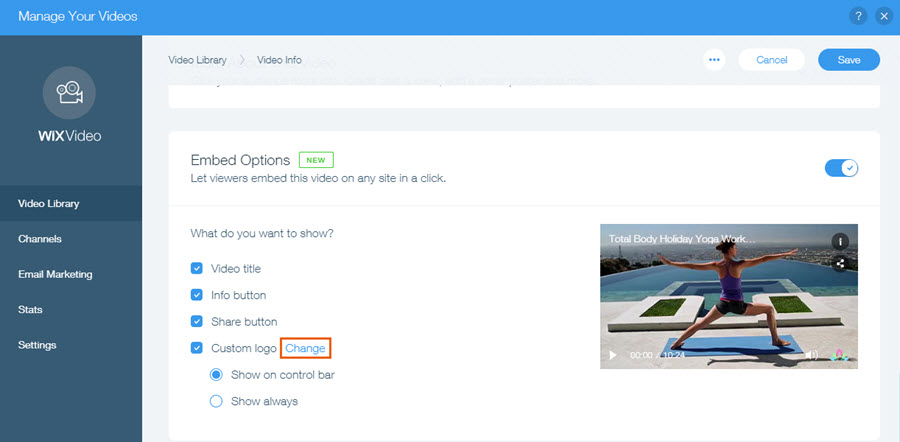
The Change option highlighted next to Custom logo.

After setting up the embed option, visitors watching a video on your site can click the share icon and then access the embed code.

The share and embed buttons being clicked on a video.

Important information about embedded videos

  • When your visitor embeds the video, all the relevant information, including title, cover, action cards, and price appear in the embedded video.

  • If your video is set to allow renting or streaming, viewers will be directed to your Wix site to complete the purchase.

  • Any changes you make to the video's information on your site also appears on the embedded video. However, changes made to the settings, such as changes in fonts and design after embedding the video do not appear in the embedded video.

Embedded videos in mobile friendly view

  • The size of embedded videos in mobile friendly view should be manually adjusted in the html code.
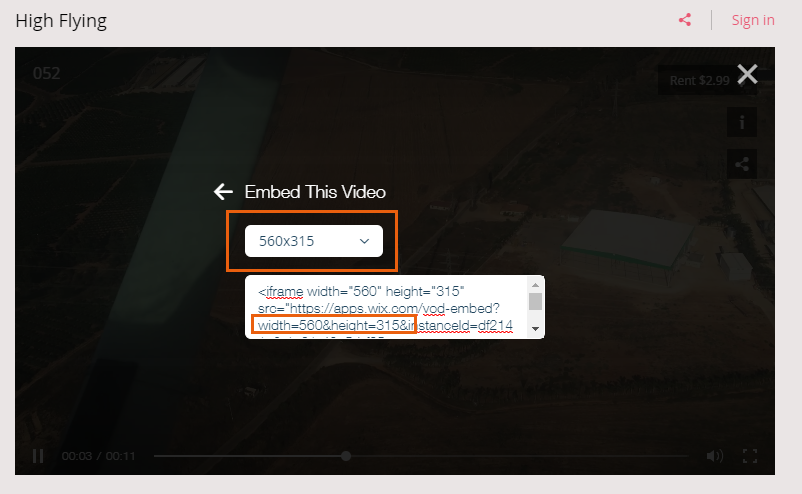
The size indicators highlighted in a video's HTML code.

Need A Professional Website?
Contact Us 
Today!

Wix Stores: Setting Up Affiliate Marketing with the Goaffpro App

Wix Contacts: About Your Contact Panel

Wix Contacts: Using Pinned Actions in Your Contact Panel

Wix Contacts: Creating a Test Contact

Wix Contacts: Changing a Contact's Subscription Status

Wix Contacts: Adding and Managing Custom Contact Fields

Wix Contacts: Creating and Using Contact Labels

Wix Contacts: Creating a Segment

Wix Contacts: About Segments

Wix Contacts: Exporting Your Contacts

Wix Contacts: Troubleshooting Contact Importing Issues

Wix Contacts: Importing Contacts by Uploading a CSV File

Wix Contacts: Importing Contacts from a Gmail Account

Wix Contacts: Managing Your Contact List

Wix Contacts: Manually Adding a Contact

Wix Contacts: An Overview

Wix Forms: Creating a Coupon

Wix Forms: Setting Up Tax on Your Form

Wix Forms: The Difference between the New and Old Wix Forms

Wix Forms: Viewing Form Submissions from Your Dynamic Pages

Wix Forms: Managing Your Forms from the Dashboard

Wix Forms: Choosing an Address Field

Wix Forms: Adding and Setting Up a Donation Form

Wix Forms: Adding Submission Limits to Your Forms

Wix Forms: Adding and Managing Rules

Wix Forms: Upgrading Wix Forms

Wix Forms: Adding and Setting Up a Multi-Step Form

Wix Forms: Adding Payments to a Site Form

Wix Forms: Enabling Double Opt-In for Subscribers

Wix Forms: Adding and Setting Up a Subscribe Form

wix experts
Graphic2Traffic web design
©
bottom of page