


Wix Forms FAQ
Wix Forms: The Difference between the New and Old Wix Forms
We recently released a new version of Wix Forms, offering a more robust and feature-rich solution for creating and managing forms.
In this article, you can learn about the differences between the two versions of the Wix Forms app, and how to tell which one you're currently using.
Adding your form
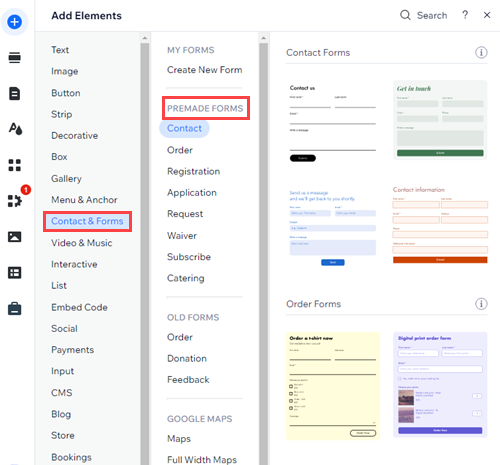
Both the new and old versions of Wix Forms are available in the Add Elements panel in your editor.
In the Wix Editor, new forms are organized under Premade Forms, and the old forms have their own category.
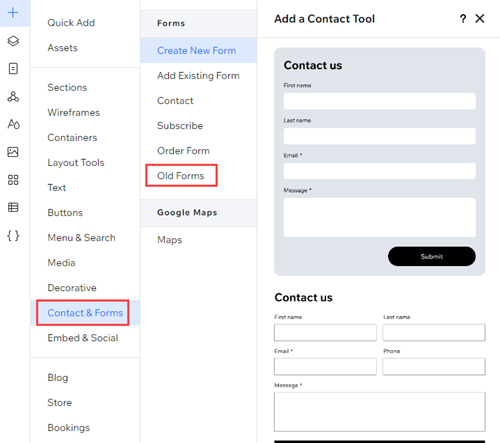
In the Studio Editor, the new forms are the default. Everything under the Forms category, except for the Old Forms subcategory, relates to the new version of Wix Forms.
Used a site or section template?
These templates usually include the old version of Wix Forms.
Building your form
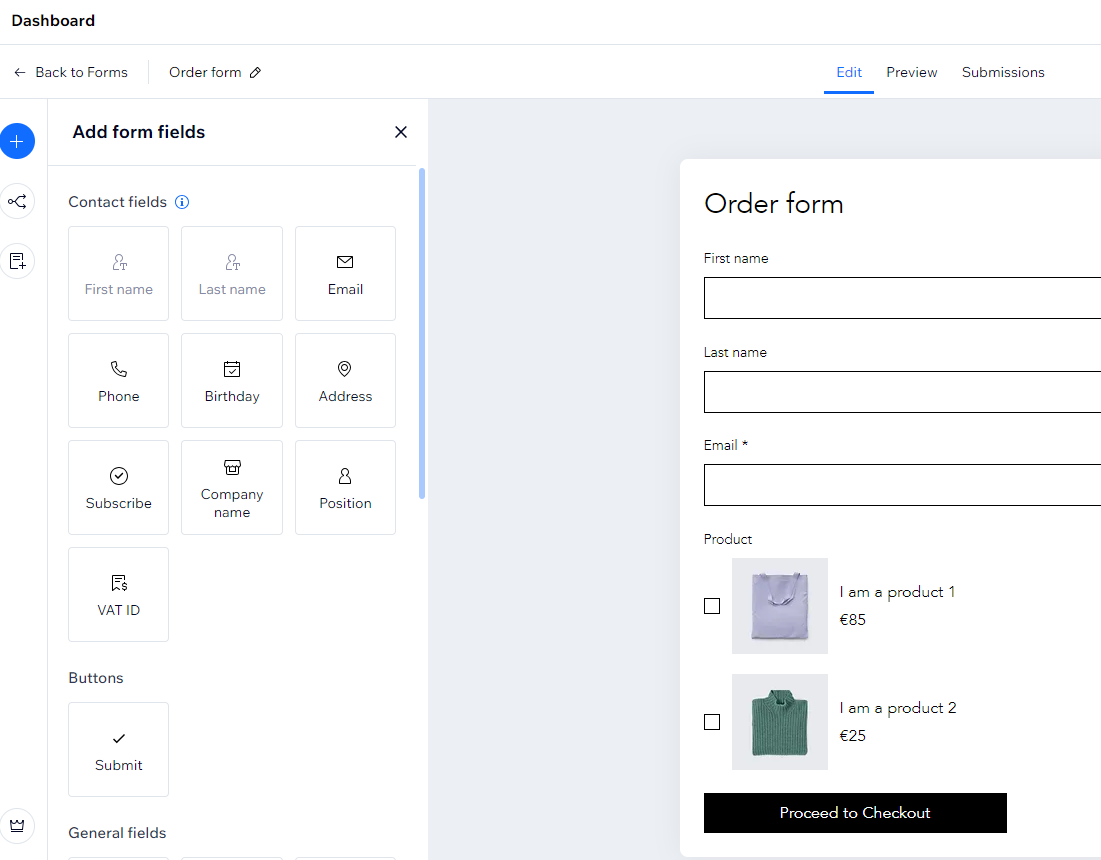
In the new Wix Forms, you build and edit your form in a brand new interface. The new form builder offers fields that fit all types of questions like multi choice, checkboxes, and drop-downs. You'll also find new layout options to create columns, sections and pages for your form.
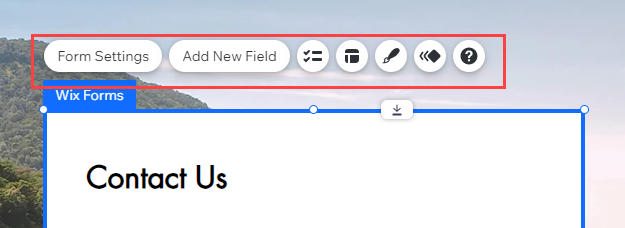
In the old Wix Forms, you make your edits directly on the form, selecting the field or element you want to adjust.
Looking for more customization?
Learn how to design your form so it captures and maintains your visitors' attention.
Changing your form settings
The available form settings, as well as their location, differ between the 2 versions of Wix Forms. In addition, the Settings panel you see in the editor does not offer the same customization options.
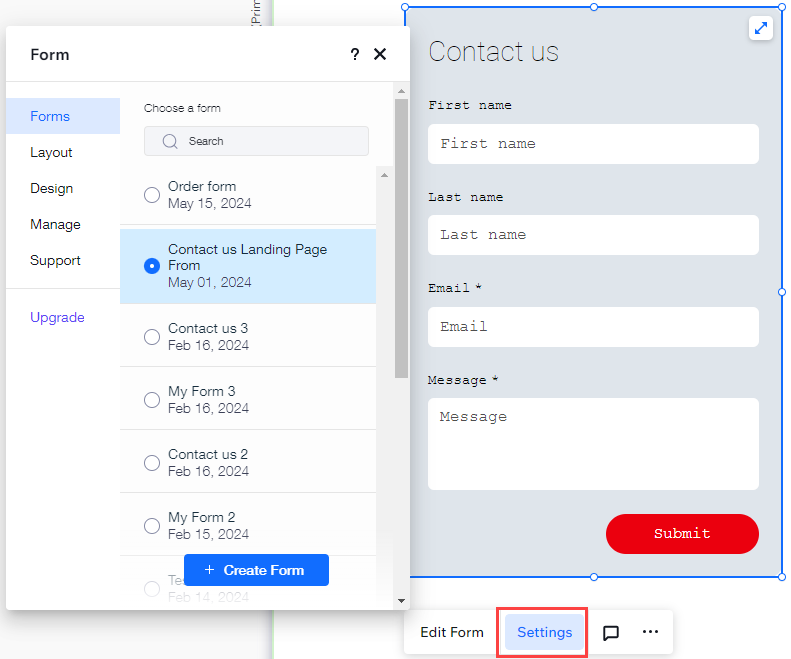
In the new Wix Forms, the Settings panel lets you design the form and choose which form to display. Settings like the submit message, form conditions and payments are available in the form builder.
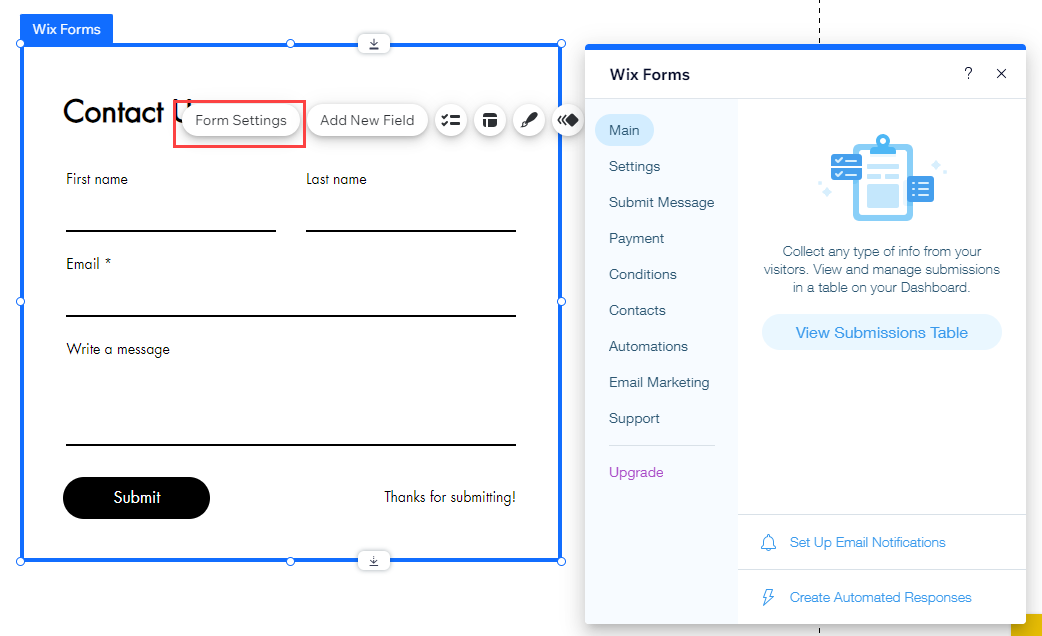
In the old Wix Forms, you use the Form Settings panel to adjust your payment settings, submit message and conditions. The design and layout options are still available, but in their own panels.
Viewing your form submissions
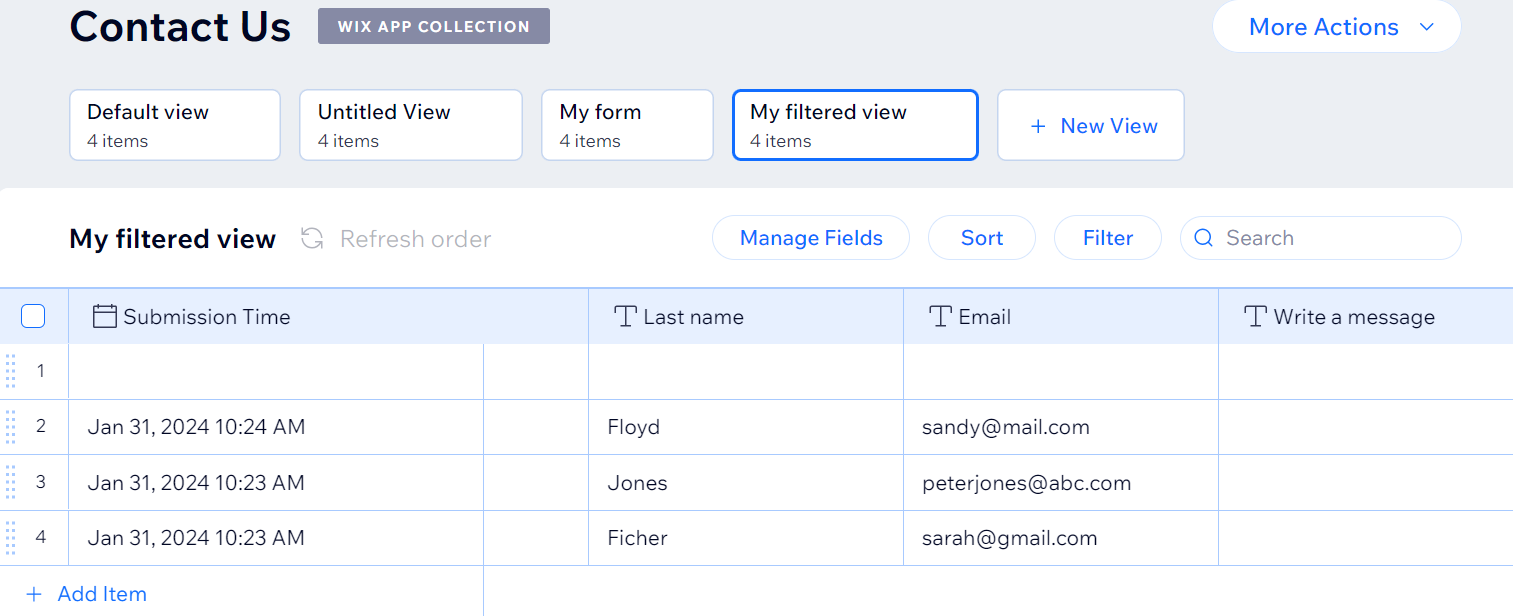
In both versions of Wix Forms, you can find your form submissions in the Forms & Submissions tab of your site's dashboard. However, the submissions table looks different between the 2 versions.
In the new Wix Forms, the table is divided into 3 tabs (Submissions, Spam, Trash).

In the old Wix Forms, the table is not divided into these tabs.
What's next?
Learn more about viewing and managing your submissions table to make the most of your data.
FAQs
Click a question below to learn more.
How can I switch from old forms to new forms?
It is not currently possible to switch an existing form built with old Wix Forms to new Wix Forms. Delete the form built using old forms and revamp while you recreate the form with new forms features.
How many forms can I create?
You can create 4 forms for free, regardless of which version of Wix Forms you are using. To build more forms, upgrade your site.
Why can't I see updated submissions data?
Try publishing your site and refreshing to see updated data. Submission tables load with the data from the last time you published your site.