top of page

Wix Contacts FAQ

Wix Contacts: Using Pinned Actions in Your Contact Panel

Pinned actions in your contact panel allow you to quickly access frequently-used actions for your contacts. This functionality saves time by letting you perform tasks like sending invoices, managing workflows, or setting up appointments with just a few clicks.
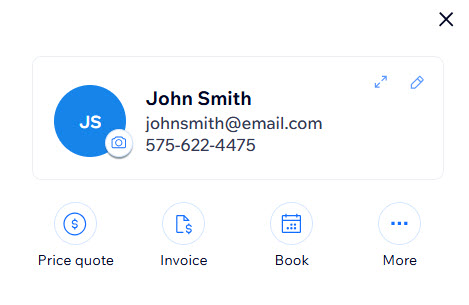
A screenshot of the contact panel showing actions pinned to the top.

Setting pinned actions

Easily access your most-used actions by pinning them to the top of your contact panel.

To set pinned actions:

  1. Go to Contacts in your site's dashboard.

  2. Click on the contact you want to manage to open the contact panel.

  3. Click the More Actions icon .

  4. Click Set pinned actions.
    A screenshot of the contact panel with the More Actions menu open, with the Set pinned actions option highlighted.

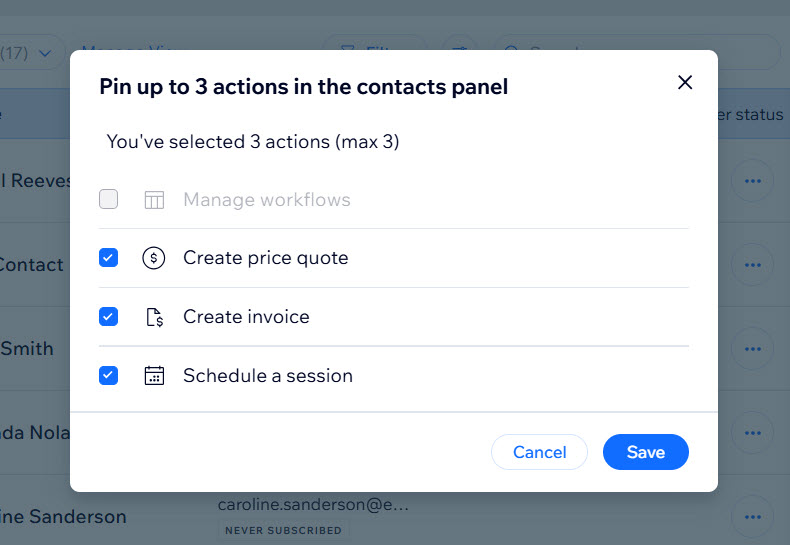
  5. Click the checkboxes to select the actions you want to pin from the available options.
    Note: You can pin a maximum of 3 actions at once.

  6. Click Save.

A screenshot of the pinned actions menu showing the different options available to pin.

FAQs

Click a question below to learn more about pinned actions.

How do I remove a pinned action?

To unpin an action, open the Set pinned actions menu and uncheck the boxes next to the actions you want to remove from the contact panel, and click Save.

Are pinned actions the same for all contacts?

No, pinned actions are set individually for each contact. This allows you to customize actions based on the specific needs of each customer.

Is there a limit to how many actions I can pin?

You can pin a maximum of 3 actions per contact.

Can I pin custom actions?

Currently, you can pin the predefined actions available in the Set pinned actions menu.

Need A Professional Website?
Contact Us 
Today!

Wix Chat: Automatically Sending Chat Messages or Responding to Chat Messages

Wix Chat: About Notifications

Wix Chat: Deleting Wix Chat

Wix Chat: Adding the WhatsApp Channel to Your Chatbox

Wix Chat: Viewing and Chatting with Live Site Visitors

Wix Chat: Customizing the Chat Icon on Your Mobile Site

Wix Chat: Translating Wix Chat

Wix Chat: Allowing Members to Chat with Each Other Using Members Chat

Wix Chat: Customizing Your Chat Settings

Wix Chat: Designing Your Chatbox

Wix Chat: Adding Wix Chat to Your Site

Wix Chat: An Overview

Your AI Site-Chat Conversations Quota

Designing and Customizing Wix AI Site-Chat

Training Your AI Site-Chat

Testing Your Wix AI Site-Chat

Adding and Setting Up Wix AI Site-Chat

About Wix AI Site-Chat

Wix Inbox: Sending a Broadcast Message to Your Contacts in the Wix App

Wix Inbox: Working with Site Collaborators

Wix Inbox: Connecting WhatsApp Business to Inbox

Wix Inbox: Connecting Your Facebook Page

Wix Inbox: Connecting Instagram to Inbox

Wix Inbox: About Wix Inbox Channels

Wix Inbox: Connecting Your Gmail Account

Wix Inbox: Managing Your Notification Settings

Wix Inbox: Managing Your Inbox

Wix Inbox: Setting Up Your Inbox Profile and Outgoing Emails

Wix Inbox: Sending Messages and Attaching Items

Wix Inbox: An Overview

wix experts
Graphic2Traffic web design
©
bottom of page