Managing your orders
Wix Stores: Viewing and Fulfilling Local Delivery Orders
Customize the columns in your Orders tab to make it easy to view all your local delivery and scheduled orders, so that you can get them out to your customers on time.
Step 1 | Customize the columns in the Orders tab
When you go to the Orders tab, the default columns are always displayed. By adding the "Delivery Method" and "Delivery Time" columns to your orders list, you can view your upcoming local orders at a glance and see which ones need to be dealt with right away.
To customize the columns in the Orders tab:
Go to Orders in your site's dashboard.
Click the Customize column icon
 .
.Select the checkboxes next to Delivery time and Delivery method.
(Recommended) Deselect the checkboxes next to any columns you don't need.
Step 2 | Filter the orders that are displayed
Filter your order list to help you focus on the task you or your staff members want to do next.
For example, if a staff member is preparing local delivery orders that need to be delivered on Nov. 2, they can filter the order list to display those orders and hide the rest.
To filter the order list for local delivery:
Click Filter.
(Optional) Select the checkboxes next to Unfulfilled and Partially Fulfilled.
Do either or both of the following:Select the local delivery option under Delivery Method.
Select the relevant delivery day under Delivery Time.
Step 3 | Save your order list view
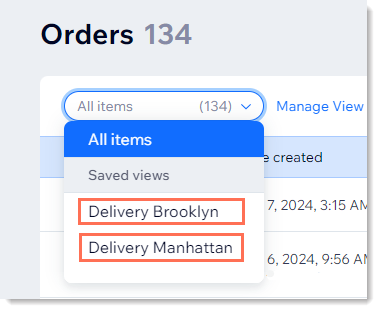
Once you've got the columns and filters just the way you like them, you can save your view. You can even save multiple views for different purposes. For example, if you deliver from two locations, you can save the view for each one separately.
After setup, when you want to fulfill orders, simply select the view you need.