


Setting up your store
Wix Stores: Migrating from Other eCommerce Platforms to Wix Stores
The Cart2Cart app helps you migrate to Wix from over 80 eCommerce platforms so you can create your dream store. To check if your platform is supported, click here.
You can add the Cart2Cart app to your Wix site for free, but Cart2Cart charges a fee to perform the migration. The exact price is determined by the platform you are transferring from, which elements you choose to migrate, what optional extra services you select and more. You can run a free demo, including migrating a limited number of elements to your Wix store, to see how the Cart2Cart app works.
During the migration process, Cart2Cart gives you a preview, where you see an exact price breakdown before you commit to any changes or pay any fees. In addition, you can click here to get a cost estimate from Cart2Cart.
Before you begin:
Make sure you added Wix Stores to your site. Learn how
To migrate store orders, you must first upgrade to a Premium plan or Studio plan that allows you to accept payments.
Step 1 | Add the Cart2Cart app and select an account
To start the migration process, go to the Wix App Market and add the Cart2Cart app. Then, make sure the email associated with the relevant Wix account is selected.
Wix Editor
Studio Editor
Click Add Apps
 on the left side of the editor.
Search for the Cart2Cart app in the search bar.
Click Add to Site.
Click Agree & Add.
Select an option:Sign in to your existing Cart2Cart account.
Create a new Cart2Cart account:Click Sign Up.
Fill in the required fields.
In the Cart2Cart dashboard, make sure the email associated with the relevant Wix account is selected.
Click Source and Target Cart Setup.
Tip:
If you close the migration tab at any stage, you can access the Cart2Cart dashboard from the Manage Apps tab in your site's dashboard.
Step 2 | Source and target cart setup
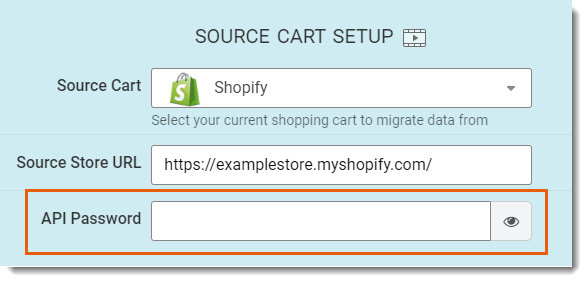
Throughout the migration process, the store you are migrating from is referred to as the source cart. The target cart is your Wix store. In this step you select both carts and provide the necessary permissions to access the source cart. For example, to migrate from Shopify, you need to provide an API Password.
Note:
This step is different for each source cart. Refer to the instructions on the right in the Cart2Cart migration screen.
Show me how
Select a source cart (i.e. the platform from which you want to migrate).
Enter your store's URL (e.g. http://examplestore.yourplatform.com).
Enter the information needed to access your platform.
Note: Each platform requires different information. For example, Shopify requires an API Password. Follow the instructions on the right of the screen to complete this part of the process.Leave Wix as the selected Target Cart.
Click Choose Entities.
Step 3 | Select what to migrate and perform a demo migration
You can migrate (import) different types of data into your Wix store (data available varies by platform). Afterwords, select any available additional migration options.
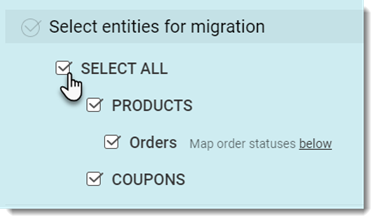
To select migration options:
Select which of types of data (e.g. products, orders, and coupons) you want to migrate to Wix.
Note: Imports are limited to 1,000 products and 1,000 orders.(Optional) Select any of the additional options you see displayed (options vary depending on what you selected in step 1):Select the Clear current data on Target Store before Migration to delete data in your Wix store for the entities you are migrating.
Important: This step is irreversible.
E.g. if you import products and select this option, any products already in your Wix dashboard will be deleted. Learn more
Select the Skip product thumbnail images migration checkbox. Watch video to learn more
Select the Change products quantity to 100 on Target Store ($29). Learn More
Perform data mapping: (relevant when importing orders): Orders in each platform have different statuses. Make sure they are classified correctly in your Wix dashboard by matching terms. Learn more
Click Start Free Demo.
Once you've selected options, Cart2Cart performs a demo migration. This gives you a chance to preview the migration and check that everything is ok before you make changes and pay Cart2Cart for the process.
Step 4 | Check demo migration results and complete the migration
Now that the demo migration is complete, click Check the Results to view your data in your Wix dashboard.
 Products can be found in the Wix Store Products tab.
Orders can be found in the Wix Orders tab.
Coupons can be found in the Wix Coupons tab.
If you're satisfied with the result, select one of the insurance plans or click the skip migration insurance option. Watch a Cart2Cart video on insurance options
When you're ready, review the migration price.
Tip: Click the Menu icons to see the price breakdown.

Pay and complete the migration:Click Add Funds for Full Migration.
Enter the required details.
Click Buy now.
When the migration is complete, you'll receive an email notification.