


Using the Wix app for Wix Stores
Wix Stores: Managing Inventory Using the Wix App
You can set how you manage inventory for products and product variants right from the Wix app on your mobile device.
Wix Stores offers two inventory management methods:
Tracking inventory: Track how many of a specific product or product variant you have in stock. When you make a sale, the inventory amount is automatically updated.
In Stock / Out of Stock: Manually assign products or variants an "In Stock" or "Out of Stock" status.
Tip:
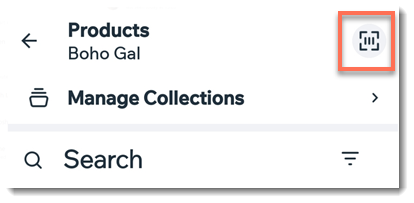
Save time by locating products using the barcode scanner. Just tap the Barcode Scanner icon  and scan incoming merchandise. If the barcode matches one of your product's existing SKU numbers, the product is displayed.
Learn more about managing inventory:
Managing inventory for products without variants
To manage inventory for a product, select a product and set up manual or automatic inventory management.
To manage inventory for products without variants:
Go to your site in the Wix app.
Tap Manage
 at the bottom.
Tap Store Products, or tap Catalog and select Store Products.
Tap to select the relevant product.
Choose what you want to do next:
Manage inventory automatically for this product
Enable the Track Inventory toggle.

Enter the stock quantity of the product.
(Optional) Add an SKU (stock keeping) number:Enter the number manually.
Click the Barcode Scanner icon and scan the product's barcode.
(Optional) Enter a product weight.
Tap Save.
Manage inventory manually for this product
Disable the Track Inventory toggle.

Select an inventory status:In Stock
Out of Stock
(Optional) Add an SKU (stock keeping) number:Enter the number manually.
Click the Barcode Scanner icon and scan the product's barcode.
(Optional) Enter a product weight.
Tap Save.
Managing inventory individually for variants
If you created product options (e.g. color, size) for your product, you can manage inventory separately for each of it's variants (e.g. large, blue variant, small, blue variant). Learn more about product options.
To manage inventory for individual variants:
Go to your site in the Wix app.
Tap Manage
at the bottom.Tap Store Products, or tap Catalog and select Store Products.
Tap to select the relevant product.
Choose what you want to do next:
Manage inventory automatically for this product's variants
Enable the Track Inventory by Variant toggle.

Note: If already enabled, tap Manage Inventory.Enable the Track Inventory toggle.

Tap the first variant.
Enter the stock quantity of the variant.
(Optional) Add an SKU (stock keeping) number:Enter the number manually.
Click the Barcode Scanner icon and scan the product's barcode.
(Optional) Enter the variant weight.
(Optional) Enter a positive or negative amount to increase or discount the price of this variant (e.g. enter -10 to reduce the price by $10)
(Optional) Tap the Hide this Variant toggle to enable it.
Tap Save.
Repeat steps 4 - 9 for each remaining variant.
Tap Save.
Manage inventory manually for this product's variants
Enable the Track Inventory by Variant toggle.
Note: If already enabled, tap Manage Inventory.Disable the Track Inventory toggle.

Tap the first variant.
Select a status:In Stock
Out of Stock
(Optional) Add an SKU (stock keeping) number:Enter the number manually.
Click the Barcode Scanner icon and scan the product's barcode.
(Optional) Enter the variant weight.
(Optional) Enter a positive or negative amount to increase or discount the price of this variant (e.g. enter -10 to reduce the price by $10)
(Optional) Tap the Hide this Variant toggle to enable it.
Tap Save.
Repeat steps 4 - 9 for each remaining variant.
Managing inventory for all variants
You can manage the inventory of a product as one, even if it has variants. For example, if you have packages of blue balloons, red balloons, and green balloons, you can track how many packages you have altogether, without tracking the blue, red and green ones separately.
To manage inventory for individual variants:
Go to your site in the Wix app.
Tap Manage
at the bottom.Tap Store Products, or tap Catalog and select Store Products.
Tap to select the relevant product.
Choose what you want to do next:
Manage inventory automatically for this product
Disable the Track Inventory by Variant toggle.
Enable the Track Inventory toggle.

Enter the stock quantity of the product.
(Optional) Add an SKU (stock keeping) number:Enter the number manually.
Click the Barcode Scanner icon and scan the product's barcode.
(Optional) Enter the variant weight.
Tap Save.
Manage inventory manually for this product's variants
Disable the Track Inventory by Variant toggle.
Disable the Track Inventory toggle.

Select a status:In Stock
Out of Stock
(Optional) Add an SKU (stock keeping) number:Enter the number manually.
Click the Barcode Scanner icon and scan the product's barcode.
(Optional) Enter the variant weight.
Tap Save.