


Dropshipping with Wix Stores
Wix Stores: Fulfilling Printify Products
How you handle order fulfillment for Printify products depends on whether you set up automatic payment or not.
Automatic payment and fulfillment
If you added a payment method (PayPal or credit card) in the Printify dashboard, then as soon as a paid order comes in, (or when you mark an order as "Paid"), your payment to Printify is processed automatically and the order is fulfilled.
Manual payment and fulfillment
If you haven't set up a payment method, you can pay for each order manually when it comes in.
To pay for Printify orders manually:
Go to Orders in your site's dashboard.
Select the relevant order.
Click Go to Printify.
Click the Orders tab.
Click to select the relevant order.
Click the Edit icon
 .
.Complete the checkout process, entering your credit card details when prompted.
After payment, the order will be created and shipped to your customer.
Identifying Printify orders in my Wix dashboard
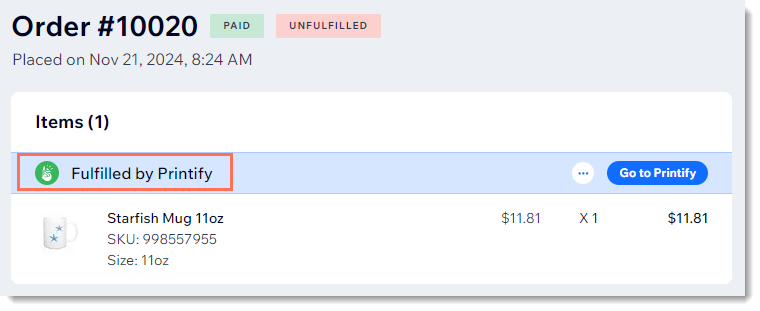
Orders of Printify products have a "Fulfilled by Printify" label.
Identifying fulfilled orders
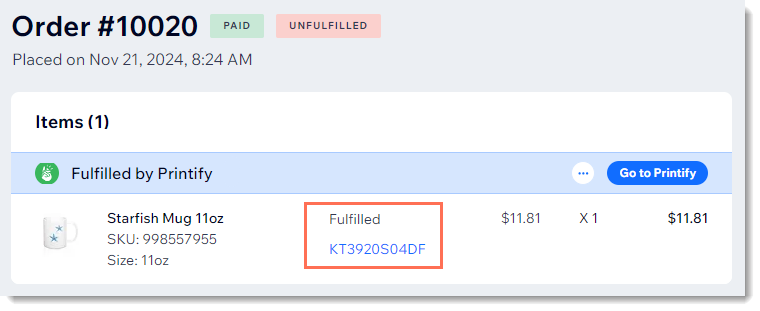
Once an order is fulfilled, an email with a tracking number is sent to you from Printify. The tracking number is also added to the order in the Wix dashboard.
Customer notifications
When Printify fulfills an order, a shipping confirmation email is sent to your customer. Note that the email is sent from your store brand and looks identical to other emails sent to your customers. Learn More
Note:
Sending shipping confirmation emails when an order is fulfilled by a third party can be disabled in the eCommerce Settings tab.
How can my customer and I track orders?
The tracking number is sent to your customer in the shipping confirmation email. In addition, if your customer signed up to your site via your Members Area, they can view the tracking number in their personal My Orders page.
You can view the tracking number in the Wix dashboard. It is added automatically when the order is fulfilled. The tracking number also appears in the email sent to you by Printify when an order is fulfilled, and in the Printify dashboard.