


Managing store inventory
Wix Stores: Displaying an 'Out of Stock' Notice on a Product
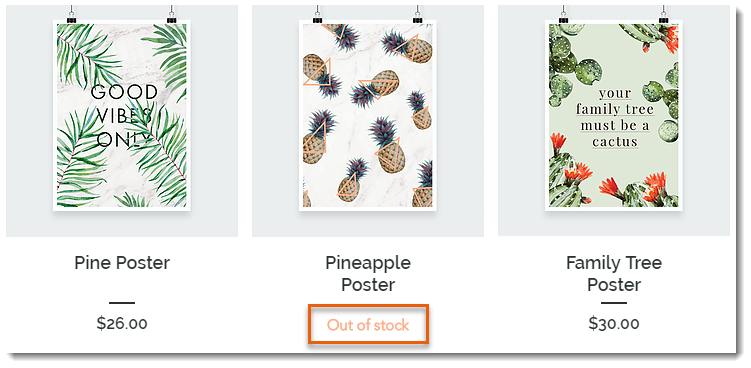
When one of your products is out of stock, an Out of Stock message automatically appears in the Product Gallery and in the Product Page.
Tip:
Instead of the "Out of Stock" message, you can set up back-in-stock notifications. This way, when an item is out of stock, customers see a "Notify When Available" message and can sign up to get an email letting them know when the item is available. Learn more
In this article, learn how to:
Customizing the message in Product Galleries
If you display a button in your product gallery, it changes automatically to an "Out of Stock" message when needed. You can customize the text of the "Out of stock" message.
Wix Editor
Studio Editor
Go to the page with the gallery you want to customize.
Click the gallery on your page.
Click Settings
 .
.Edit the text:Click the Text tab.
Edit the "Out of Stock" text.
Customizing the message in the Product Page
When a product is out of stock, the Add to Cart button in the Product Page automatically changes to an Out of Stock button. The color and font of this button cannot be edited, but you can edit the message text.
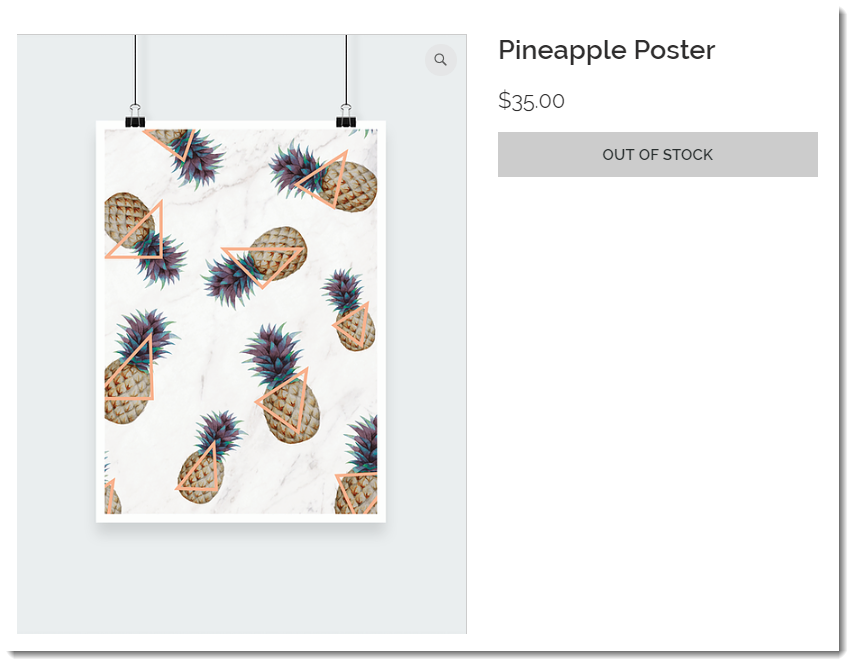
To customize the "Out of stock" message in the Product Page:
Wix Editor
Studio Editor
Go to your Product page:Click Pages & Menu
 on the left side of the editor.
Click Store Pages.
Click Product Page.
Click the Product Page element on your page.
Click the Text tab.
Edit the "Out of Stock Message" text.