top of page

wix studio

Adding and Setting Up Flexboxes

Use flexboxes to streamline the display of your site content. Flexboxes are layout tools that are made up of responsive containers, so they automatically adjust to your visitors' screen sizes.

Step 1 | Add a flexbox

Open the Add panel to select a flexbox preset and drag it onto your page. There are many designs to choose from according to the type of content you need to display (e.g. images only, images and text, etc.)

To add a flexbox:

  1. Click Add Elements  on the left side of the Editor.

  2. Click Layout Tools.

  3. Click Flexboxes.

  4. Drag and drop your chosen flexbox onto the page.
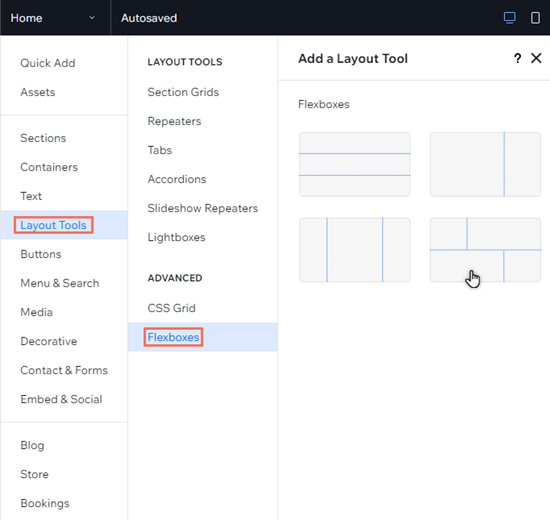
The Add elements panel in the studio editor. The cursor is hovering over a flexbox layout.

See how it works:

Drag the handles on your canvas to see how the content of the flexbox seamlessly reorganizes across breakpoints.

Step 2 | Add items to your flexbox

A flexbox is made up of several items that are responsive containers. You can change the number of items in a flexbox and it will automatically resize the items to fit the available space.

To add a new item, you can click Add Item or use the Manage Items panel in the Inspector.
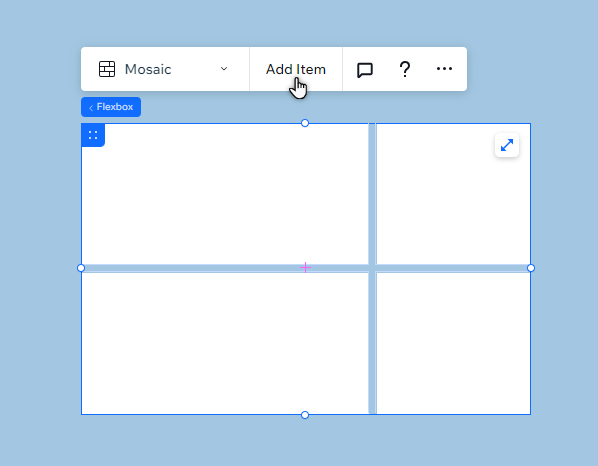
A blank flexbox in the Editor. The cursor is hovering over the Add items button.

Step 3 | Add elements to your flexbox

Choose what you want to display in your flexbox by adding adding elements to the items. You can hide or show elements on different breakpoints to create a unique experience for visitors, no matter the device.

To add elements to an item:

  1. Click Add Elements  on the left side of the Editor.

  2. Select the element type you want to add.

  3. Click your chosen element to add it to your page.

  4. Drag the element to the flexbox item, and drop it when you see Attach.
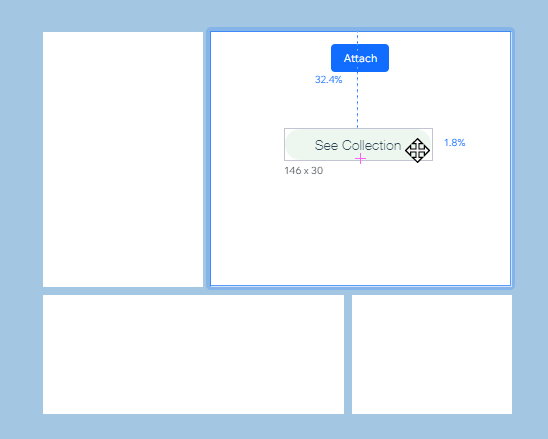
A button that has been dragged to a flexbox. The Attach message is displayed.

Need A Professional Website?
Contact Us 
Today!

Wix Chat: Automatically Sending Chat Messages or Responding to Chat Messages

Wix Chat: About Notifications

Wix Chat: Deleting Wix Chat

Wix Chat: Adding the WhatsApp Channel to Your Chatbox

Wix Chat: Viewing and Chatting with Live Site Visitors

Wix Chat: Customizing the Chat Icon on Your Mobile Site

Wix Chat: Translating Wix Chat

Wix Chat: Allowing Members to Chat with Each Other Using Members Chat

Wix Chat: Customizing Your Chat Settings

Wix Chat: Designing Your Chatbox

Wix Chat: Adding Wix Chat to Your Site

Wix Chat: An Overview

Your AI Site-Chat Conversations Quota

Designing and Customizing Wix AI Site-Chat

Training Your AI Site-Chat

Testing Your Wix AI Site-Chat

Adding and Setting Up Wix AI Site-Chat

About Wix AI Site-Chat

Wix Inbox: Sending a Broadcast Message to Your Contacts in the Wix App

Wix Inbox: Working with Site Collaborators

Wix Inbox: Connecting WhatsApp Business to Inbox

Wix Inbox: Connecting Your Facebook Page

Wix Inbox: Connecting Instagram to Inbox

Wix Inbox: About Wix Inbox Channels

Wix Inbox: Connecting Your Gmail Account

Wix Inbox: Managing Your Notification Settings

Wix Inbox: Managing Your Inbox

Wix Inbox: Setting Up Your Inbox Profile and Outgoing Emails

Wix Inbox: Sending Messages and Attaching Items

Wix Inbox: An Overview

wix experts
Graphic2Traffic web design
©
bottom of page