


Using the Wix app for Wix Stores
Wix Stores: Customizing Your Store in the Wix Mobile Apps
Customers can engage with your store using one of the members apps (e.g. Spaces by Wix, Fit by Wix) or your own native mobile app. Use your site's dashboard, the Wix mobile app, or the Wix Studio app to customize what visitors see when they view your store in your preferred app.
In this article, learn more about:
Adding a store page
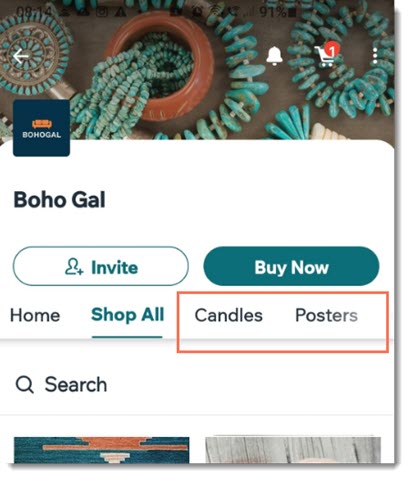
By default, your mobile app includes a shop tab that displays all your products. After creating new store categories, you can add new store screens (pages) to showcase them in separate tabs or add store elements to existing screens.
Dashboard
Wix app
Wix Studio app
Go to Mobile App in your site's dashboard.
Click the relevant tab (e.g. Spaces by Wix app, Your own mobile app).
Click Edit Mobile App.
Click Screens on the left.
Click + Add.
Tip: Click + Add next to Screens not in navigation to hide your screen while working on its content.Enter a name to show in the navigation menu.
Click Add Elements.
Select Store under Add Elements.
Choose the element you want to add to your screen:Product gallery: Display products in a grid. Customers scroll down to view additional items.
Product carousel: Display one row of products. Customers swipe left or right to browse additional items.
Edit the element on the right panel of your screen.
Click Save & Publish.
Adding store elements to an existing screen
You can add a product gallery or a product carousel to any of your mobile app screens.
Dashboard
Wix app
Wix Studio app
Go to Mobile App in your site's dashboard.
Click the relevant tab (e.g. Spaces by Wix app, Your own mobile app).
Click Edit Mobile App.
Click the Screen drop-down at the top and choose the screen you want to edit.
Click Elements on the left.
Select Store under Add Elements.
Choose the element you want to add to your screen:Product gallery: Display products in a grid. Customers scroll down to view additional items.
Product carousel: Display one row of products. Customers swipe left or right to browse additional items.
Edit the element on the right panel of your screen.
Click Save & Publish.
Customizing a product gallery or carousel
After you add a gallery or carousel, you can choose the product category to display, customize your image layout, and more.
Dashboard
Wix app
Wix Studio app
Go to Mobile App in your site's dashboard.
Click the relevant tab (e.g. Spaces by Wix app, Your own mobile app).
Click Edit Mobile App.
Click the Screen drop-down at the top and choose the screen you want to edit.
Select the Product gallery or Product carousel.
Customize the element on the right panel of your screen:
Product gallery
Select a category to display from the Select Category drop-down.
Click the Show filters toggle to enable or disable product filters. If enabled, select the checkboxes next to the filters you want to show.
Choose a layout for the images in the gallery under Layout settings:Crop: Images are cropped to the same size.
Fit: The entire image is displayed with its original aspect ratio.
Click the Show title toggle to show or hide the element title.
Choose the amount of padding you want for the element under Margins.
Click General settings and choose what devices to show the element in: All, Android or iOS.
Click Save & Publish.
Product carousel
Choose a category to display from the Select Category drop-down.
Choose a layout for the images in the carousel under Layout settings:Crop: Images are cropped to the same size.
Fit: The entire image is displayed with its original aspect ratio.
Enter a title for the carousel element.
Choose the amount of padding you want for the element under Margins.
Click General settings and choose what devices to show the element in: All, Android or iOS.
Click Save & Publish.
FAQs
Click to learn more about customizing your store in Wix member apps.
Do I need to make changes in my dashboard and in the Wix app or Wix Studio app?
No. The changes you make to your mobile apps from your dashboard are also applied in the Wix app and the Wix Studio app.
How can I edit my personal profile?
You can edit your personal profile name and add an image. In addition, you can control whether members can see and interact with you. Learn how to customize your personal profile.
How can I invite customers to join my Spaces by Wix app?
To engage with your business on Spaces by Wix, customers can become members. To invite customers to join, you can send an invite code. Learn how to invite customers to join your app.
How do I edit my site's design in the member apps?
When editing your site as it appears in the member apps, you can click Design at the bottom to adjust your site's app theme. Learn more about changing the theme of your member app.