


Managing store emails
Wix Stores: Creating and Sending an Email Marketing Campaign
Spread the word about your products and promotions! Wix Email Marketing allows you to send beautiful emails to your contacts.
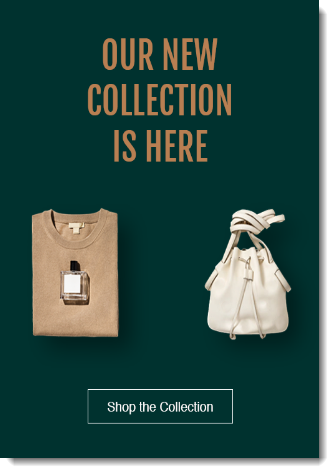
Choose one of our stunning email templates, select what you want to promote, and we'll get you started by automatically adding text and images. Edit the email to get it just the way you like it, or send it as is.
Start by choosing what kind of campaign you want to create:
Create an email marketing campaign for a product
Go to Products in your site's dashboard.
Click to select the product you want to promote.
Click Promote this product on the right.

Click Create Email Campaign.
Create an email marketing campaign for a category, sale, or discount
Go to Email Marketing on your site's dashboard.
Select a template or click More Templates to view additional options.

Now, customize and send your campaign:
Click Next at top right.
Select the relevant contacts or enter email addresses directly.
Click Next at top right.
Enter the campaign details:Subject Line: The subject line of the email.
From Name: The name that the email is sent from. This may be your business name or your personal name.
Reply-to Email: If a reader replies, it is sent to the email address you enter here.
Note: If you have not yet confirmed your email address, click Confirm Now.
(Optional) Click Send Test Email on the left.Enter the email address you want to send the test to.
Click Send.
Select a send option:Send immediately: Click Send Now.
Send later:Click Schedule.
Select the send day.
Select the send time.
Click Schedule Campaign.
Tips:
You can also create a marketing email from scratch by clicking Start from Scratch.
To view campaigns you've already sent, email marketing tips and more, go to the Email Marketing tab and scroll down.