


Dropshipping with Wix Stores
Wix Stores: Connecting Printify to Your Store
Printify is a easy-to-use print on demand dropshipping app that allows you to sell custom-designed clothing, accessories, mugs, phone cases, and more. You can add your personal designs to products, and Printify makes sure it gets shipped to your customer!
How it works
You add your design to a Printify product, set your price, and add the product to your store.
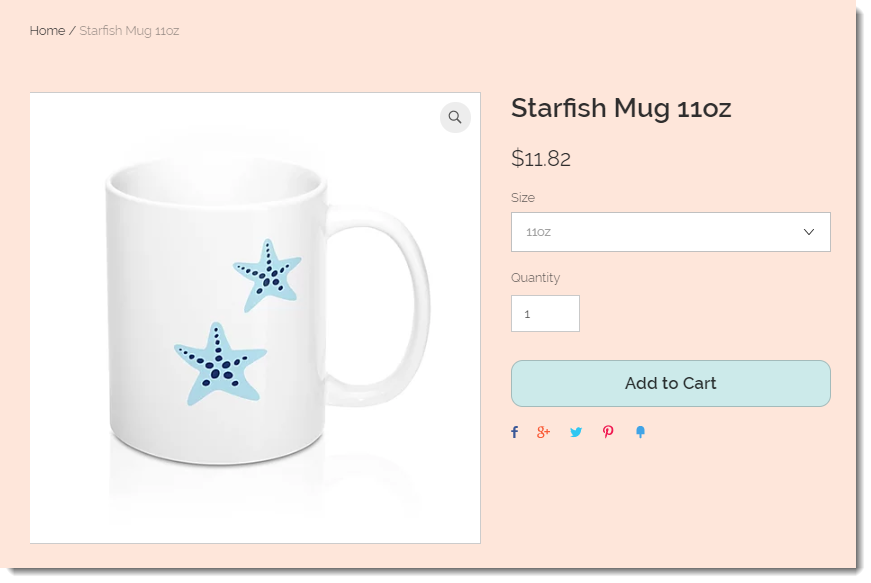
Only after a customer purchases the product, do you pay Printify. They then go ahead and create, package, and ship the goods to your customer. You don't have to worry about storing inventory or managing fulfillment.
Printify costs
There are no upfront costs. You only pay when a customer places an order. Learn more
Printify product selection
Printify offers more 250 products for you to choose from, including t-shirts, shoes, dresses, jewelry, wall decals, phone cases, and more.
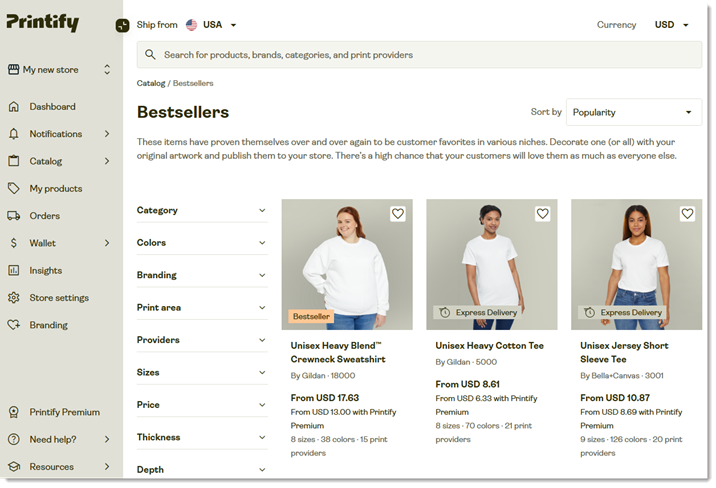
Connecting Printify to your Wix store
Wix Editor
Studio Editor
Dashboard
Click Add Apps
 on the left side of the editor.
Search for the Printify app in the search bar.
Click Add to Site.
Click Agree & Add.
Select an option:Sign up to create a new Printify account
Log in to an existing Printify account
(For new accounts) Follow the instructions in the email you received to confirm your email address.
Go to the Printify dashboard.
Click the Profile icon
 at the top right.
Select My Account.
Click My Stores.
Click Add new store.
Click Connect next to Wix.
If you have more than one Wix site, click Select next to the site you want to connect.
Click Allow and Install.
From the Select store that you want to connect to drop-down, select the Printify store you want to connect to your Wix site, and click Continue. Tip: If you just created your Printify account, your default store in named "My new store".