


Managing the Members Area
Wix Stores: About Your Customers' Member Pages
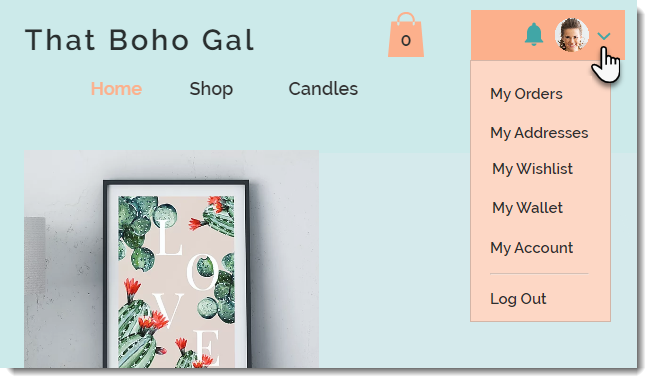
Using the Members Area, customers can sign up and log in to your site. Once they're logged in, customers can access their personal member pages.
The member pages are private; each customer can view only their personal information.
Notes:
After a customer becomes a member, new orders appear in their My Orders page. Old orders (placed before becoming a member) are not listed.
If you don't have it installed, you can add the Members Area to your site.
Member pages
Learn more about the member pages that your customers see in their member's area.
My Orders Page
In the My Orders page, your customers can get information on previous and current orders.
They can:
View order details (date, payment method, etc.)
Check the order status (Fulfilled, Shipped, etc.)
Track orders that have a tracking number
Download digital purchases (within 30 days of purchase)

My Addresses Page
In the My Addresses page, customers can add, remove, and edit addresses. Customers who saved more than one address can select one as their default address.

My Wishlist Page
If you added a wishlist to your store, the My Wishlist page appears in the Members Area.
The My Wishlist page is where customers keep track of their favorite products. You can optionally add an "Add to Cart" button to make it easy for customers to make purchases.

My Wallet Page
The My Wallet feature allows customers to save their credit card information securely so they can complete future transactions without re-entering their details.
When a customer who is logged in gets to the checkout page, they see their personal details (name, email, address and phone number) filled in. If a customer has an account but is not logged in, they are prompted to do so.

When a logged in customer enters credit card details for the first time, they can choose to save their credit card details.

In the My Wallet page, customers can view and update credit cards that they saved while making purchases from your store.

When a customer who saved a card returns, they can select their saved card as a payment option or choose Credit / Debit Card to enter a new card.

My Subscriptions Page
If a customer purchased a product subscription, a My Subscriptions page appears in addition to the other member pages. There, clients can see the status of their subscriptions and update their payment method.
If you have an older version of the Members Area that does not include the "My Subscriptions" page, you can add it.
To add the subscriptions page in the Wix Editor:
Click Pages & Menu
 on the left side of the Editor.
Click Members Area.
Click Add a Member Page at the bottom.
If not already there, click the Members Area Pages tab.
Click + Add Page on Subscriptions.
To add the subscriptions page in the Studio Editor:
Click the Pages icon
 in the top bar of Editor X.
Scroll down to the Members Area pages.
Click the More Actions icon
 next to Member Page.
Select Manage Member Pages.
If not already there, click the Member Page tab.
Click + Add Page next to Subscriptions.
My Account Page
In the My Account page, customers can update their personal info. These details entered to the My Account page are automatically added to your contacts.

Customizing member pages
You can customize each of the pages in the Members Area so they match your site's design.
Wix Editor
Studio Editor
Click Pages & Menu
 on the left side of the editor.
Click Members Area.
Select the member page you want to customize.
Click the page in the editor.
Click Settings.
Customize the page using the available options.
Tips:
Some pages have different customization options for when they are empty and when there they are not (e.g. "With Orders" or "Without Orders"). Make sure to customize each view.
