Setting up Retail POS hardware
Wix Retail POS: Troubleshooting Your Tablet
Important:
This article is about Wix Retail POS tablet for brick & mortar bussinesses.
For info on using POS on a mobile device, click here.
There are a number of error messages that may appear while using your POS tablet.
Check the table below to learn how to resolve the specific error you see.
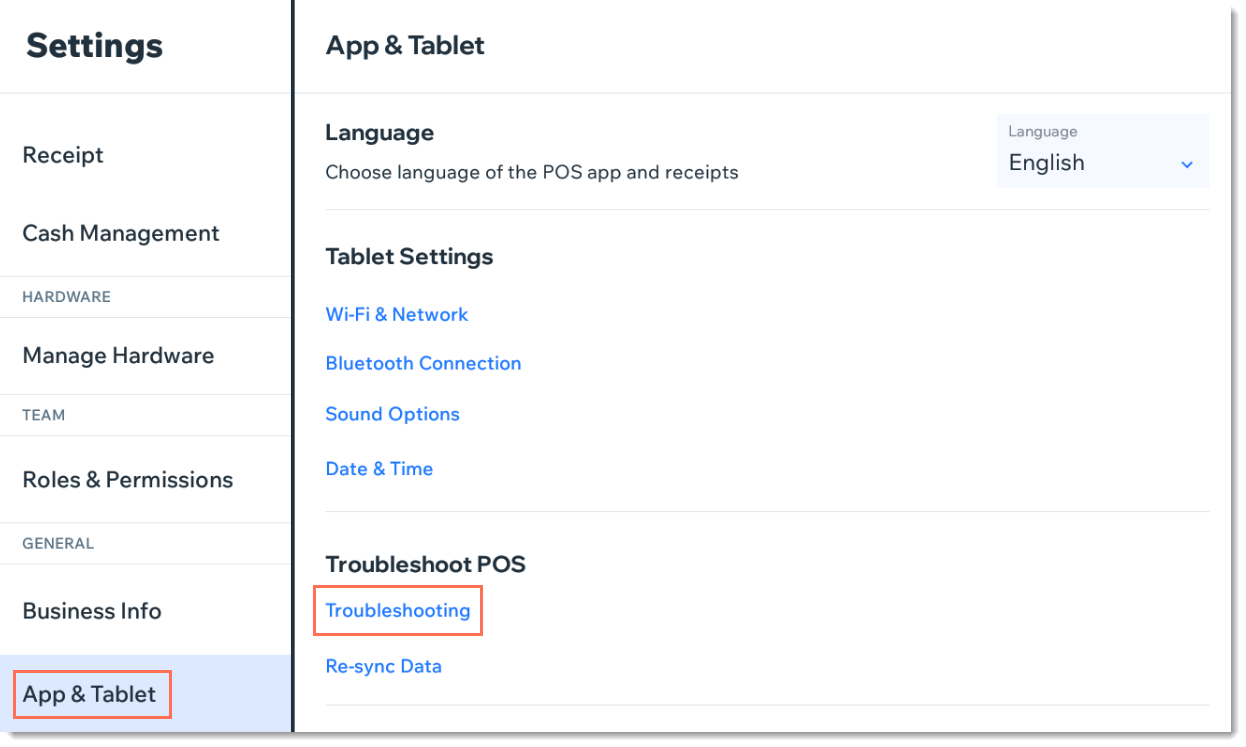
To troubleshoot the POS tablet:
Error
Solution
Sync failures: Products, Sales,
Customers and Catalog

Solutions:
* Tap Refresh to try again.
* If the Refresh button is missing, pull the screen downwards to refresh.
If tablet is still not working:
1. Tap Settings.
2. Tap App and Tablet settings.
3. Clear catalog cache.
Internet issues

Solution:
To verify that your store's WiFi network is working tap Open Internet Settings in the POS pop-up and check that the tablet is connected to the internet.
Fetching Your Data...

Solution:
Wait a few minutes for the app to load your store's information.
POS App Crashed

Solutions:
* Tap Restart POS App button.
* Check for updates. Install if available.
* Restart the tablet manually.
Tip:
You can also access troubleshooting help and information in the tablet. Tap the Menu icon  at the bottom left and then Settings. Scroll down to App & Tablet and select Troubleshooting.