


Managing Bookings in Retail POS
Wix Retail POS: Services Displayed on the Retail POS Tablet
Understand which types of Wix Bookings services are displayed on different screens in the Retail POS tablet and which services you can accept payment for.
Services in the services list at checkout
From here, you can book services for walk-in clients and accept payment for those services.
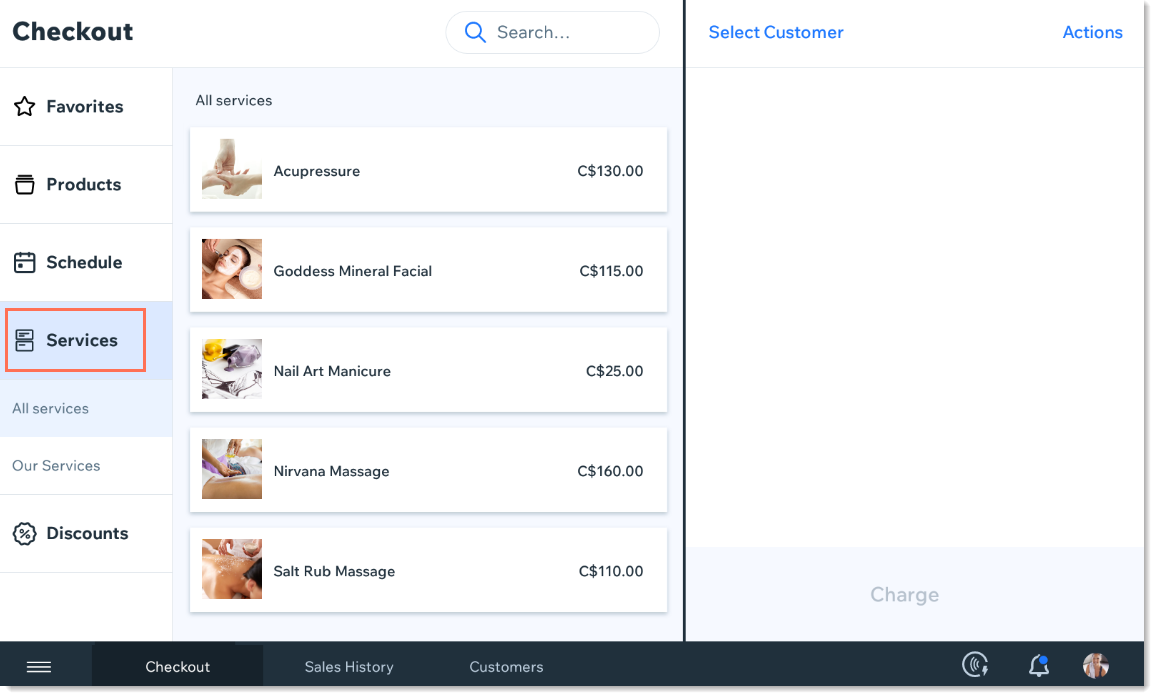
Clicking any service adds it to the cart.
Which services appear in the service list?
Appointments, but not classes or courses.
Services that can be purchased per session (i.e. without a plan).
Services provided at your current location.
Note that services that you hide from your site do appear in the list.
If you don't want certain services to appear here, you can add them to a category and hide that category. To hide categories, go to settings, click Checkout Screen, then click Manage next to Service categories.
Services in your daily schedule
Click the Schedule tab to see what you have lined up for today.
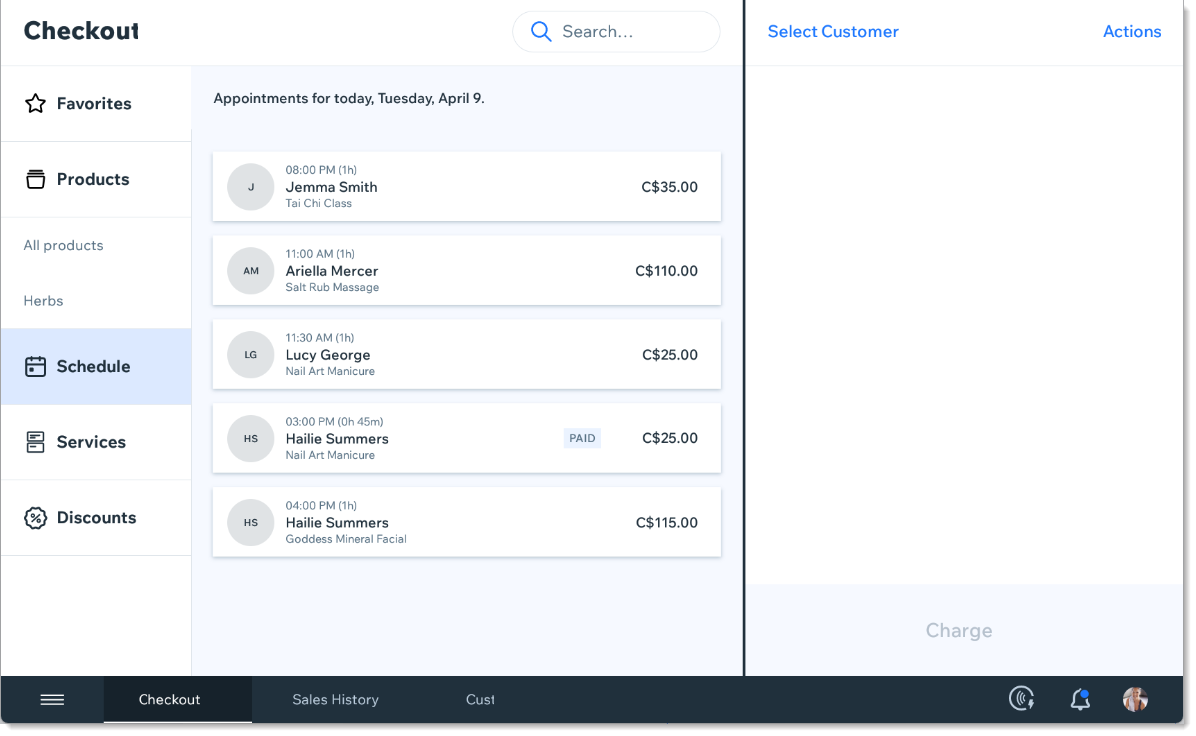
Click any unpaid booking and then Continue to Payment to charge for it.
Which bookings appear in the daily schedule?
Appointments (paid and unpaid) scheduled for the current day
Classes (paid and unpaid) scheduled for the current day
From the schedule, you can also keep track of attendance by clicking Actions and then marking a client as Checked-in or No-show, after selecting a service.
Services in the catalog
The services list in your catalog is where you can view all the services you provide, including classes and courses. Services cannot be added to the cart from here.
If you have multiple locations, you'll see services you offer at all your locations.
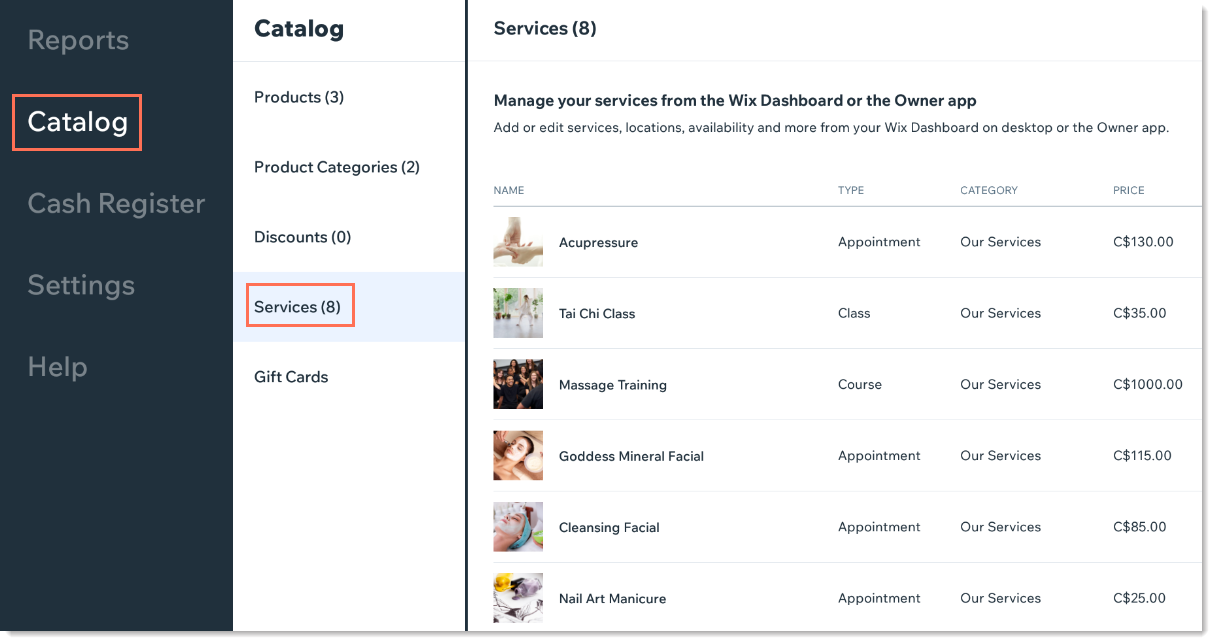
To make changes to existing services or to add new ones, go to desktop or to the Wix app.
Services in your sales history
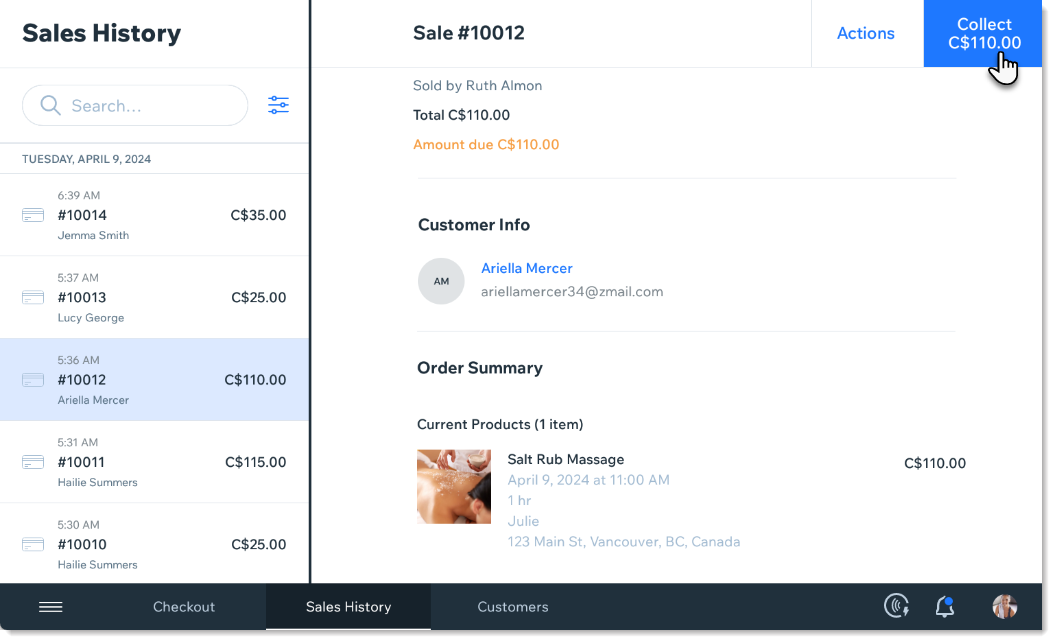
Appointments, classes, and courses that clients have already booked appear in your sales history. Click the Collect button to charge clients for these services.
FAQs
In what ways can I charge customers for classes and courses?
You can collect payment for classes and courses in 2 ways:
Sales History tab: Charge clients for classes and courses they have already booked.
Schedule tab: If the service starts today, it appears in the daily schedule and you can add collect payment.
Can customers pay for services and store products together?
When you can add services and products to the cart from the Products and the Services tab, they can be paid for together.

Can I charge for services by accessing them from the Customers tab?
In the customers tab, you can see each of your customers' past and future bookings. You cannot currently click a booking there to add it to the cart.
What happens if I try to book a session during a time when the service provider is booked?
Currently, the POS system doesn't verify when a service provider is free. You need to check availability in the Booking Calendar, either on desktop or using the Wix app.
In what ways can I offer customers discounts?
You can apply a discount to any sale. Currently, it's not possible to allow clients to redeem coupons while paying for Wix Bookings services in the POS tablet.
How can I attribute the payment of a booking to the service provider?
From the Actions menu, you can attribute a sale to a POS staff member.
Important: A POS staff member is someone who has permission to operate the Retail POS tablet. It is not the same as a Wix Bookings staff member. It's not currently possible to attribute a sale to a Bookings staff member.

Can clients earn and redeem loyalty points?
Currently, Wix Bookings clients can earn loyalty points but not redeem them.