Taking online orders
Wix Restaurants: Updating Your Business Hours
Important:
This article is about the original Restaurants Orders app.
We've released a new online ordering app. Learn how to add and set up the new Wix Restaurants Orders (New) app.
Make sure your business hours reflect your restaurant's schedule and availability. Update your restaurant's regular business hours or add upcoming events that may impact your restaurant's availability to serve customers. For example, you might want to remain open longer for a holiday, or you might close early one day for a private event.
In this article, learn more about:
Updating your business hours
Having up-to-date business hours is important in ensuring your customers have accurate information about when your restaurant is open and available to serve them.
To update your business hours:
Go to Business Info in your site's dashboard.
Scroll down to the Business Hours.
Hover over the existing hours and click Edit.
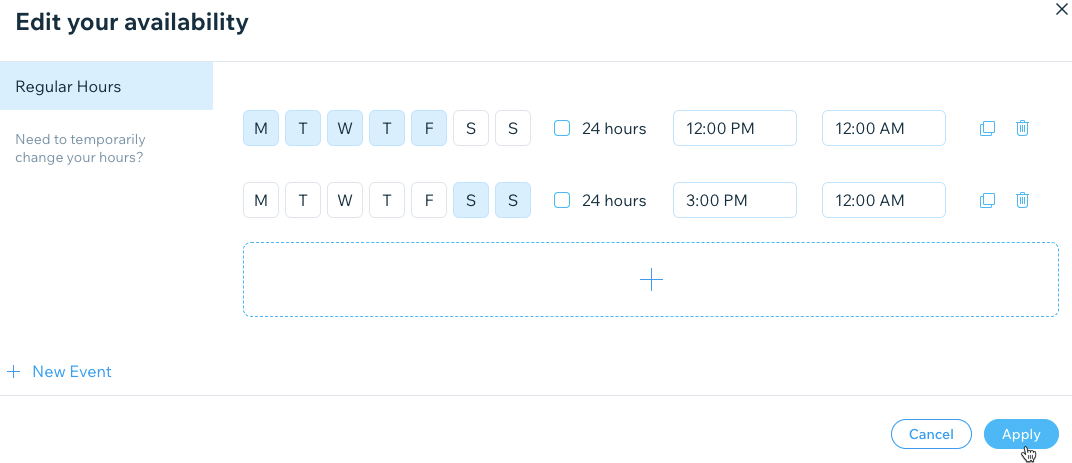
Edit your restaurant's business hours:Click the first set of days the restaurant is open. For example, Monday to Friday.
Enter the hours for the days you selected.
If not all days were selected, add a second set of days. For example, Saturday and Sunday.
Enter the hours for those days.
Click Apply.
Click Save at the top of the page to save your changes.
Adding events to your business hours
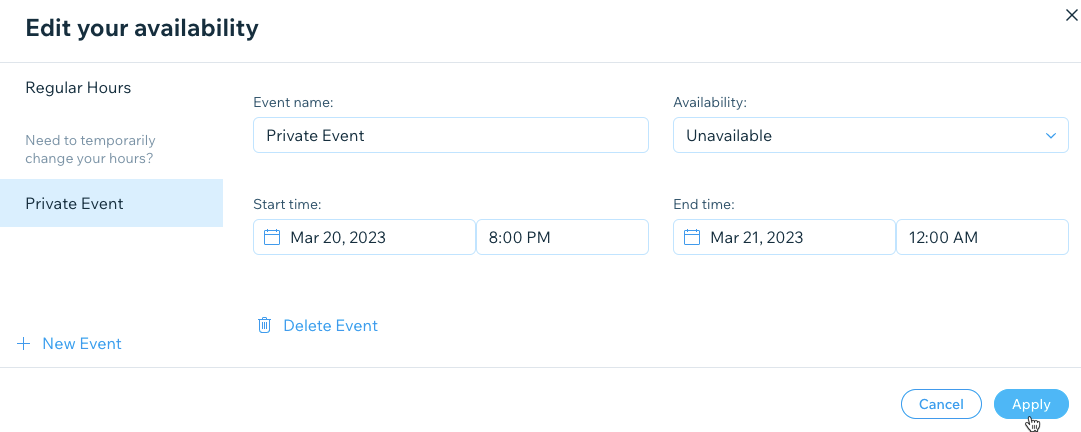
You can change your restaurant's business hours for a special occasion by creating an event. For example, you might want to remain open longer for a special Valentine's Day evening, or you might close early one day for renovations or a private event. To change your business hours for a short time without changing your regular business hours, create an event.
To create an event:
Go to Business Info in your site's dashboard.
Scroll down to the Business Hours.
Hover over the existing hours and click the Edit
 icon.
icon.Click + New Event.
Enter the event details:Event name: Enter a name for the event. For example: Private Event, Renovations, Holiday, etc.).
Availability: Select your restaurant's availability:Unavailable: The restaurant is closed during the event.
Available: The restaurant is open during the event.
Start time: Select a start date and hour for the event.
End time: Select an end date and hour for the event.
Click Apply.
Click Save at the top of the page to save your changes.