Taking online orders (NEW)
Wix Restaurants: Troubleshooting Thermal Printing of Online Orders (new) from the Wix App
Important:
This article is about the new Restaurants Orders app. If you need help for the original Restaurants Orders app read this article.
Having trouble auto-printing Wix Restaurants orders from the Wix app? Click the error message below to see the steps to resolve the issue.
Before you begin:
With the Wix app, you can print receipt-sized orders using the supported printers.
The supported thermal printers connections are: Bluetooth, WiFi and Ethernet.
Make sure the bluetooth status indicator light is on
When pairing via Bluetooth, check that the printer is turned on and that the bluetooth indicator light is on, signifying a good connection.
Pair the bluetooth printer to your mobile device/iPad
Once your bluetooth printer is turned on and ready for pairing, connect it to your mobile device. Some printer models may require enabling pairing mode.
Then, follow the steps in this article to connect the Wix app and the printer.
Turn on location services
In order to discover all available printers, the location services on your tablet or mobile device must be on. Turn on your device's location services and try again.
Enable nearby devices permissions
The access to nearby devices must be enabled in order to discover all available printers. Allow permission to access nearby devices and try again.
Printer was added but not connected
If you see this error while trying to print, there might be a momentary disruption in the wireless connection.
Make sure your printer is on and tap Refresh on the Wix app. If you still see the error, tap Refresh again.
Low paper
The printer can’t print the order due to lack of paper. To resolve this issue you can reload your printer's paper. Once you load the paper and close the lid, printing will automatically resume.
Lid open
It isn't possible to print orders from the app if the printer lid is open. To resolve this issue you can close your printer's lid. Once you close the lid, printing will automatically resume.
Couldn't print test order due to connection error
Check that your printer is turned on, the paper is loaded, and that the lid is closed.
Read your printer's manual:
Still need help?
If the problem persists, contact us with the following information:
The name or URL of your Wix site.
The manufacturer, model and operating system of your mobile device (e.g. Apple iPhone 6s, Samsung Galaxy S4).
The manufacturer and model of your printer.
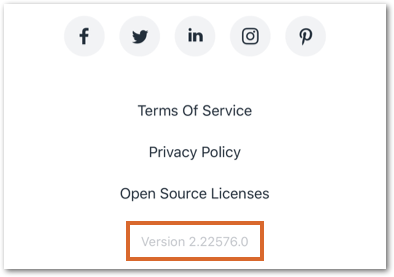
The version of the Wix app you're using. To find this:Open the Wix app.
Tap the Profile icon at the top left.
Tap About the App under Help & Feedback.
Scroll down to the bottom of the screen and copy the number next to Version.