


Taking online orders (NEW)
Wix Restaurants: Manually Creating an Order
Important:
This article is about integrating the new Wix Restaurants Orders app.
Add orders made in person or over the phone to your orders list, so it always stays up to date. You can add existing menu items, or custom items that are specific to the order.
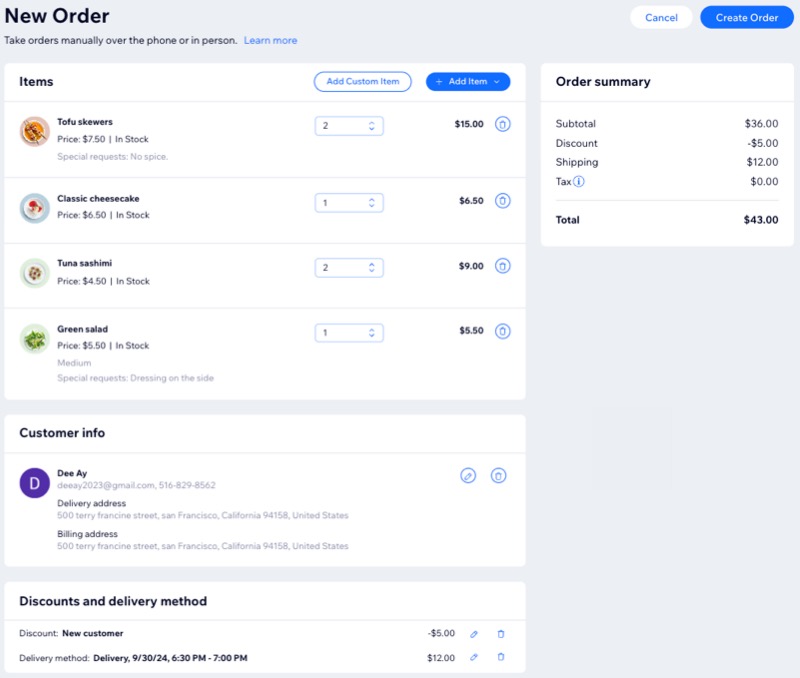
Step 1 | Add items to the order
You can add any of your existing menu items to a manual order. In addition, if you're creating a custom item for your customer, you can add it and set its price.
To add existing items to an order:
Go to Orders in your site's dashboard.
Click + Add New Order.
Choose what you want to add:
Add an existing menu item
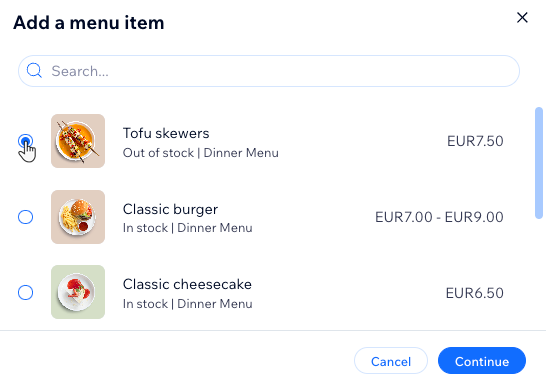
Click + Add Item next to Items.
Select Menu item.
Select the item you want to add and click Continue.
(If the item has modifiers) Choose the relevant modifiers for the item.
(Optional) Enter any Special Requests your customer asked for.
Click Add to Order.
(Optional) Repeat steps 1-6 to add more items.
Add a custom item
Click Add Custom Item next to Items.
Enter an item title.
Enter the price.
(Optional) Enter a description of the item under Item info.
Note: This description is visible to customers.Click Add.
(Optional) Repeat steps 1-5 to add more custom items.

Step 2 | Add a customer to the order
Now you can add your customer's details to the order. If this is a return customer, you can simply select them from your customer list. Otherwise, you can add them as a new customer.
To add a customer to the order:
Click the Add a customer to the order drop-down.
Select an option:
Existing customer:Select a customer.
(Optional) Click the Edit customer icon to view or edit the customer's details.
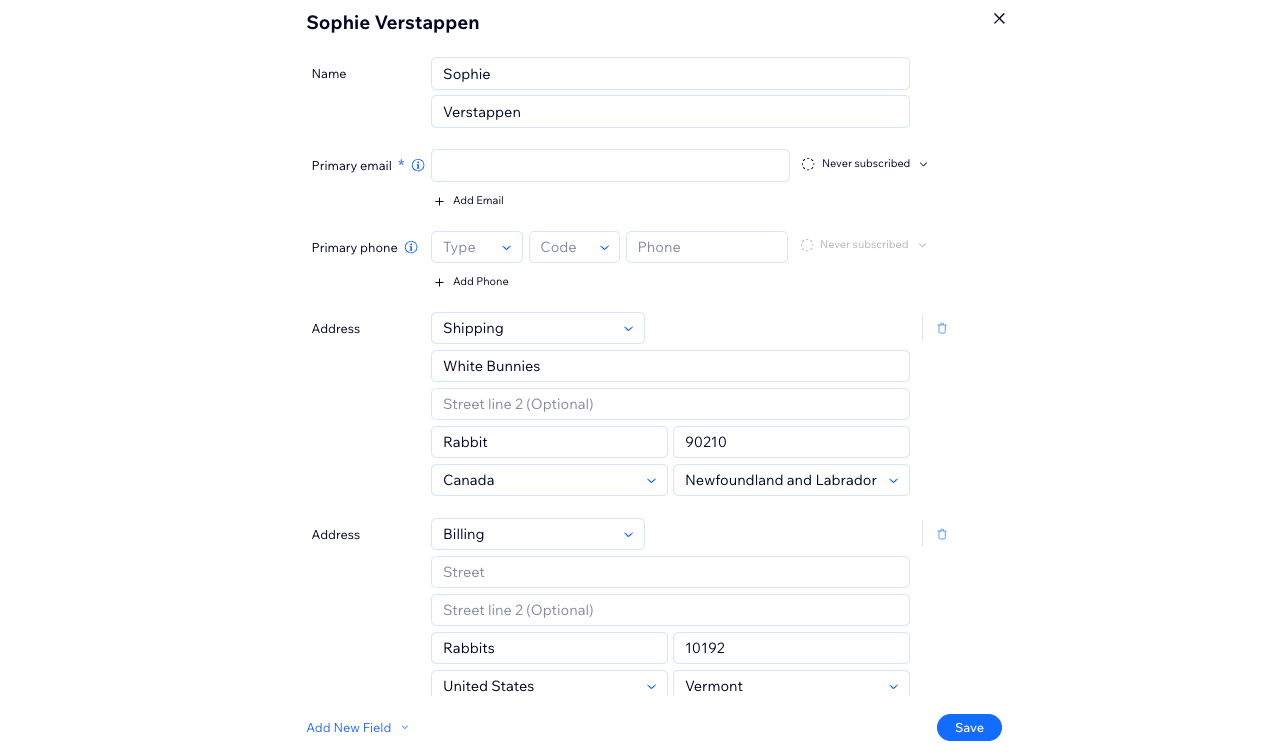
New customer:Click + Add new customer.
Enter the customer's details.
(Optional) Click Add New Field to add more client info and fill out the new field.
Note: If delivery is your fulfillment method, make sure to add a delivery address.
Click Save.
Step 3 | (Optional) Add a discount
Now you can optionally provide your customer with a discount. Note that it is not possible for customers to redeem a coupon on a manual sale, but you can replace this with a discount of the same value.
To add a discount:
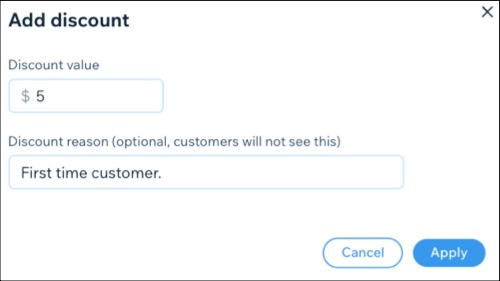
Click Add Discount under Discounts and delivery method.
Enter the discount amount.
(Optional) Enter a note about the discount (not visible to customers).
Click Apply.
Step 4 | Select a delivery method
Before you create the order, you need to set how that order is going to get to your customer. Choose pickup methods available in your restaurant or create a custom delivery rate.
To select a delivery method:
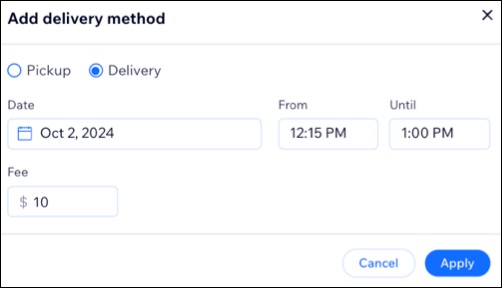
Click Add Delivery Method under Discounts and delivery method.
Select an option: Pickup or Delivery.
Add the date and time.
(For deliveries) Add a fee, if applicable.
Click Apply.
Tip:
You can also take phone orders and assign DoorDash Drive for delivery after creating the manual order and collecting payment.
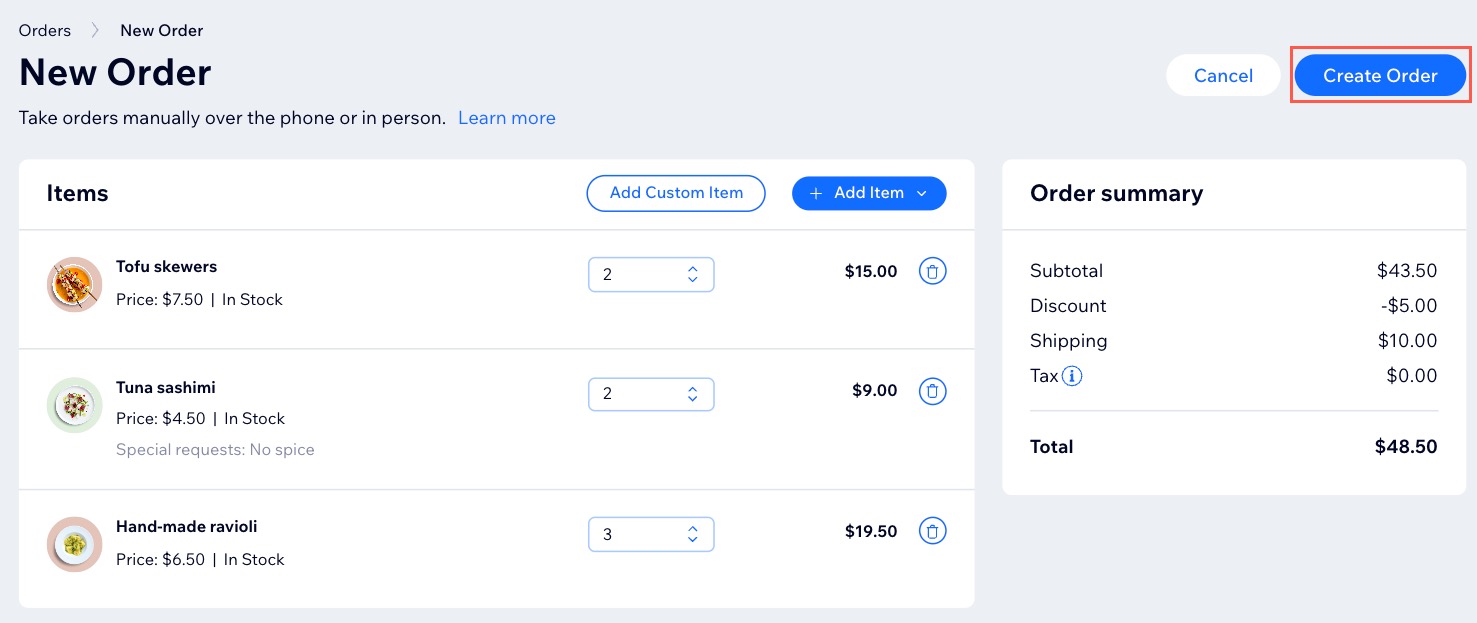
Step 5 | Create the order
Once you've double-checked the details, it's time to click Create Order. The new order will instantly appear in the Orders tab in your site's dashboard and in the Accepted column, featuring a distinctive "Manual Order" badge for easy identification.
Notes:
Orders that only contain custom items won't appear in the Status view.
While orders with no delivery time appear in the Orders view, they are not available from the Status and Calendar views.
Step 6 | Charge the customer
Finalizing payment arrangements is crucial, especially since creating a manual order doesn't automatically generate a payment request. Instead, you can choose from the following options:
FAQs
Click a question below to learn more.
Can I assign DoorDash Drive for delivery of an order placed over the phone?
Yes. Once you’ve entered the details for a manual order (e.g. over the phone), you can assign DoorDash Drive to handle the delivery.
Note: DoorDash Drive is available only for prepaid orders.
To update the delivery method to DoorDash Drive:
Go to Online Orders in your site's dashboard.
Click the More Actions icon
 .
.Select Delivery with DoorDash Drive.
Click Yes, Continue to update the delivery method to DoorDash Drive.
Enter the time for How soon should a driver pick up the order?.
Click Submit.

How can I send an order confirmation email to the customer?
Set an automation to send the customer a pre-installed email once you create a manual order.
Can I send a manual order to my thermal printer?
Yes. Manual orders automatically print on a thermal printer when connected to your mobile device using the Wix app.