Creating Wix Restaurants menus
Wix Restaurants: Managing Your Menus in the Wix Menus App (New)
Important
This article is about the new Wix Menus app.
Manage your restaurant's menus to ensure the information is correct and up to date. You can also design a print menu, add or remove sections, and hide or delete your menu.
In this article, learn how to:
Before you begin:
Learn how to set up your menu.
Managing your items
Manage your menu items directly from your site's dashboard. You can see all of your items, including those that you previously removed from your menu. You can also view the lists of all of your Variants and Modifiers.
To manage your items:
Go to Menus in your site's dashboard.
Click More Actions at the top right.
Select
 Manage items.
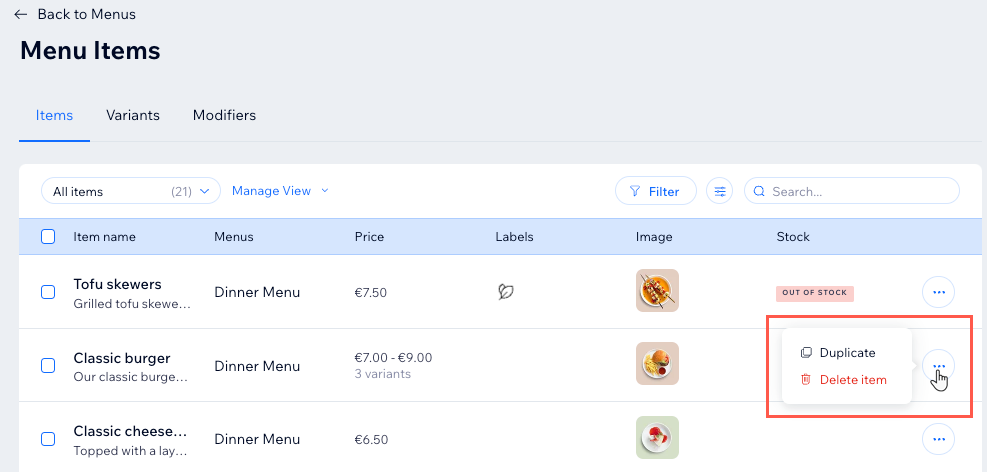
Click the More Actions icon
 next to the relevant item.
Choose what you want to do:Select
 Duplicate: Create a copy of your item.
Select Delete item: Once deleted, this item and its info will be removed from your menu and can’t be restored.
Tip:
Change tabs to view lists of all of your Variants and Modifiers.

Managing your menu
You can manage your menu by editing its details, duplicate it, reorder its sections, designing a print version of it, or deleting it.

To manage your menu:
Go to Menus in your site's dashboard.
Click the More Actions icon
next to your menu's name.Choose what you want to do:
Edit menu details
Change the menu's name and description, and mark it as draft. Menus marked as drafts can be edited and saved but won't show in the Editor or on your site.

Duplicate menu
Duplicate your menu to create another draft of it. All menu sections and items are duplicated, and if you're using Online Orders (New), modifiers, variants, tax, stock and settings are also duplicated and added to your items database.

Reorder sections
Hold and drag the reorder icon  next to the relevant section titles to reorder them in your menu.

Collapse all sections
Find the section you're looking for quicker by showing just the menu sections headers.

Design print menu
Design a print menu for your restaurant based on your online showcase menu.

Delete menu
When you delete your menu, the menu and its sections can't be restored. However, you can view all items in the Menu Items page and use them in other sections & menus.

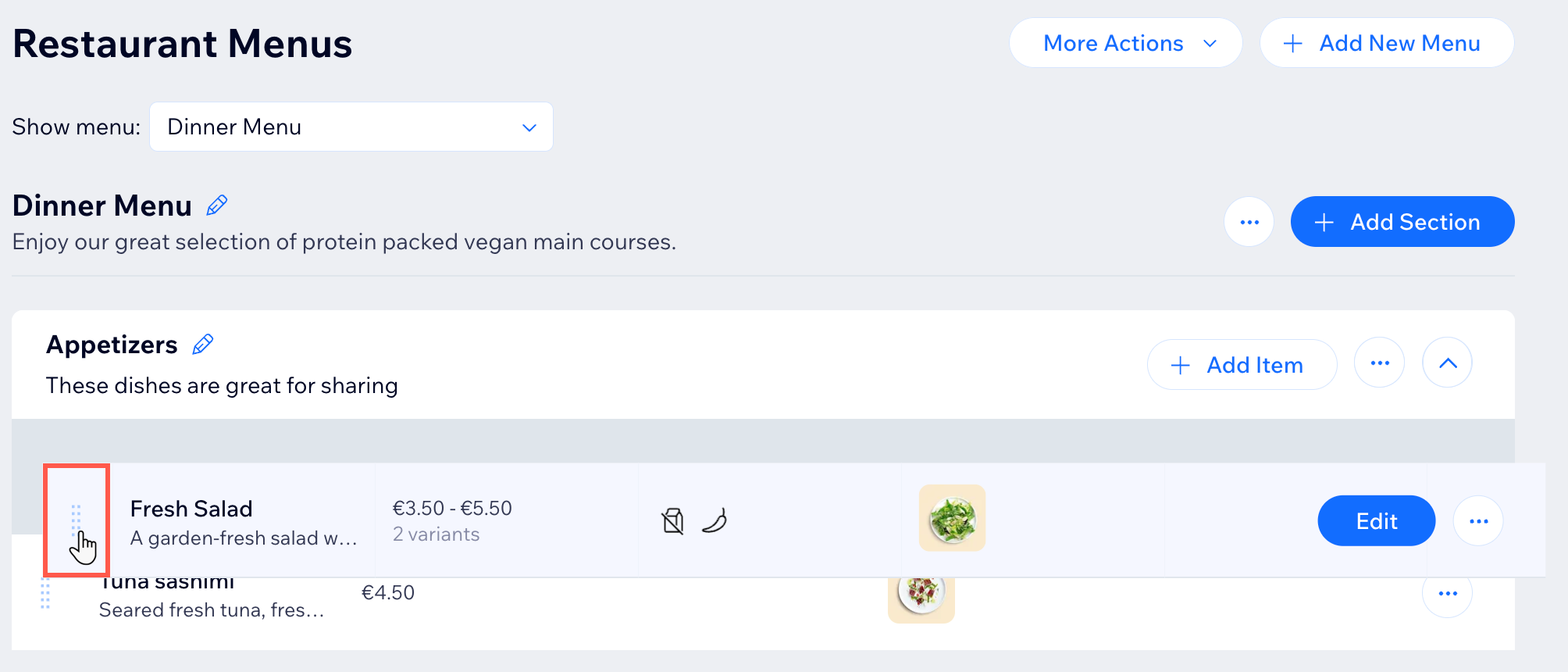
Reordering menu items within sections:
Go to Menus in your site's dashboard.
Hold and drag the reorder icon
next to the relevant item.