


Other video players
Single Video Player: Adding and Setting Up the Single Video Player
Display a video on your site using the Single Video Player. This sleek and easy-to-use player allows you to customize the playback options, video controls and player borders.
Upload your own video or embed a video from YouTube, Vimeo, Facebook, Dailymotion or Twitch.
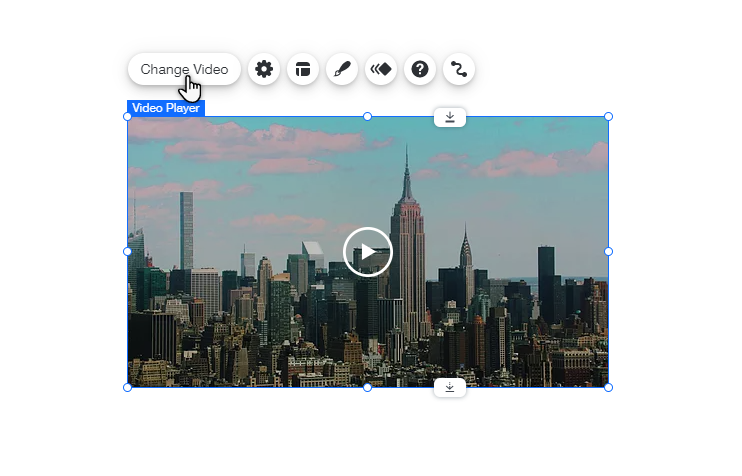
To add and set up the Single Video Player:
Wix Editor
Studio Editor
Click Add Elements
 on the left side of the editor.
Click Video & Music.
Click and drag a video from the Single Video Players section to add it to your page.
Click Change Video.
Choose the type of video you want to add:Upload your own: Click the Your computer icon
 and select the video. The limit for video uploads is 4GB.
Embed a video from a social network: Click the relevant social network icon and enter the web address.
Customize the Playback options:
Autoplays:Enabled: Your video starts playing when the page loads.
Note: Due to browser restrictions, videos play on mute when set to autoplay. However, your viewers can turn the sound on whenever they want.
Disabled: Your visitors need to click the Play icon to play the video.
Plays in loop:Enabled: Your video plays constantly on repeat.
Disabled: Your visitors have to press the Play icon to watch the video again.
Enter a description in the What's in the video? field to push your page higher up in search results.
Note:
iPhones have native video controls that cannot be removed or disabled. This means that even if a video control is disabled on your Wix site, it may still be enabled on an iPhone.