Other video players
Single Video Player: Customizing Your Single Video Player
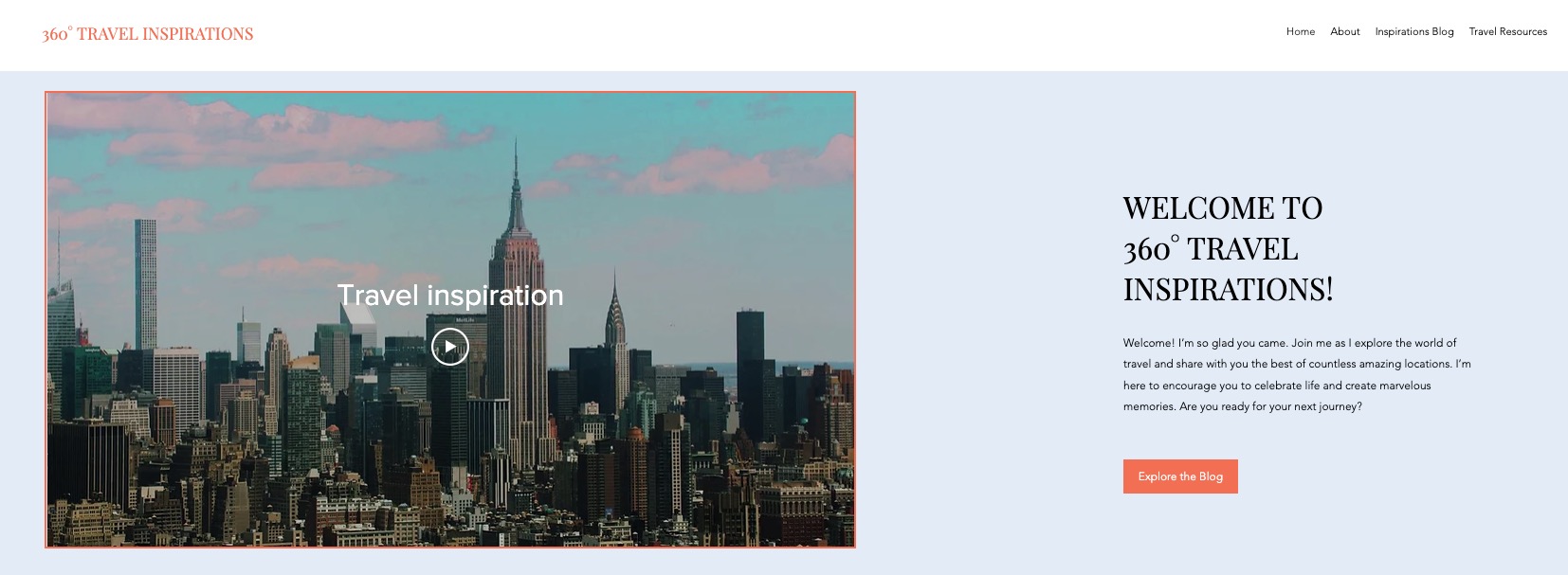
Once you have added and set up your single video player, you can make it your own by tweaking its design. Choose a cover image, add a border, shadows and more.
Additionally, if you set your video to play on click, then a play button is displayed on the video. You can choose the play button you want from the preset designs and change its color.
In this article learn more about:
Changing the layout of your player
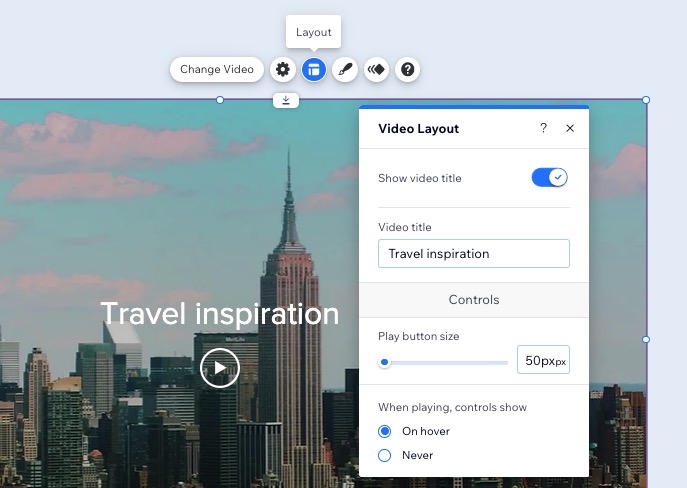
Choose the layout that best suits your single video player and site. You can choose to show your video title, the size of the play button and whether or not your video controls show on the player.
To change the layout of your player:
Click the Wix single video player.
Click the Layout icon
 .
.Customize the layout of your single video player using the options available:Show video title: Click the toggle to show or hide the video's title in the player. If enabled, enter your video's title into the text box.
Play button size: Select the size you wish the video play button to be.
When playing, controls show: Choose when the video's buttons to display: On hover or Never.
Customizing the design of your player
Enjoy the creative freedom of customizing design aspects of your single video player like choosing a cover image, framing with borders, shadows and more.
To customize the design of your player:
Click the Wix single video player.
Click the Design icon
 .
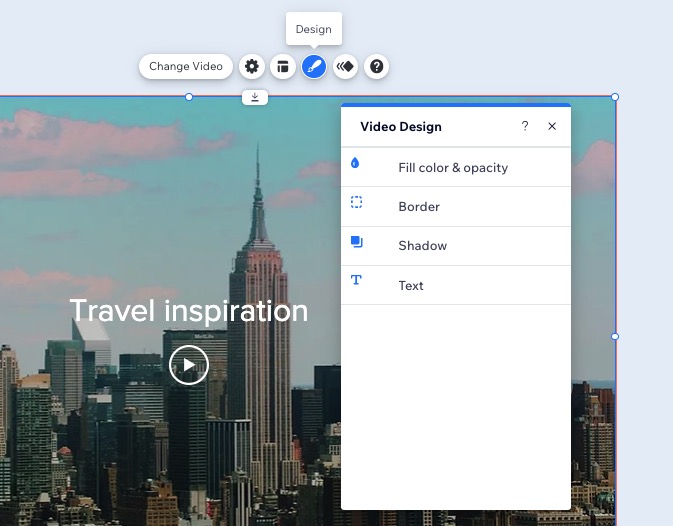
.Customize the design of your single video player using the options available:
Cover image:Choose an auto-generated cover image for your video, or upload your own.
Fade out: Enable so that the cover image fades out when visitors to your site click play.
Fill color & opacity:Overlay Opacity & Color: Choose the background color and adjust the background's opacity.
Border:Opacity & color: Choose the border's color and adjust the border's opacity.
Width: Set the width of the border.
Shadow:Apply shadow: Add a shadow to your single video player.
Angle: Set the angle the shadow displays at.
Distance: Set how far the shadow displays behind the single video player.
Size: Select the size of the shadow behind the single video player.
Blur: Select the blur of the shadow.
Opacity & color: Choose the shadow's color and adjust the shadow's opacity.
Text:Title & Play Button: Choose the color of the title and play button.
Theme: Select the theme of the text from the drop-down.
Font: Select the font type from the drop-down.
Font size: Choose the font size.
Choose to italicize or bold your text.
Adding animation effects to your player
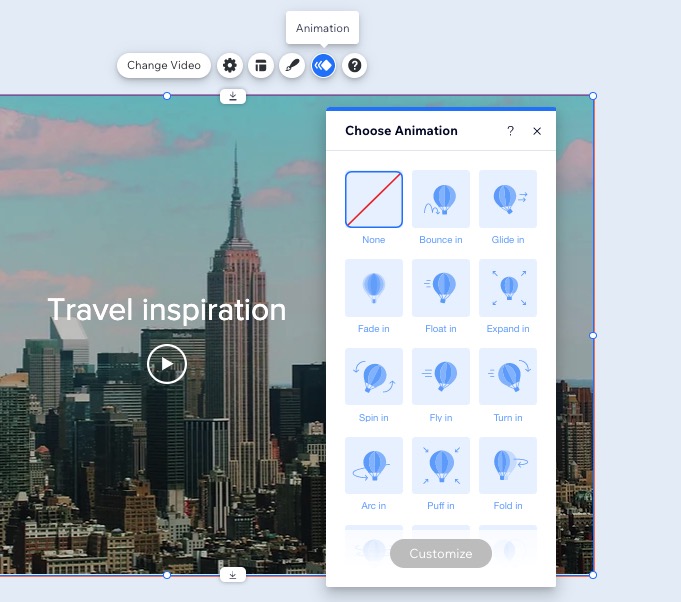
You can use animations to make an impact, add cool effects to your site and make your player stand out to grab your site visitor's attention.
Once you choose the animation type you like from the templates, you can customize it further. Choose the power at which the animation plays, the direction it travels in and when the animation will play.
To add animation effects to your player:
Click the Wix single video player.
Click the Animation icon
 .
.Select the animation you want to use.
Click Customize to make changes to the animation.
Note: The customization options depend on the animation effect you choose.