Table reservations
Wix Restaurants: Customizing Your Table Reservations Form
Customize your table reservations form to gather the exact information you need from your guests. Add custom fields to collect details like dining preferences and allergens.
You can also include restaurant policies and request an email or last name to finalize the booking. For keeping guests informed, add an opt-in checkbox for email marketing.
To customize your reservation form:
Dashboard
Wix app
Go to Table Reservations in your site's dashboard.
Click Settings at the top right.
Click Reservation form.
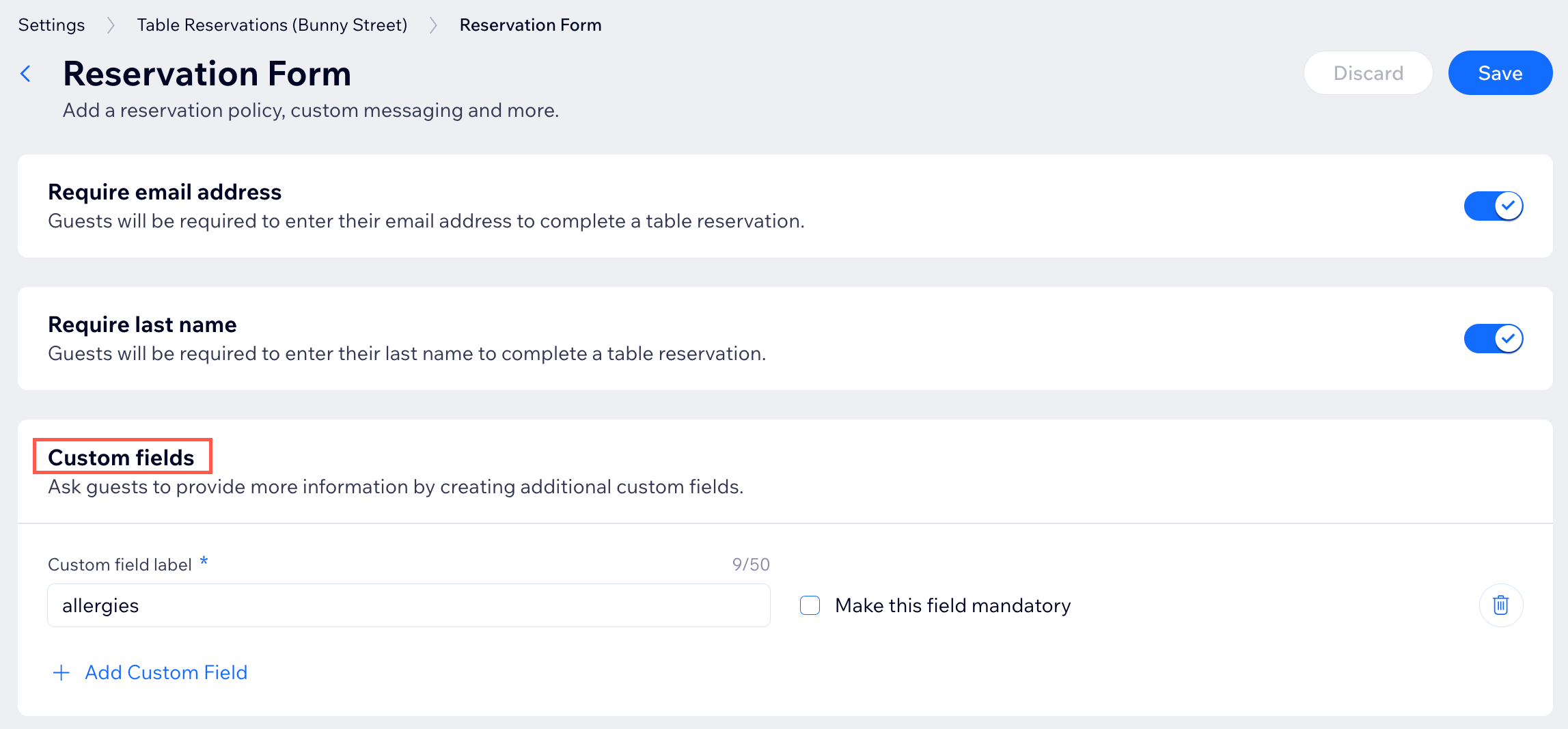
Enable the toggle next to each option you'd like to add to your reservation form:Require email address: Require guests to enter their email to complete their table reservations.
Require last name: Require guests to enter their last name to complete their table reservations.
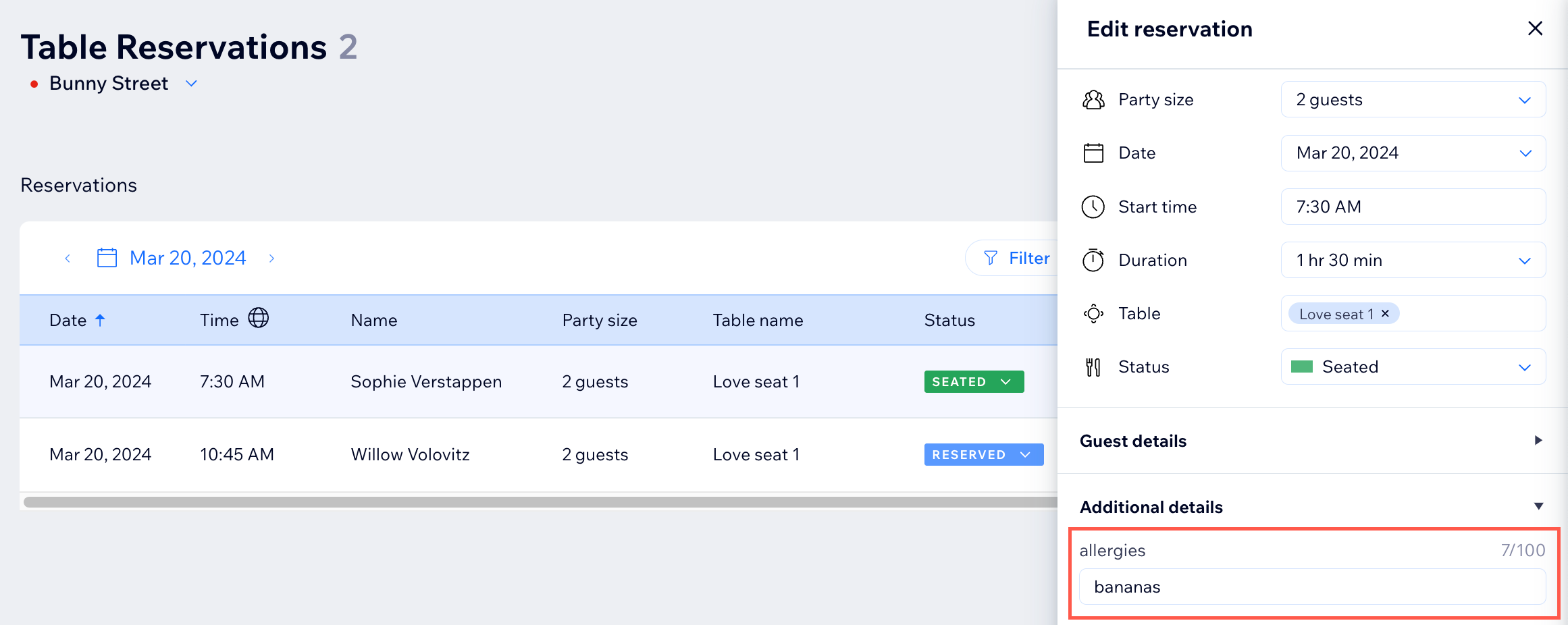
Custom fields: Have guests provide more information to their reservations. For example, if you need to know of any allergies or seat preferences.Enter a label for the field in the reservation form under Custom field label.
Select the Make this field mandatory checkbox to require guests to provide this information to complete their reservations.
(Optional) Click Add Custom Field to add another field to the reservation form.
Custom message: Add a message and include additional information for guests reserving a table.
Email marketing checkbox: Add this checkbox to your site so guests can sign up to get updates on your restaurant. Select the Checked by default checkbox if you want the checkbox to be selected by default for guests.
Policies: Select the checkboxes by the policies you want to add to your form: Terms & Conditions and Privacy Policy.Link to URL: Add a hyperlink that leads to the relevant policy page.
Paste as text: The policies are displayed in a pop-up while the guests is ordering or making a reservation.
Click Save.