


Taking online orders
Wix Restaurants: Connecting Your Wix Restaurant to Square POS (Point of Sale)
Important:
This is currently available in the US, Canada, Australia, UK and Ireland.
Cash payments aren't supported in Canada when using Square POS.
Square POS integration is only available for the previous online ordering app and not the new Wix Restaurants Orders app. Learn more about the differences between the old and new online ordering apps.
Square POS currently doesn't integrate with DoorDash Drive deliveries.
Connect Square Point of Sale to your Wix Restaurants site so you can manage everything in one place. When you do, the menu you set up in Square appears in your site and you can start managing all incoming orders directly from Square.
Before you begin:
Make sure to connect Square as your payment provider. Connecting other payment providers will result in an additional processing fee.
Step 1 | Connect Square POS to Wix Restaurants
To get started, connect your Square POS account to your Wix Restaurant site. If your restaurant has multiple locations, start by connecting the first location with the relevant Square menu. You'll be able to connect other locations later.
To connect your POS:
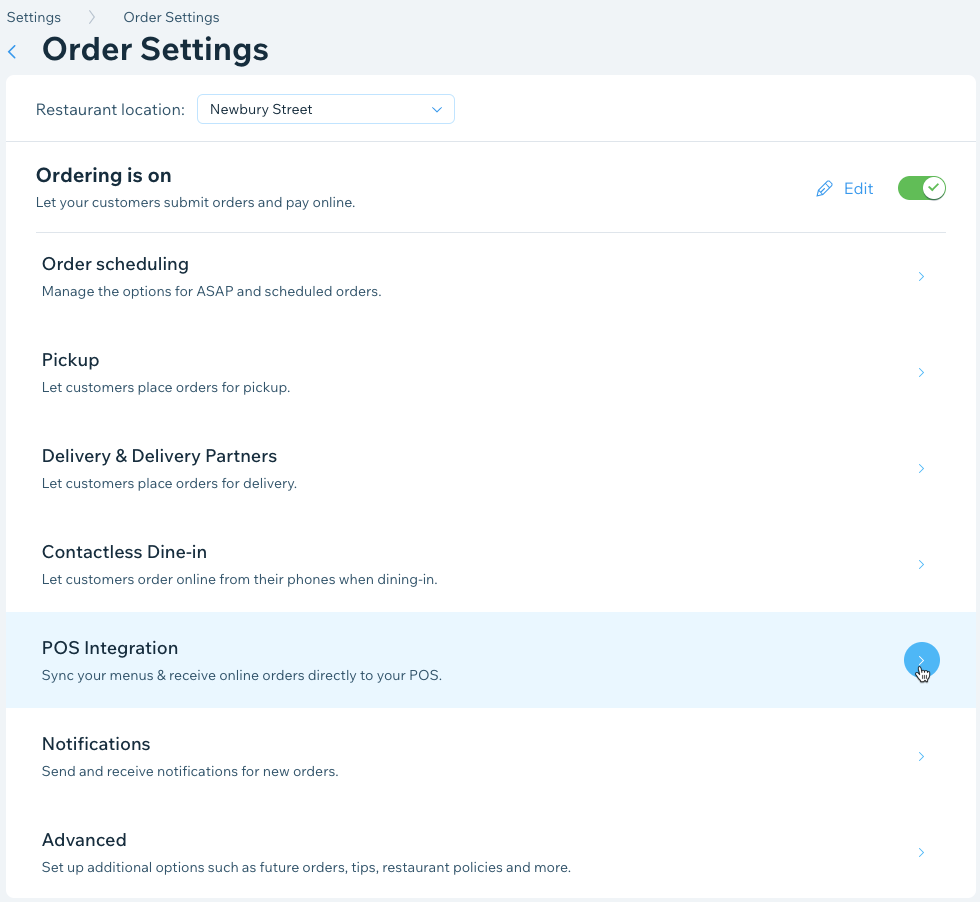
Go to Order Settings in your site's dashboard.
Click POS Integration.
Click Square under Point of Sale.
Click Add to Site and then again to confirm.
Review permissions and click Add to Site.
Click Connect.
Enter your Square credentials and click Sign In.
Click Set up integration by the Wix Restaurant you want to connect.
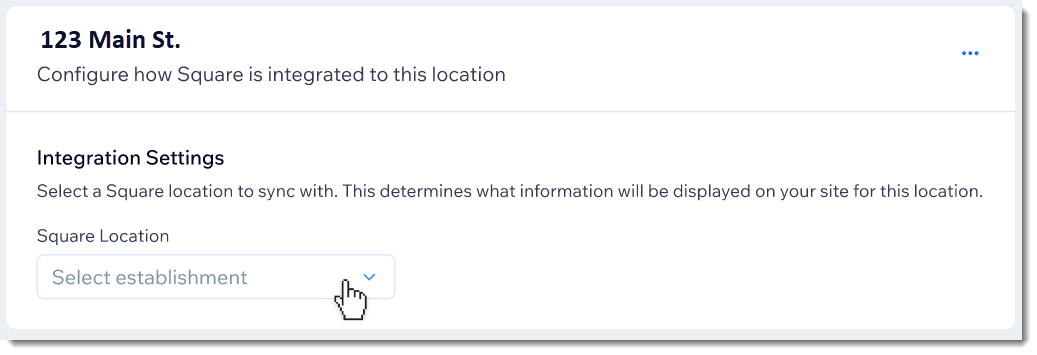
Click the Location drop-down and select the Square POS location you want to sync with.
Click Save.
Step 2 | Activate your POS
Now that the Square POS app is connected, you need to activate it so you can start managing orders in the POS.
Once Square POS is activated:
Menus you've created in Square appear on your site.
Menus you've created in Wix are archived.
Updates you make to your menu in Square sync with your Wix Restaurant site.
You'll be able to update certain settings through Square only.
To activate your POS:
Go to Order Settings in your site's dashboard.
Click the POS Integration tab.
Click the Square POS integration toggle to activate it.
Click Activate to confirm.
Note:
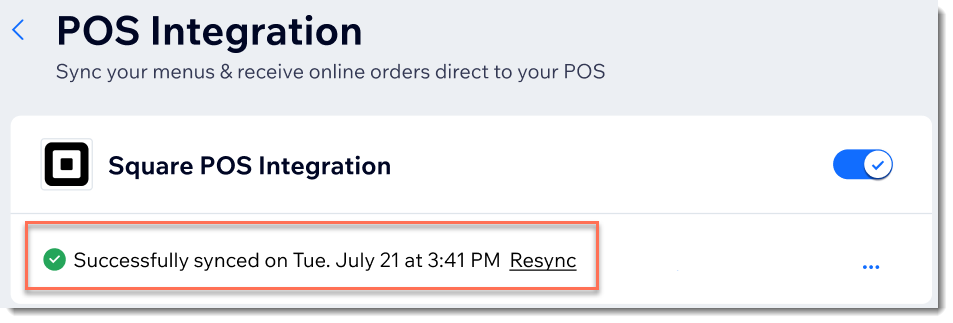
Your Square POS menu syncs with your site. This may take several minutes.
Step 3 | (Optional) Connect additional restaurant locations
If your restaurant has more than one location, you can now connect them to Square as well.
To connect additional restaurant locations:
Go to Manage Apps in your site's dashboard.
Click Open next to Square POS.
Click Set up integration by the Wix Restaurant you want to connect.
Click the Location drop-down and select the POS location you want to sync with.
Click Save.
Repeat Steps 2 and 3 above for each location.
FAQs
We are here to help with all your questions. Click a question below to learn more.
What happens to my Wix Restaurant menus when I connect my restaurant's Square POS?
After setup, the menu items from your Square POS menus are displayed on your Wix site. Menus you created in Wix are archived.
How do I update my menu after I activate Square POS?
After you activate Square POS, you manage your menu in Square. To add new menu items, adjust prices, or make other menu changes, go to the POS menu.
Will my Wix menus be deleted when I activate Square POS?
No, they're archived. If you deactivate the Square POS integration, they'll be displayed again.
How often will my menus be synced?
Menus need to sync so that changes you made in Square POS appear on your Wix site. We automatically sync your Square POS menu items. You can also click Resync in Menus to sync the menus at any time.
What is the 'Default Category' I see after syncing my menus?
If you haven't assigned a category to a menu item in your Square catalog, it'll be assigned to a 'Default Category.' To make sure your menu items are displayed properly, please make sure you've assigned categories to all your menu items in Square POS before syncing with Wix Restaurants.
I have multiple menus on Square POS, but I only see one in my site's dashboard.
Currently, support for multiple menus isn't available. Your menu(s) from Square POS will be displayed under one menu in Wix Restaurants.
Where will I see all of my online orders?
You'll manage your online orders through Square. You can also see them in Orders in your site's dashboard.
Note: In instances where the Square POS doesn't accept an online order, it'll appear in the New Orders tab and you'll have to manually accept it.
Where can I change my price rounding settings?
You can change your price rounding settings by visiting Square’s dashboard and adjusting the strategy as needed.