


Sending invoices & price quotes
Wix Proposals by Prospero: Saving and Managing Proposal Templates
Save any proposal you've created as a template, preserving the essential information and design elements, minus the customer's name. Templates allow you to standardize your proposal format and speed up the client onboarding process.
Saving proposals as templates
Once you've finished creating a proposal that you're happy with, and want to use again, you can save the proposal as a template.
To save a proposal as a template:
Go to Proposals in your site's dashboard.
Click the More Actions icon
 next to the relevant existing proposal.
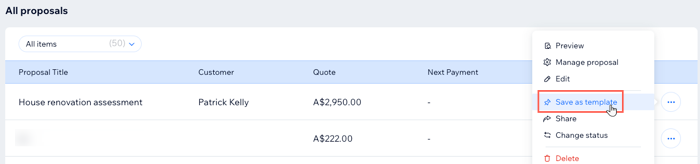
Click Save as template.
Creating a new proposal from a template
You can create new proposals from templates at any time. This is great for speeding up your workflow and sharing the proposal with the client as quickly as possible.
To create a new proposal from a template:
Go to Proposals in your site's dashboard.
Click Manage next to Saved Templates at the top right.
Click the More Actions icon
next to the relevant template.Click Use template.
Update the details of the new proposal to suit your clients' needs, including: the Title, Customer, Products and Services, and the Payment settings.
Click Next at the top right.
Update the design of the proposal using the available options.
Click Preview.
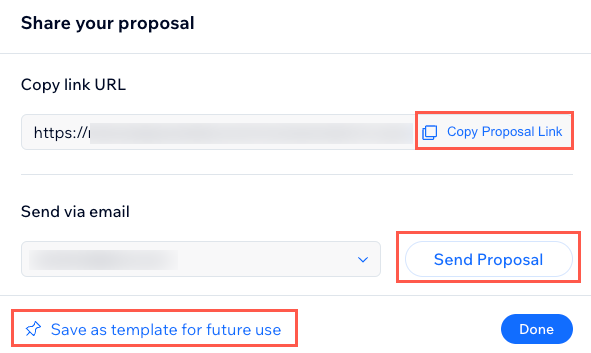
Click Share at the top and choose the relevant option:Copy Link URL: Click Copy Proposal link to share the link manually, via messaging platform, for example.
Send via email: Click Send Proposal.
Save as a template for future use: Click to save and reuse the proposal as a template.
Click Done.
Updating an existing proposal template
As your business grows, or your needs change, you can update any of your existing templates at any time.
To update an existing proposal template:
Go to Proposals in your site's dashboard.
Click Manage next to Saved Templates at the top right.
Click the More Actions icon
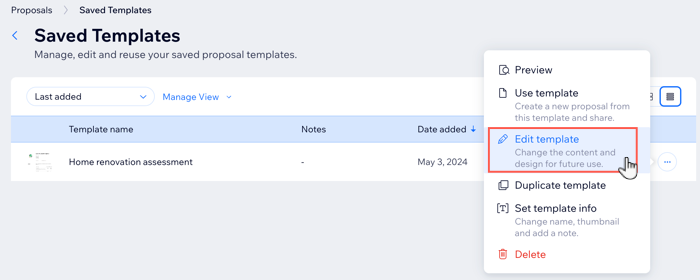
next to the relevant template.Click Edit template.
Choose what you want to update:Proposal details: Make the necessary updates to any details under General info, Products and services, and Payment terms. Then click Next at the top right.
Design: Click Next at the top right. Then, make the necessary updates to the proposal template design using the available options.
Click Next at the top right of the Design section.
Click Desktop or Mobile at the top right to preview the proposal.
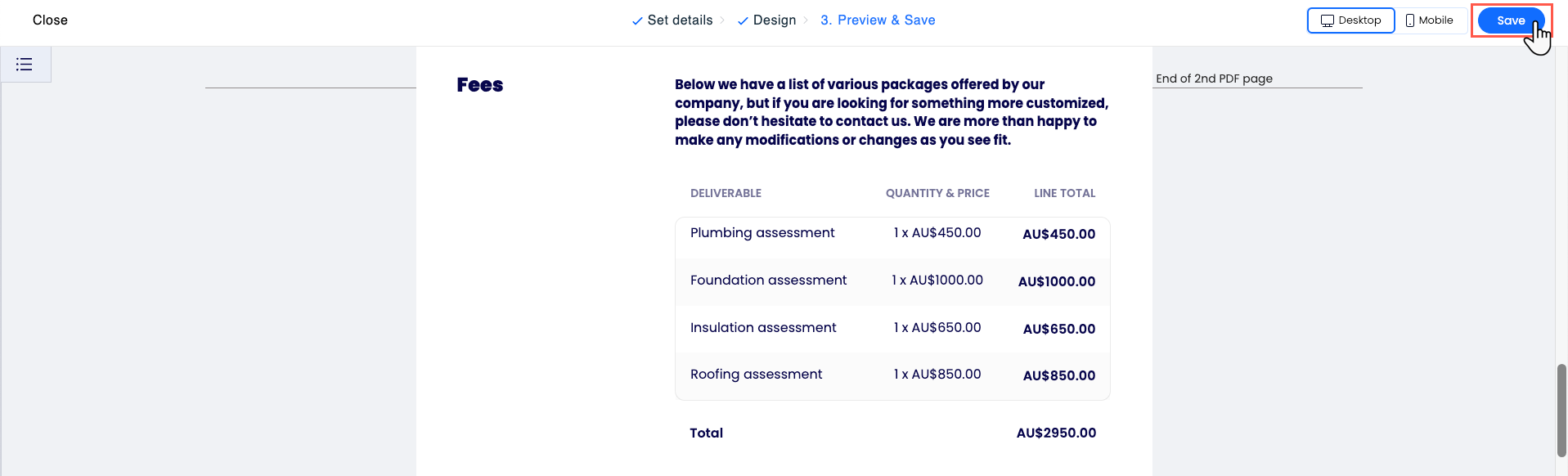
Click Save at the top when you're finished updating the proposal.
Duplicating a proposal template
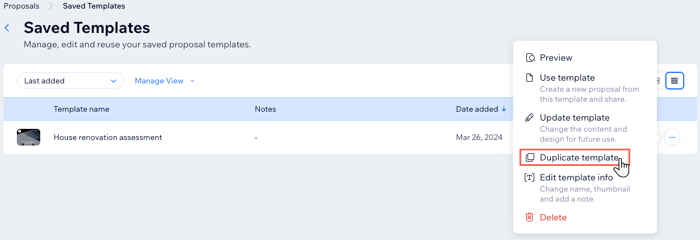
You can duplicate your proposal templates if you need to make new versions that differ slightly from one another. This works well if you have clients with similar, but slightly different needs, and want to use the same template design, for example.
To duplicate a proposal template:
Go to Proposals in your site's dashboard.
Click Manage next to Saved Templates at the top right.
Click the More Actions icon
next to the relevant existing template.Click Duplicate template.
Editing proposal template info
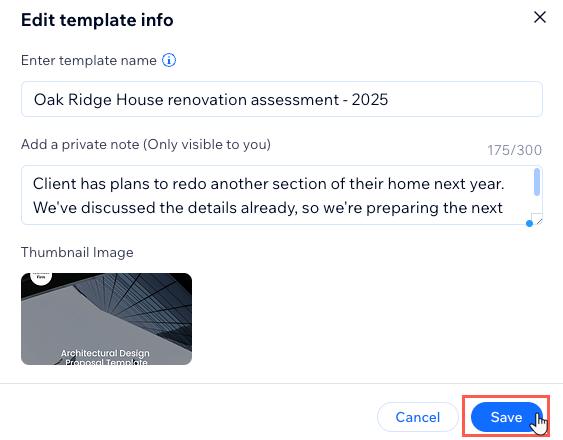
You can change the proposal template name and thumbnail, and add a note whenever you need. This is useful when you duplicate an existing template and need to tell the two copies apart.
To edit an existing proposal template's information:
Go to Proposals in your site's dashboard.
Click Manage next to Saved Templates at the top right.
Click the More Actions icon
next to the relevant existing template.Click Set template info.
Choose what you want to do:Enter the new template name.
Add a private note (this is only visible to you).
Click to replace the thumbnail image. You can choose from your existing site images, or choose from the other available options.
Click Save.
Deleting an existing proposal template
As your business grows, and your style and design needs change, you may need to delete existing proposals to make room for updated versions. You can delete proposals at any time, but note that you cannot undo this action.
To delete an existing proposal template.
Go to Proposals in your site's dashboard.
Click Manage next to Saved Templates at the top right.
Click the More Actions icon
next to the relevant template.Click Delete.
Click Delete Template to confirm.