


Sending invoices & price quotes
Wix Price Quotes: Managing Your Price Quotes
View and manage all your price quotes from the Price Quotes dashboard. From here you can resend a price quote, save it as a PDF file, convert it into an invoice, duplicate it and much more.
Your Price Quotes dashboard
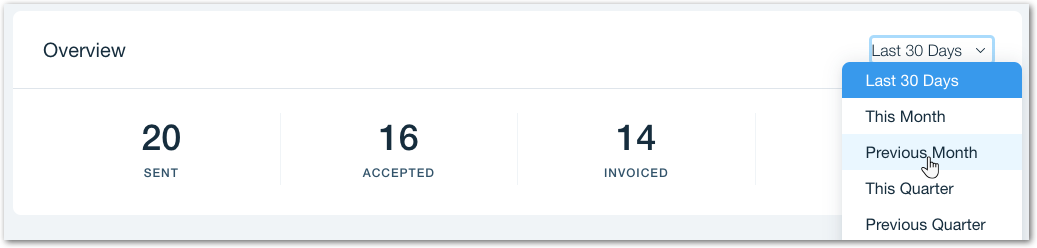
At the top of the dashboard, you can get an overview of all the price quotes that you've sent. See how many were accepted, how many were invoiced and how many expired.
Tip:
By default, the overview shows price quotes from the last 30 days. Click the drop-down at the top right to change this time period.
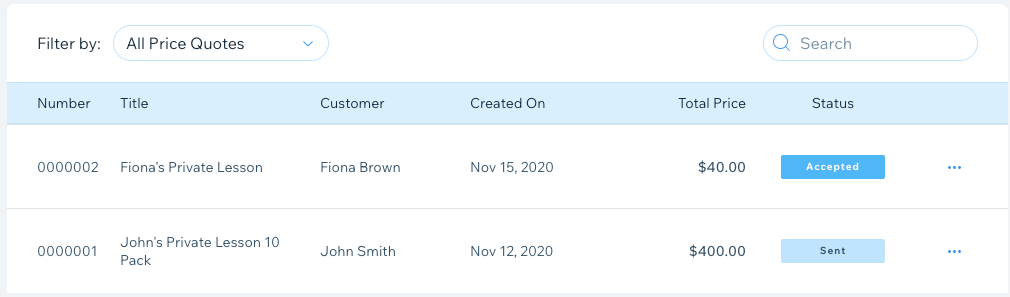
In the main section, you can see a list of all of the price quotes that you have sent including the status. Find specific price quotes using the Filter by drop-down on the left or the Search bar on the right.
Managing your price quotes
From the dashboard, you can perform many actions with your price quotes such as editing, printing, resending, turning them into invoices and more.
To manage a price quote:
Go to Price Quotes in your site's dashboard.
Click the More Actions icon
 next to the relevant quote.
Do one of the following:
Note:
Different actions are available depending on the status of the price quote. For example, price quotes which have already been accepted cannot be resent.
Edit a price quote
If your client hasn't accepted your quote yet, you can still change the details. Your client doesn't get a new email after editing the quote. The link in the original email automatically leads to the updated quote.
To edit a price quote:
Select Edit from the drop-down menu.
Edit the relevant details.
When ready, do one of the following:Click Update to save your quote and go back to the dashboard.
Click Next to print or send the quote.
View the invoice associated with a quote
If your quote was accepted and invoiced (either automatically or manually), you can see the invoice your client received by selecting View Invoice from the drop-down menu.
Send / Resend a quote to your client
Select Send from the drop-down menu to send a quote to your client, or Resend if you've already sent it before.
Print a quote
Select Print from the drop-down menu to print a copy of your quote.
Download a quote as a PDF file
Select Download PDF from the drop-down menu to download your quote as a PDF file.
Duplicate a quote
Select Duplicate from the drop-down menu.
(Optional) Edit the quote's details.
Do one of the following:Click Save as Draft if you prefer sending it later.
Click Next to send the quote to your client.
Manually mark a quote as Accepted
Select Mark as Accepted from the drop-down menu to mark a quote you sent as accepted. This lets you convert the quote into an invoice.
Convert a quote to an invoice
After a client accepts your price quote, you can convert it into an invoice to receive payment. Select Convert to Invoice from the drop-down menu to send your client an invoice with all the information from the quote.
Delete a quote from your dashboard
Select Delete from the drop-down menu to remove the quote from your dashboard. You cannot undo this action.