


Sending invoices & price quotes
Wix Price Quotes: Managing Your Price Quotes in the Wix App
Review and manage all of your price quotes on the go using the Wix app. You can create and share new price quotes and manage your existing price quotes.
Creating new price quotes
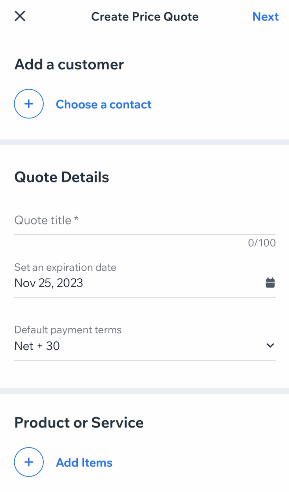
Create a new price quote and instantly share it with a contact. If the recipient isn't yet a contact, you can add them to your Contact List.
To create a price quote:
Go to your site in the Wix app.
Tap Manage
 at the bottom.
Tap Price Quotes under Getting Paid.
Tap Create Price Quote.
Tap + Choose a contact to select the recipient of your price quote.
Note: If the recipient isn't yet a contact, you can add them to your Contact List.Enter your price quote title, expiration date and default payment terms in the Quote Details section.
Tap + Add Items in the Product or Service section to select the relevant product or service.
Note: You can add a new product or service if needed.(Optional) Tap Add next to Discount to add a discount.
(Optional) Tap Edit next to Notes or Legal Terms to make updates.
Tap Next in the top right.
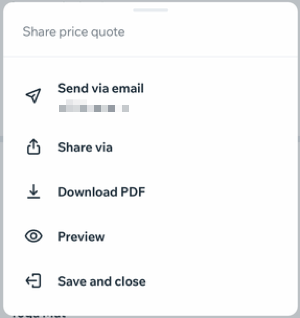
Choose what you want to do:Send via email: Instantly send this price quote to your selected contact via email.
Share via: Share a link to this price quote via one of your device's native apps.
Download PDF: Download a PDF copy to your mobile device.
Preview: View a preview of the price quote your recipient will see.
Save and close: Save your price quote as a draft.
Reviewing your price quotes
When you access Price Quotes in your Wix app, you'll see a list of all the price quotes you've created. Tap an individual price quote to view more information.
Filter and search to find the price quotes you need. Each price quote will have a status attached:
Draft: The price quote has been saved as a draft, but has not been sent to your customer.
Sent: The price quote has been sent to your customer. Your customer can view and print the price quote.
Accepted: The price quote has been accepted by your customer.
Invoiced: The price quote was converted to an invoice and sent to your customer.
Expired: The price quote has not been accepted and has passed the due date.
Note:
You may see a "Viewed" tag attached to a price quote. This indicates that the price quote was opened by your customer.
Managing your price quotes
In the Wix app, you can manage your price quotes in many ways. Make edits and then resend a price quote by email or share via a unique link. Duplicate an existing price quote to save time when creating a new one.
Note:
The options you have to manage a price quote differ depending on the status of the price quote.
To manage your price quotes:
Go to your site in the Wix app.
Tap Manage
at the bottom.Tap Price Quotes under Get Paid.
Tap the price quote you want to manage.
Tap the More Actions icon
 at the top of your screen.
Choose what you want to do:
Edit
Tap Edit.
Edit the relevant information.
Tap Update.
Note: When you update your customer's email address:
For all sent price quotes: The status will change back to Draft. A new price quote link is created and the original link will no longer be valid. You can resend the price quote via email or by using the new price quote link.
For all paid price quotes: The updated customer email address will not be reflected on your customer's paid price quote. The change will only be reflected in your Contact List.
Duplicate
Tap Duplicate.
(Optional) Make changes to your new draft price quote.
Tap Next.
Follow step 6 above to choose how you want to manage this price quote.
Note: The following details update automatically in the duplicated price quote:
Issue Date: The issue date is the date the price quote was duplicated.
Price Quote #: The price quote is given a new price quote number.
Convert to invoice
Instantly convert a price quote to an invoice to set out payment terms for an accepted price quote.
Tap Convert to invoice.
View invoice
This option will be available if this price quote has been converted to an invoice.
Tap View invoice.
Download PDF
Tap Download PDF.
Send or resend via email
Send or resend a price quote if your customer didn't receive it or accidentally deleted it.
Tap Send via email.
Review or edit the content of the email your customer will receive.
Tap Send.
Share via
Share links to Wix Price Quotes via any platform or channel. By sending customers links to their price quotes, they can review them without having to search for your price quote in their email inbox.
Tap Share via.
Share your link via one of your device's native apps.
Note: When you create a link for a draft price quote, it will be marked as Sent. This action can't be undone.
Delete
Tap Delete.
You will not be able to recover a deleted price quote.