


Setting up Photo Albums
Wix Photo Albums: Enabling Downloading of an Entire Photo Album
Allow visitors to easily download your entire album in just one click. By enabling downloading of album galleries, visitors can download all the galleries in your album at once. The album downloads as a .zip file to your site visitor's computer.
In this article, learn more about:
Enabling downloading of an entire album
Allow site visitors to download your entire album directly from your dashboard.
To enable downloading of an album:
Go to Photo Albums in your site's dashboard.
Click Manage Album next to the relevant album.
Click Edit next to Privacy and Permissions.
Enable the Let visitors download album galleries toggle in the Download settings section.
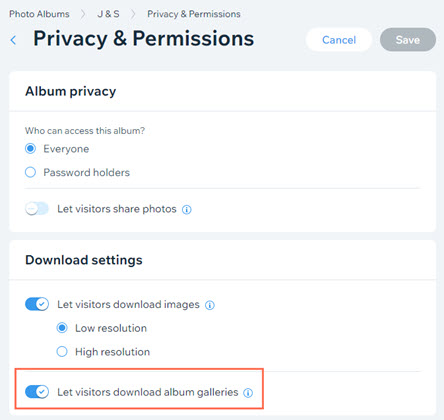
Click Save.
Downloading an entire album
Site visitors can download all your album's galleries at once in just one click. All album images are downloaded together into one .zip folder.
To download an entire album:
Open the album page on your live site.
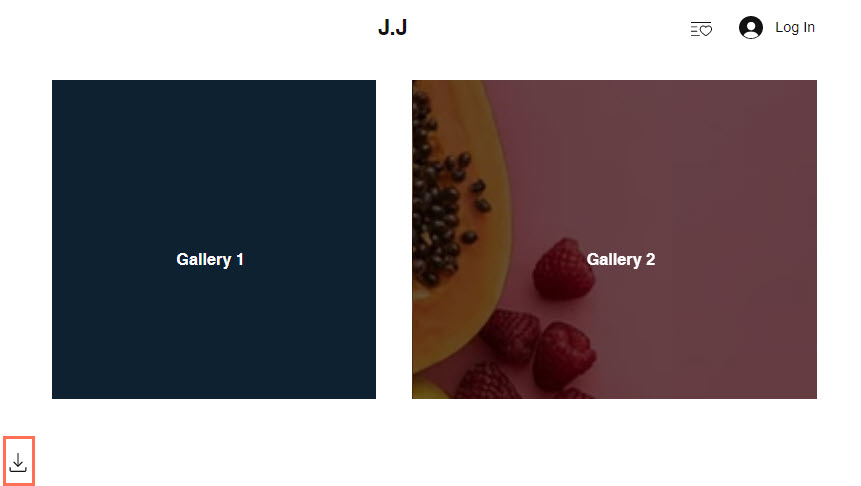
Click the Download icon
 at the bottom left of the page.
Note: For albums with many galleries, you may need to scroll to the bottom of the page to see the Download icon.Save the .zip folder to the relevant location on your computer.
Notes:
Do not include special characters in your folder file name (such as . ~ ! @ # $ % ^ & * ( ) ` ; < > ? , [ ] { } ' ”). This can cause image titles to be cut off. On Mac, special characters in the folder file name can cause issues with downloading the entire album.
Currently, it is not possible to set download permissions individually per image in Wix Photo Albums. If this is a feature you would like to see in the future, please click Vote for this feature in this article and we'll make sure to keep you updated.