Getting started with Wix Music
Wix Music: Adding and Setting up Wix Music
Note:
Wix Music is not yet available in the Studio Editor. If this is something you'd like to see in the future, vote for that feature.
Wix Music lets you share and spread your music online, completely free of charge. Add the Wix Music player to your site and choose which track, playlist or album it displays. You can also control whether visitors can share or download your music.
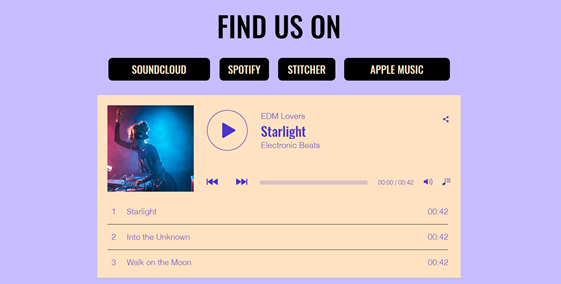
Step 1 | Add Wix Music to your site
First, add the Wix Music player to your site in the Wix Editor. You can choose the design that best suits your site's style - compact or classic.
To add Wix Music:
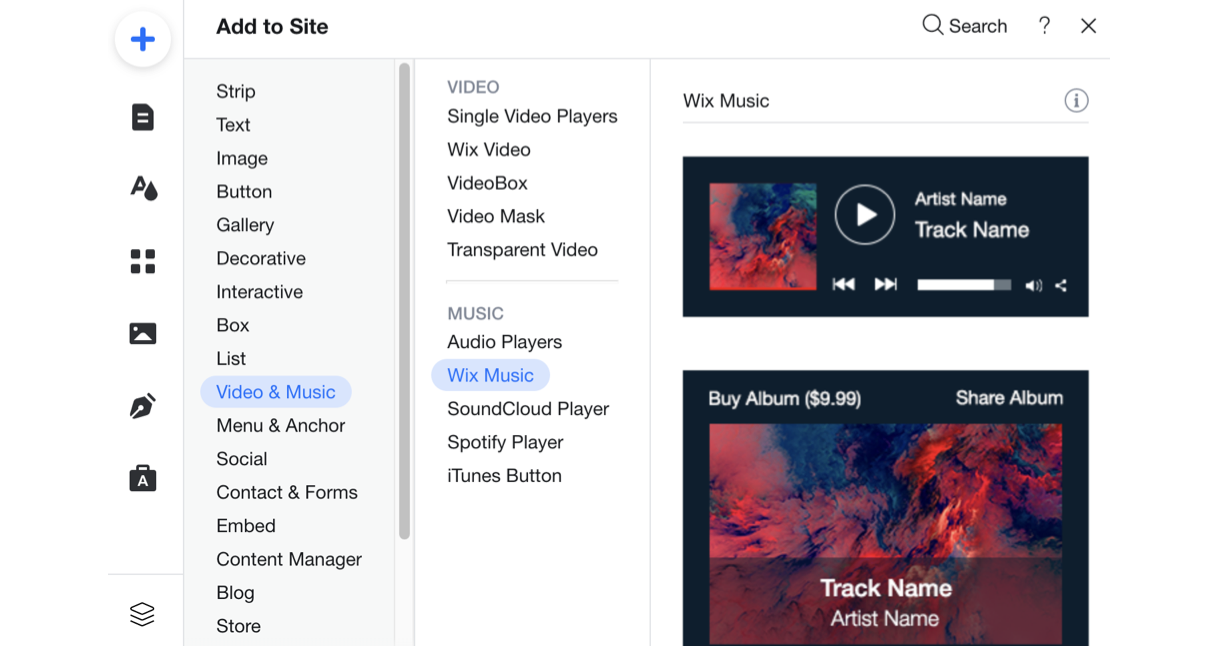
Click Add Elements
 on the left side of the editor.
Click Video and Audio.
Click Wix Music.
Drag a Wix Music player onto your page.
Step 2 | Choose music for your player
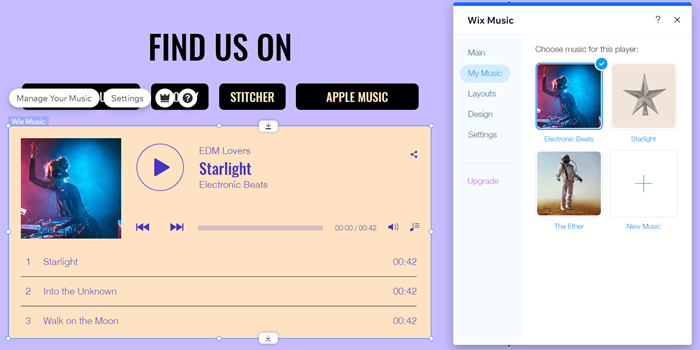
After adding the Wix Music player to your site, it's time to choose which music you want to display. You can choose from music you've already uploaded to your Music Library or add new music. Then choose whether to display an album, single, or playlist.
To choose music for your player:
Click the Wix Music player in your editor.
Click Settings.
Click the My Music tab.
Choose what music to add to the player:Existing music: Choose from music you've already uploaded to your Music Library.
New music: Click + New Music to upload a single, album or playlist.
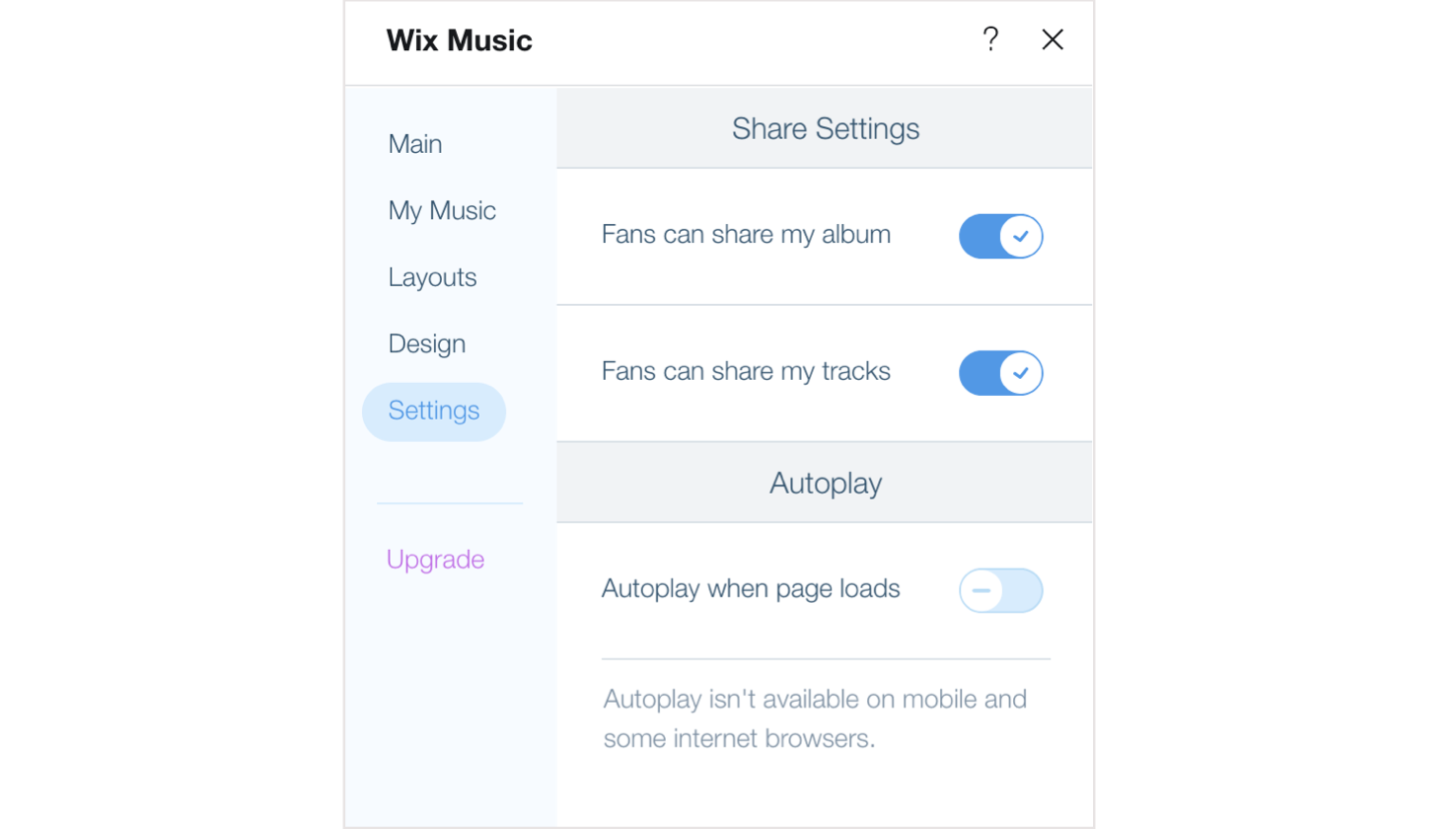
Step 3 | Set up your player
Lastly, set up your player to work just how you want. Adjust your player's settings to allow your visitors to share your music and enable autoplay. Learn more about setting up your Wix Music player.