top of page

Wix Mobile POS

Wix Mobile POS: Understanding Invoices for Mobile POS Transactions

Important:

  • This article is about Wix Mobile POS for mobile phones.

  • For info on Wix Retail POS for brick and mortar stores, click here.

  • This article is relevant for Wix Stores and Wix Bookings on mobile POS.

Wix offers 2 ways to create invoices for orders. You can automatically create an invoice for every paid sale. Alternatively, you can manually create one whenever it's needed. You can also accept payment for unpaid invoices at a mobile POS.

Generate invoices automatically for every paid sale

Generate invoices automatically for every paid sale to save time. Note that these invoices will always show a balance of $0.00 since the order is fully paid.

Important:

To send automatic invoices, you need your customer's email address. When you complete a mobile POS sale, make sure you email your customer a receipt.

Learn how to automatically generate an invoice for every paid sale including POS orders.

Manually create and manage invoices

You can manually create an invoice for any sale, whether it's paid or unpaid. After creating an invoice on desktop, manage it using the Wix app. Learn more

To manually create an invoice for a mobile POS sale:

  1. Complete the POS sale.

  2. Go to Orders in your site's dashboard.

  3. Select the relevant order.

  4. Click More Actions.

  5. Select Create Invoice and then Create Invoice again to confirm.
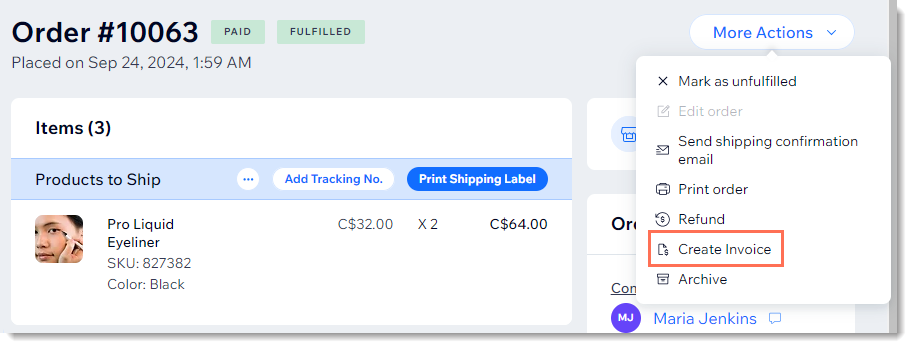
Screenshot of a POS order in the Wix Orders tab, with the create invoice button outlined

  1. Choose how you want to send the invoice to your customer:Click Send via Email.
    Click More Actions and then click to copy a link or print the invoice.

Need A Professional Website?
Contact Us 
Today!

Wix Stores: Setting Up Affiliate Marketing with the Goaffpro App

Wix Contacts: About Your Contact Panel

Wix Contacts: Using Pinned Actions in Your Contact Panel

Wix Contacts: Creating a Test Contact

Wix Contacts: Changing a Contact's Subscription Status

Wix Contacts: Adding and Managing Custom Contact Fields

Wix Contacts: Creating and Using Contact Labels

Wix Contacts: Creating a Segment

Wix Contacts: About Segments

Wix Contacts: Exporting Your Contacts

Wix Contacts: Troubleshooting Contact Importing Issues

Wix Contacts: Importing Contacts by Uploading a CSV File

Wix Contacts: Importing Contacts from a Gmail Account

Wix Contacts: Managing Your Contact List

Wix Contacts: Manually Adding a Contact

Wix Contacts: An Overview

Wix Forms: Creating a Coupon

Wix Forms: Setting Up Tax on Your Form

Wix Forms: The Difference between the New and Old Wix Forms

Wix Forms: Viewing Form Submissions from Your Dynamic Pages

Wix Forms: Managing Your Forms from the Dashboard

Wix Forms: Choosing an Address Field

Wix Forms: Adding and Setting Up a Donation Form

Wix Forms: Adding Submission Limits to Your Forms

Wix Forms: Adding and Managing Rules

Wix Forms: Upgrading Wix Forms

Wix Forms: Adding and Setting Up a Multi-Step Form

Wix Forms: Adding Payments to a Site Form

Wix Forms: Enabling Double Opt-In for Subscribers

Wix Forms: Adding and Setting Up a Subscribe Form

wix experts
Graphic2Traffic web design
©
bottom of page